
|
Actors |
Shipping Agent |
|---|---|
|
Description |
The FALs are a compliance document to be provided. They are requested by IMO. |
|
Creation rights |
Shipping Agent |
|
Visibility rights |
Shipping Agent, Customs, Harbor Master’s (Operation / Pilot / Tower) |
FAL documents are requested by the International Maritime Organization in order to simplify and regulate naval transport.
There is in all seven different FALs.
-
FAL 1 : General declaration
-
FAL 2 : Cargo declaration
-
FAL 3 : Ship’s stores declaration
-
FAL 4 : Crew’s effects declaration
-
FAL 5 : Crew list
-
FAL 6 : Passenger list
-
FAL 7 : Dangerous goods manifest
Create a FAL
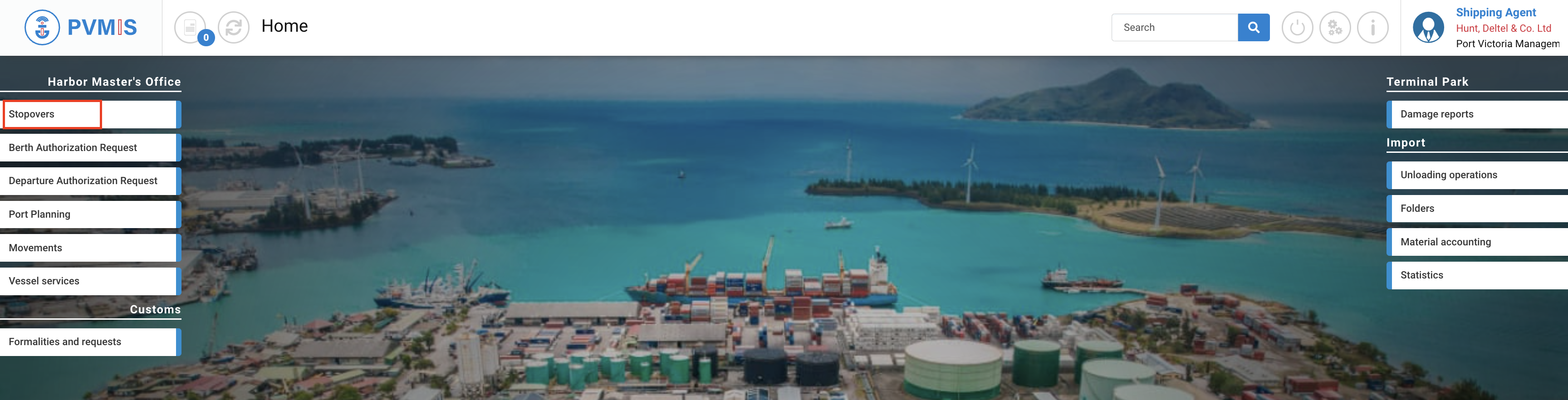
To create a FAL, go to the detail of the stopover screen. Click on “Stopovers” menu in Harbor Master’s Office section:
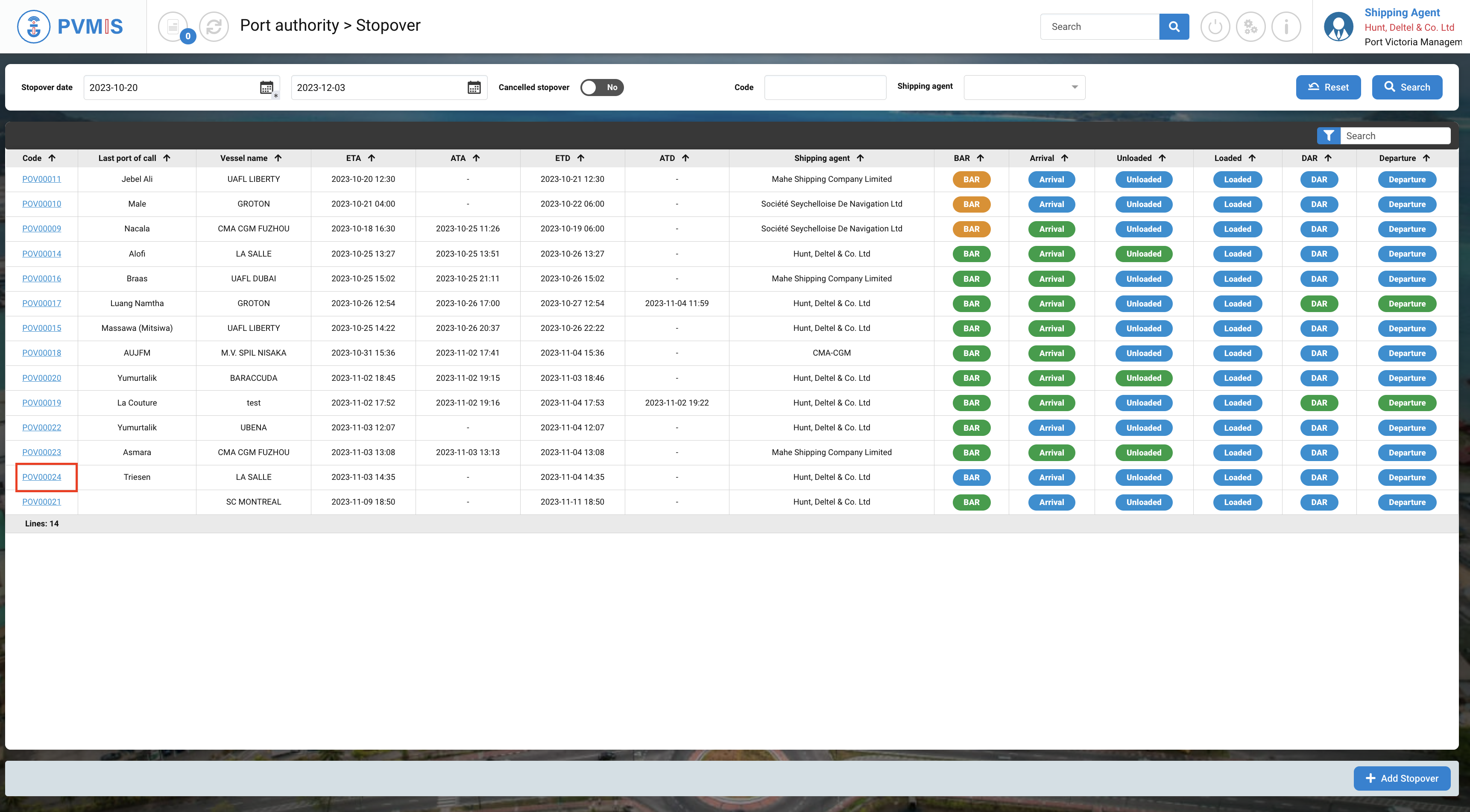
A list of stopovers appears, click on the corresponding code:
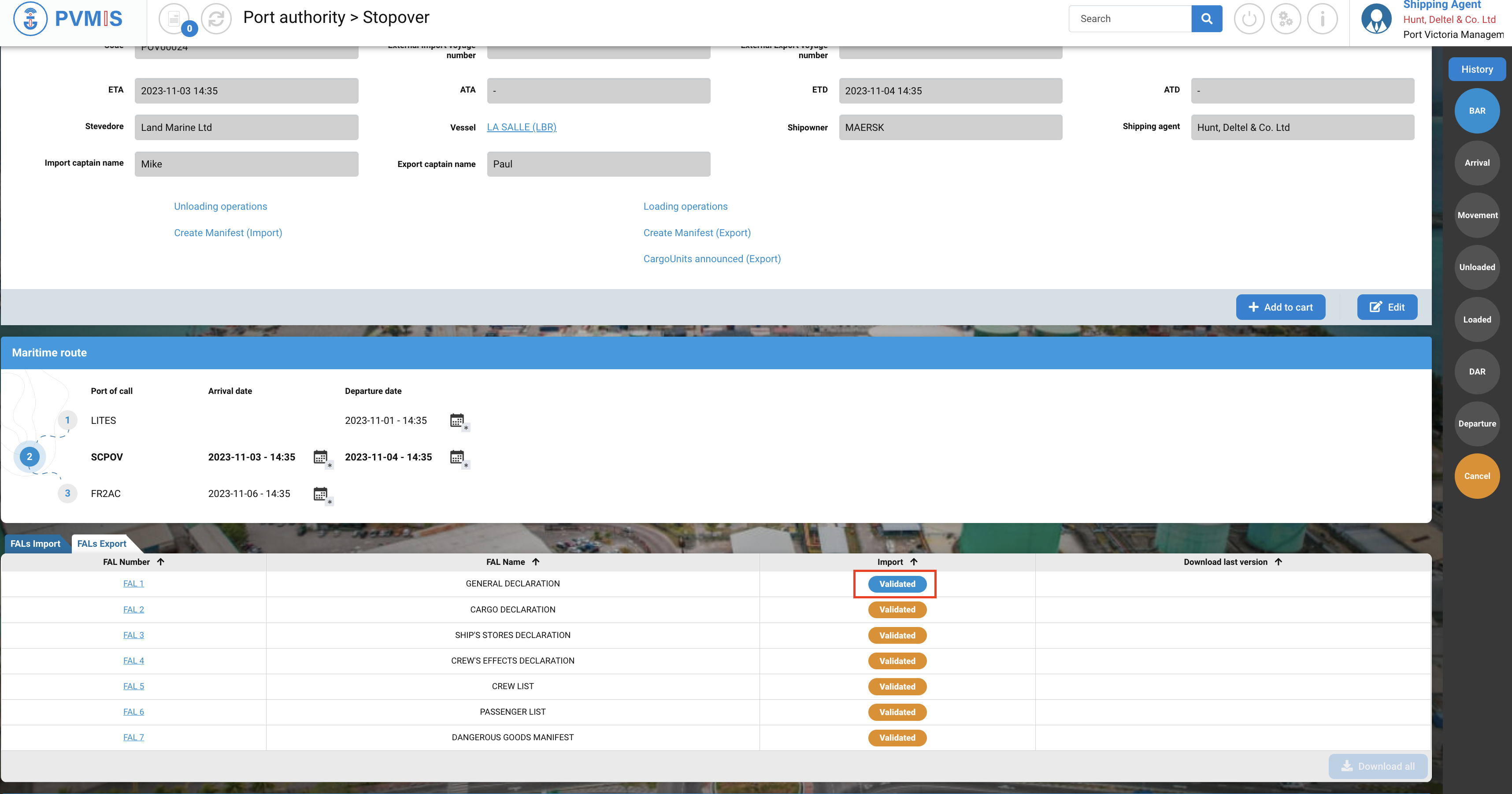
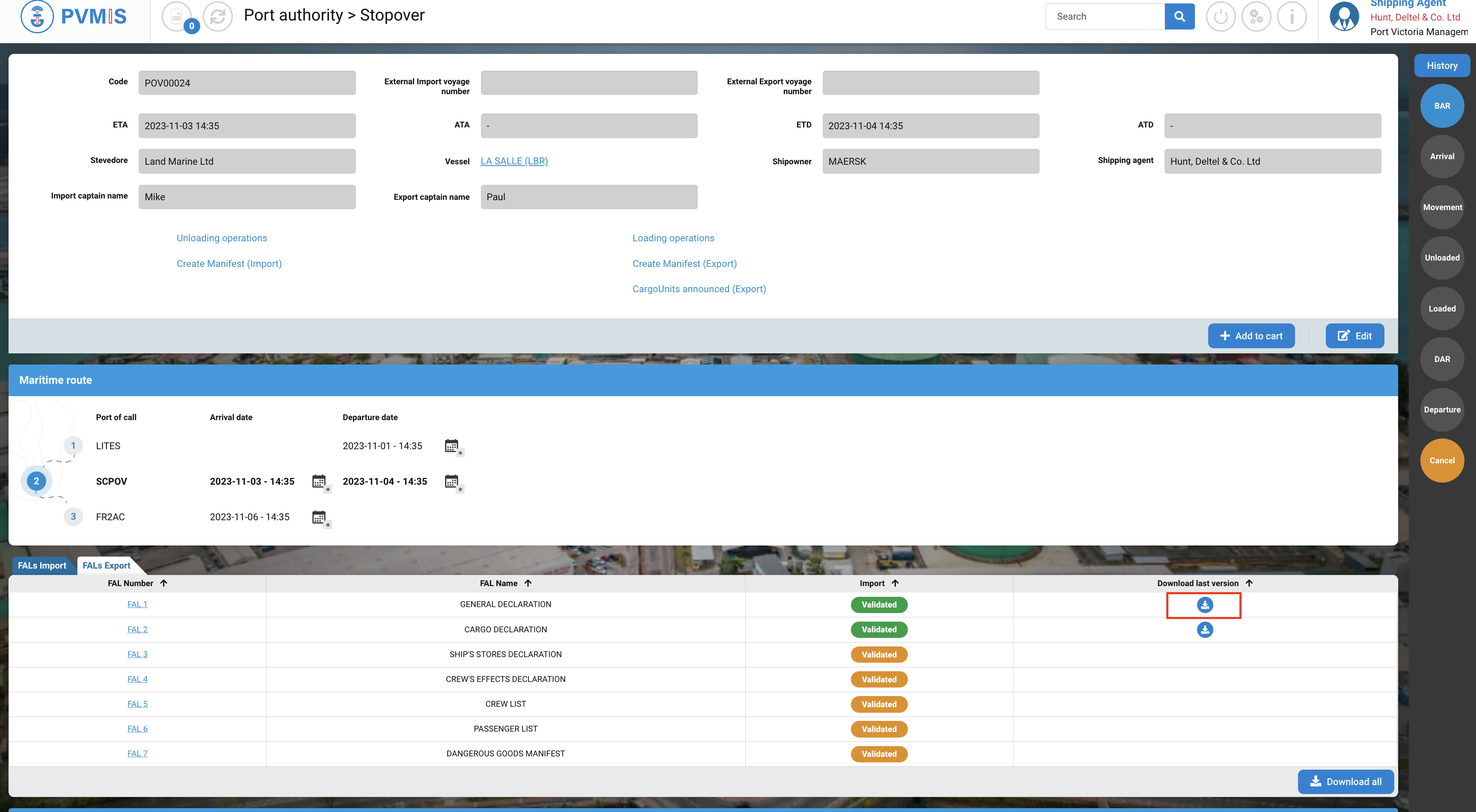
You can consult the information of the stopover and there is the FALs Export section:
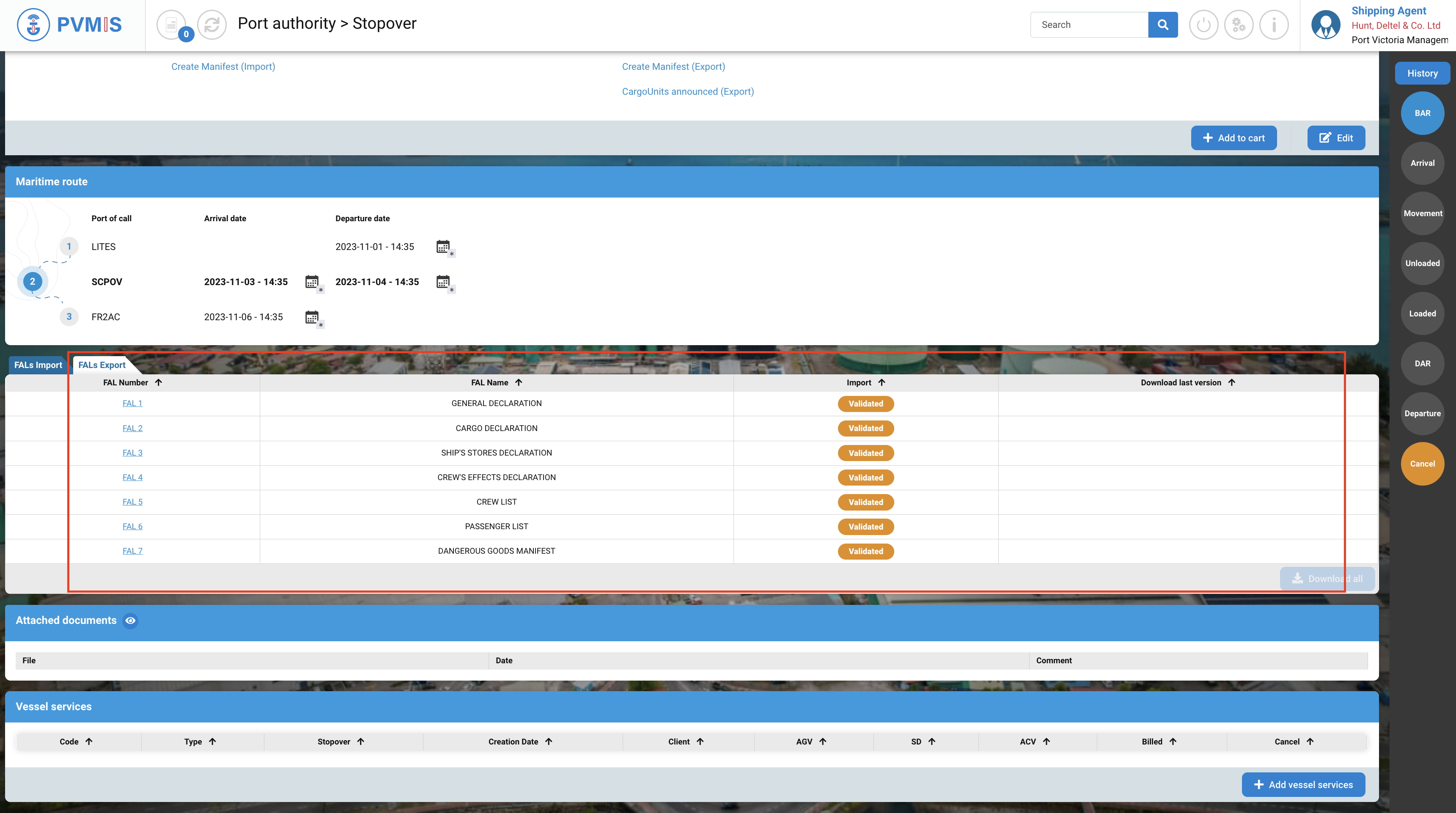
The tab is divided in three columns :
-
FAL Number : Access link to creation and modification of a FAL
-
FAL Name
-
Import : State of the FAL
-
Download last version : When the FAL is created and validated, it can be downloaded. You will find the link to the document to download in PDF.
Click on FAL id that you want to create.

You are on the FAL 1 form, you need to complete mandatory fields, and then click on Validate.
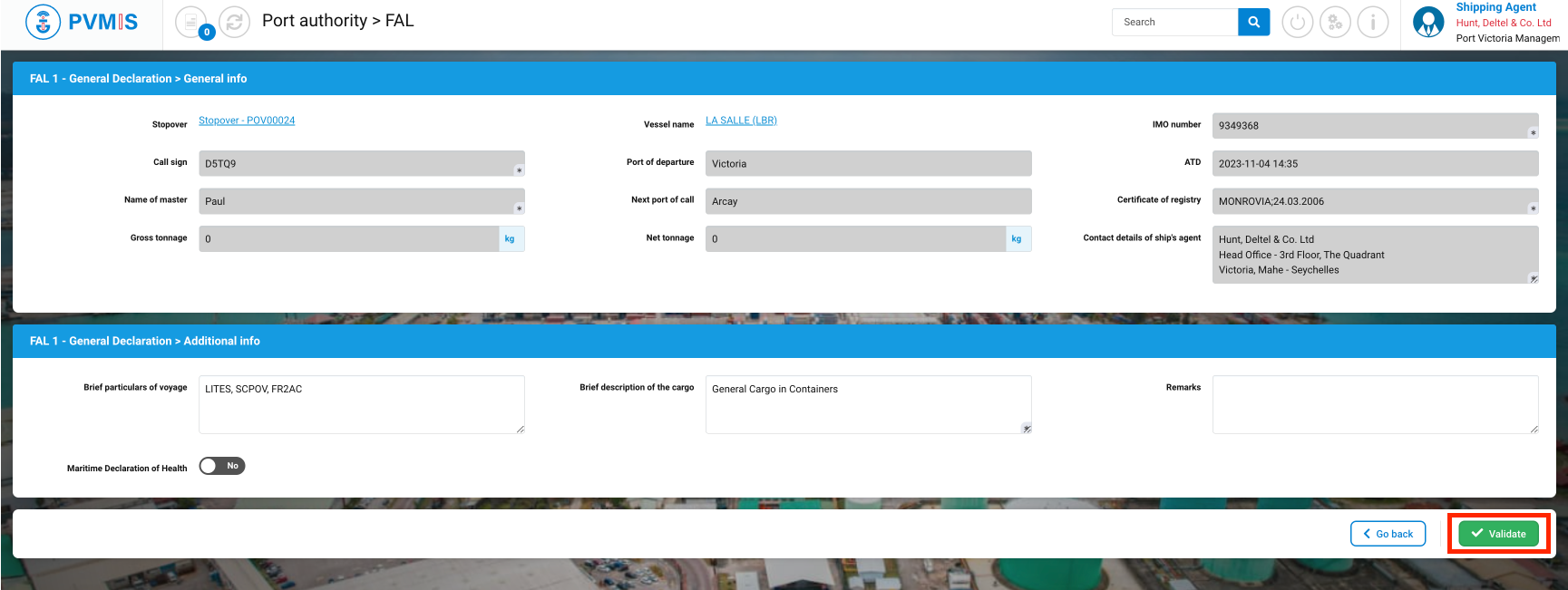
The FAL 1 is created, it’s awaiting validation.
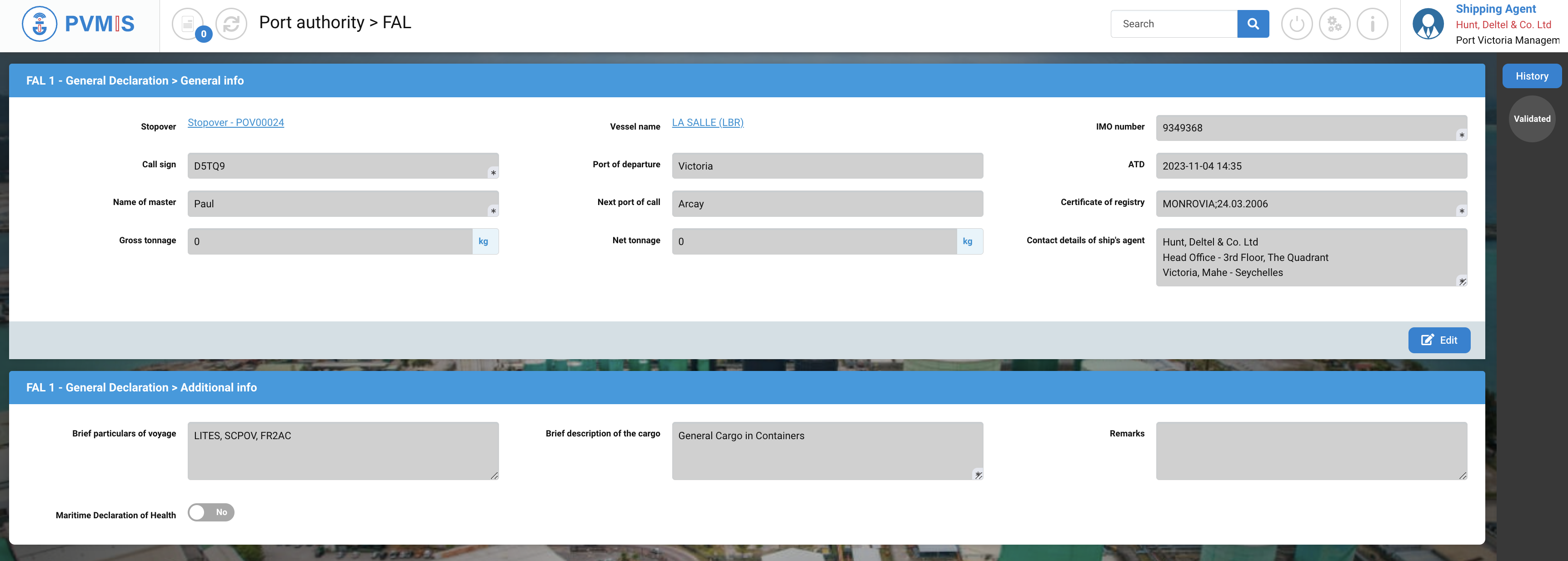
If you click on the link of the stopover, in the detail stopover screen, the tab FALs Export is updated and the Validated status has changed to blue meaning the action is ongoing.
Repeat the action on all FALs document. When they are all completed, as shipping agent, in the detail form for each FAL, you can validate by clicking on the status on the right of the screen. Click on Validated.
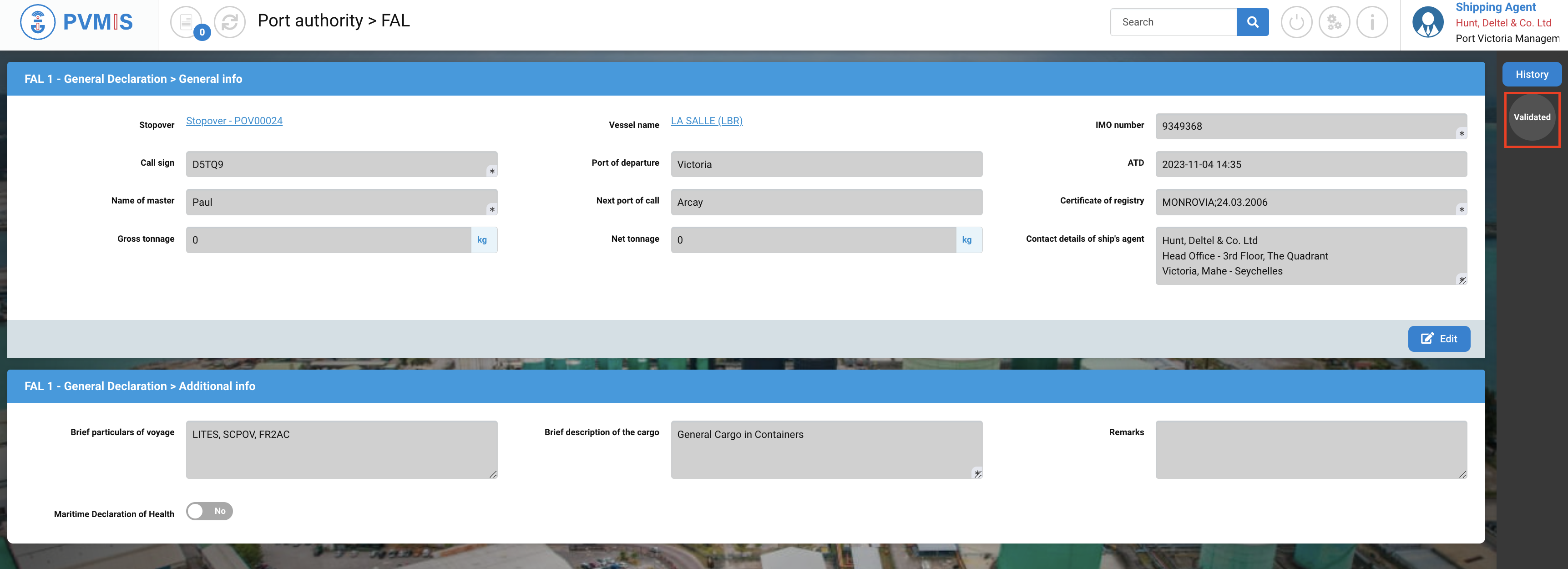
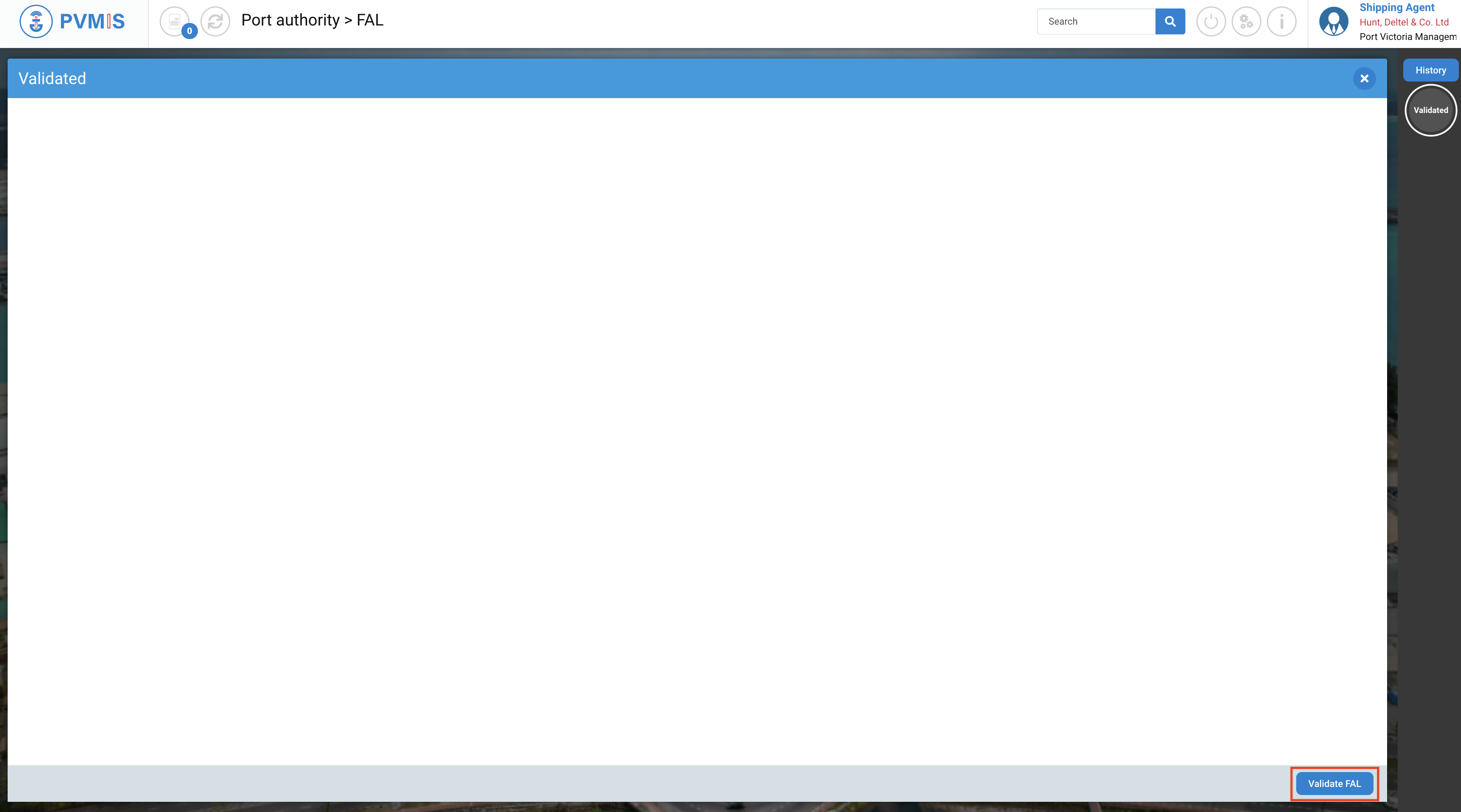
Click on Validate FAL.
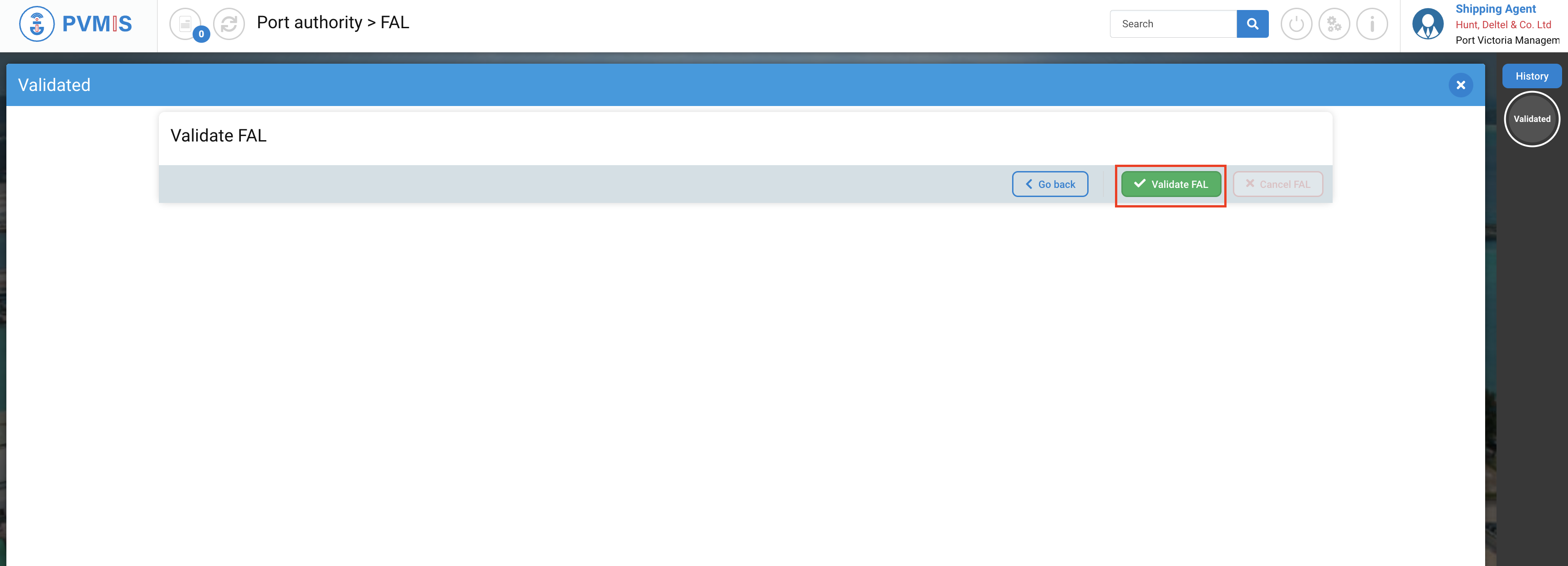
Click on Validate FAL again.
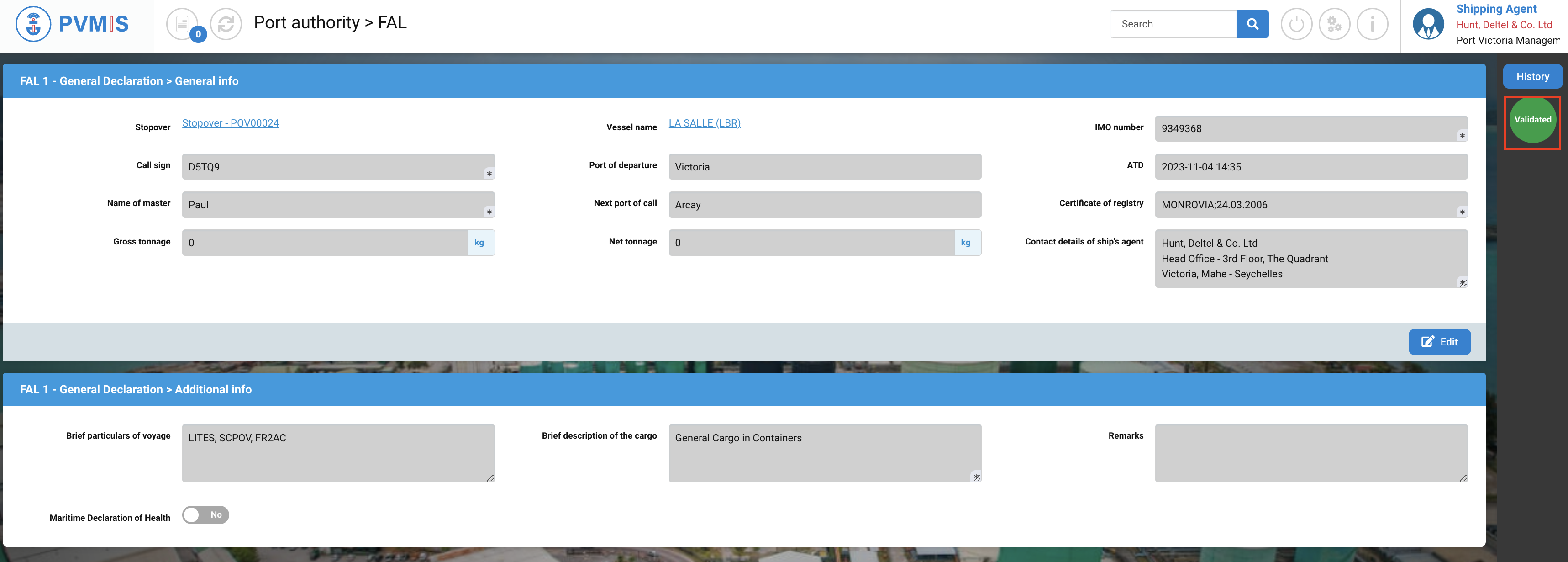
The FAL 1 is validated. Repeat the action for each.
Edit a FAL
You can edit a FAL even in the Validated status, and in this case it will become invalid, and you will have to validate it again.
Go to a detail FAL, click on “Stopovers” menu in Harbor Master’s Office section.
A list of stopovers appears, click on the corresponding code.
You can consult the information of the stopover, in the FALs Export section, click on the FAL Number which you need to edit.
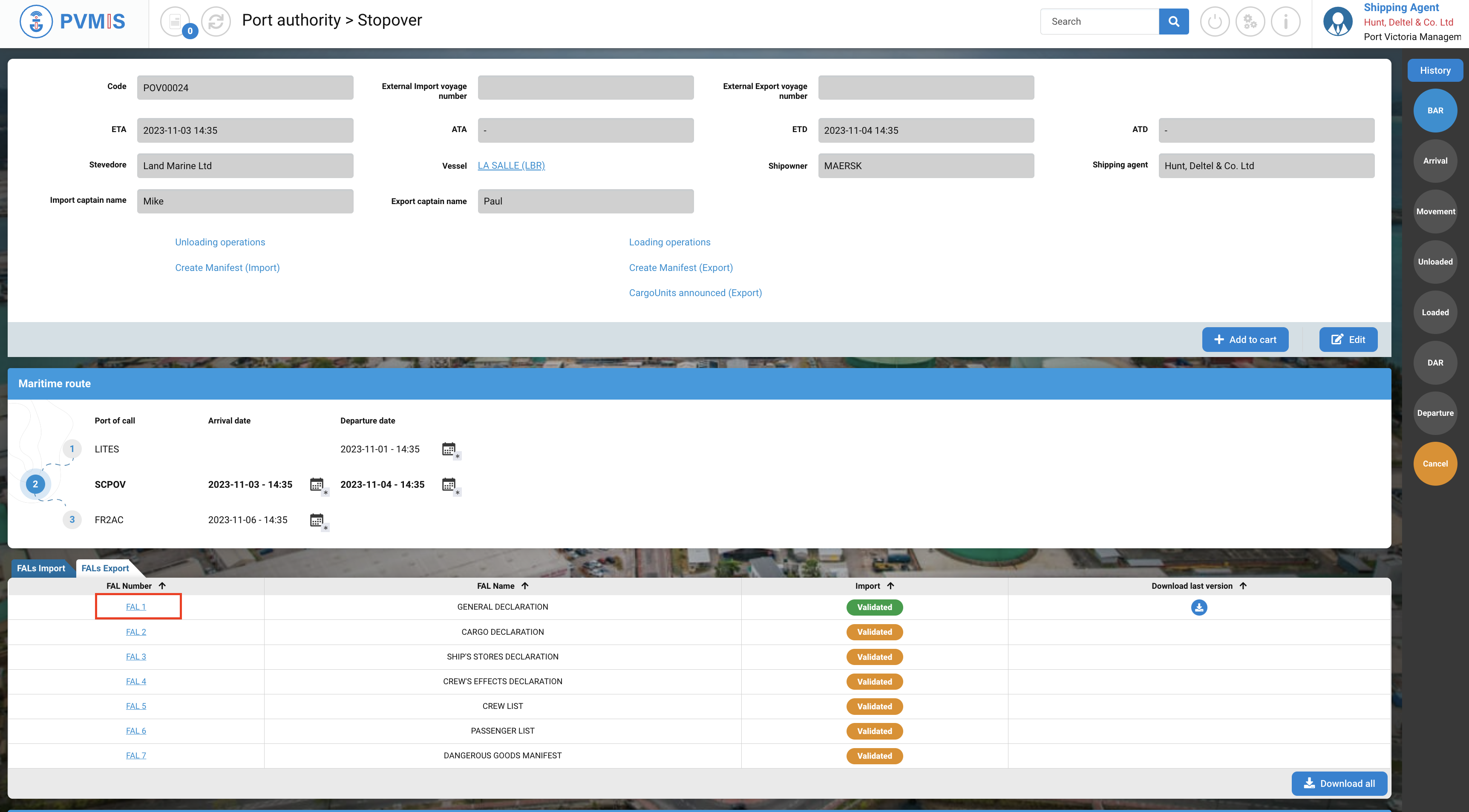
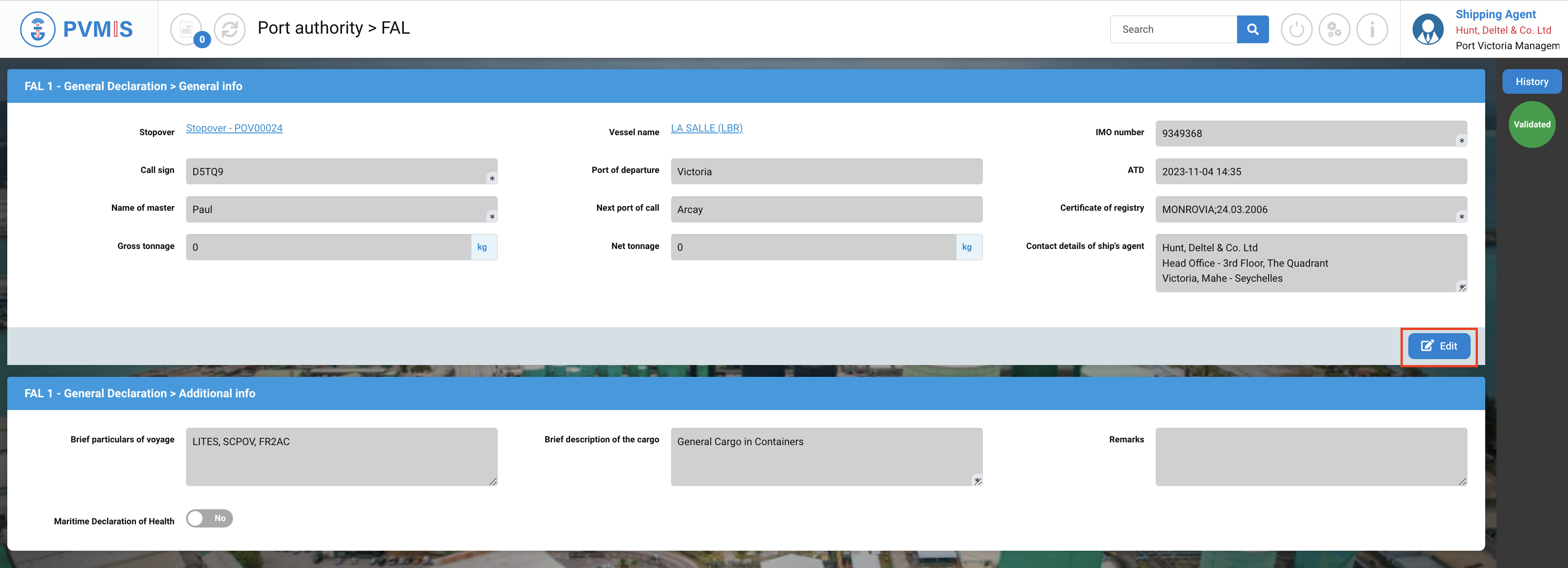
You can consult the information of the FAL 1, click on Edit.
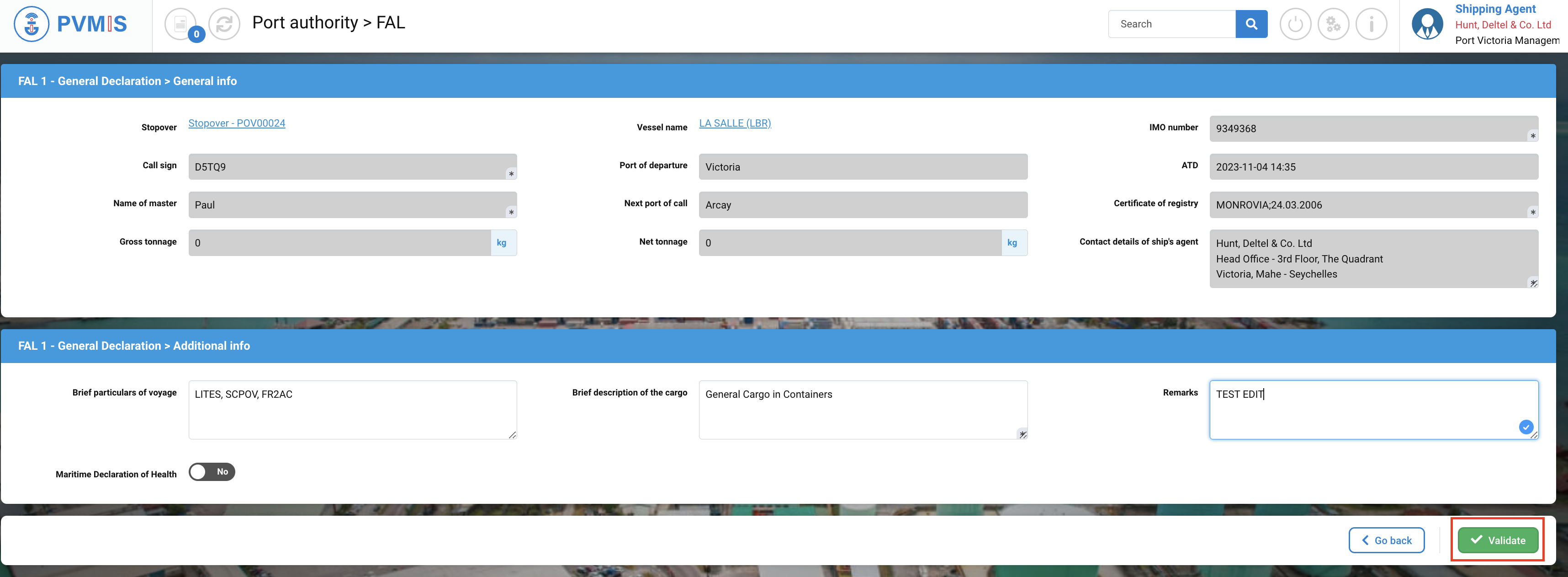
Make your changes and click on Validate.
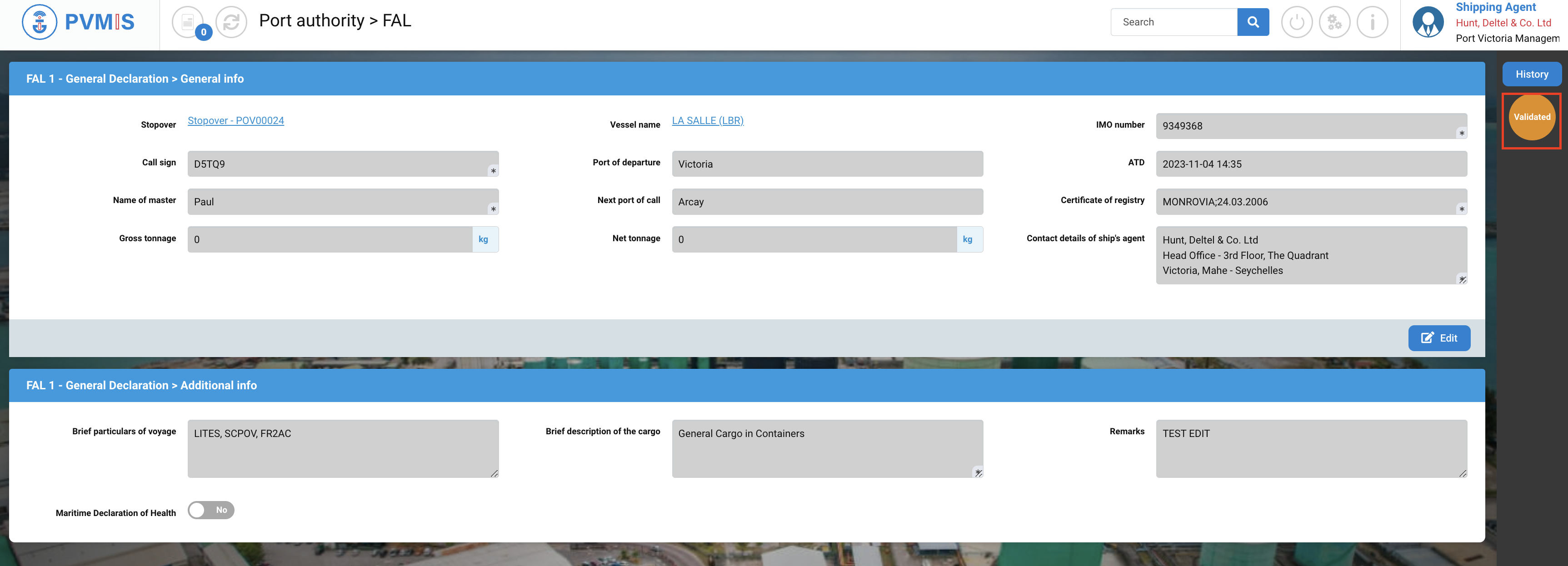
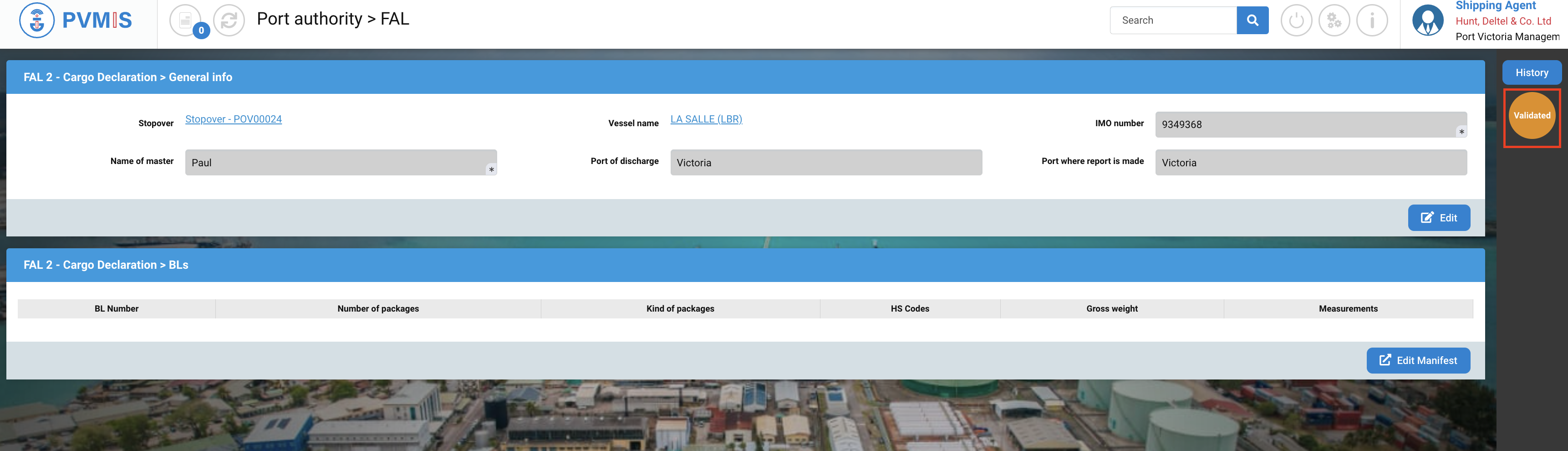
The Validated status has changed from green to orange. You will need to validate it by the same action described previously to return the status to green.
Reject a FAL
To reject a FAL, go to a detail FAL, click on “Stopovers” menu in Harbor Master’s office section.
A list of stopovers appears, click on the corresponding code.
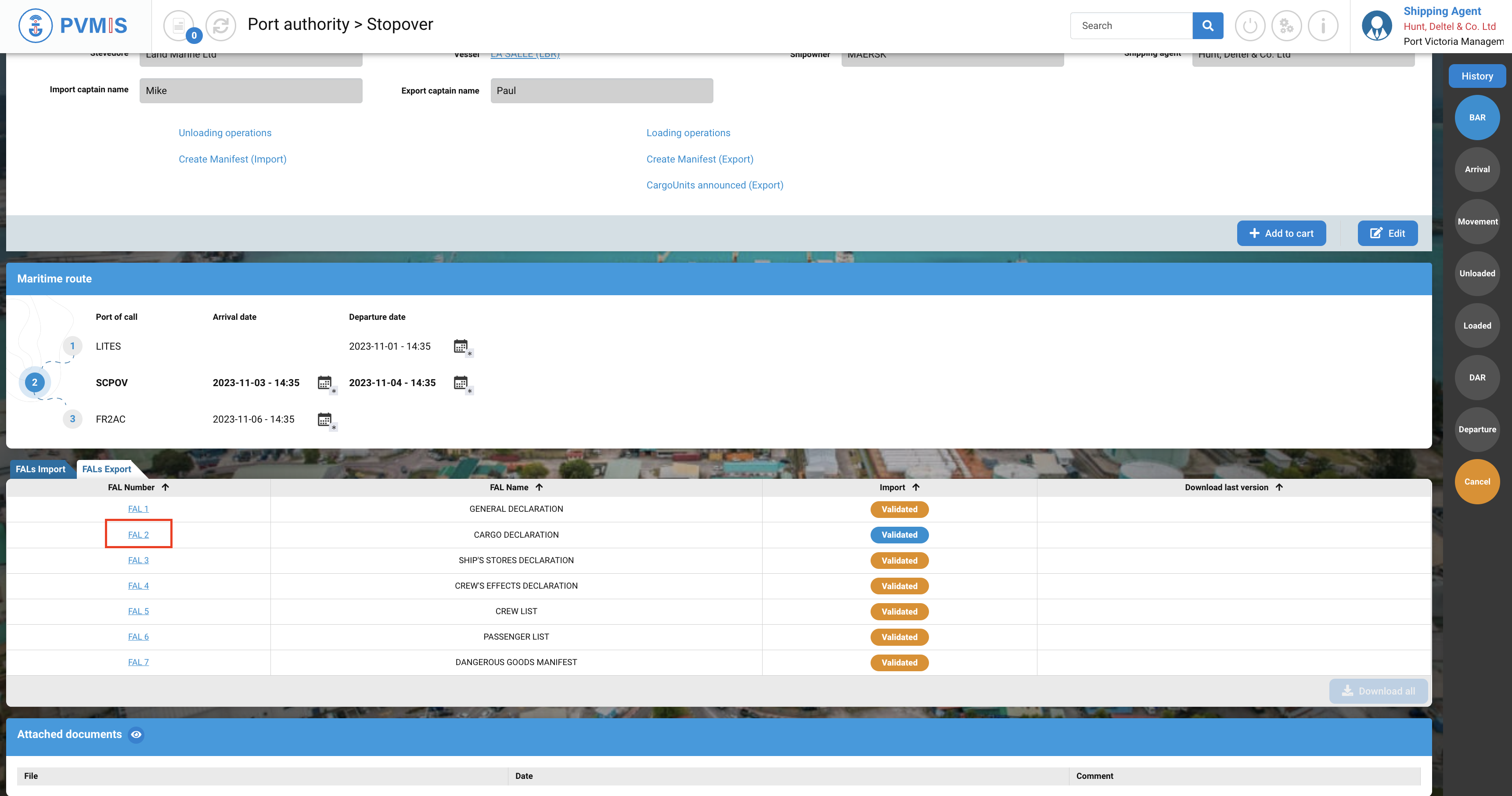
You can consult the information of the stopover, in the FALs Export section, click on the FAL Number which you need to reject.
You can consult the information of the FAL, click on Validated status on the right of the screen.
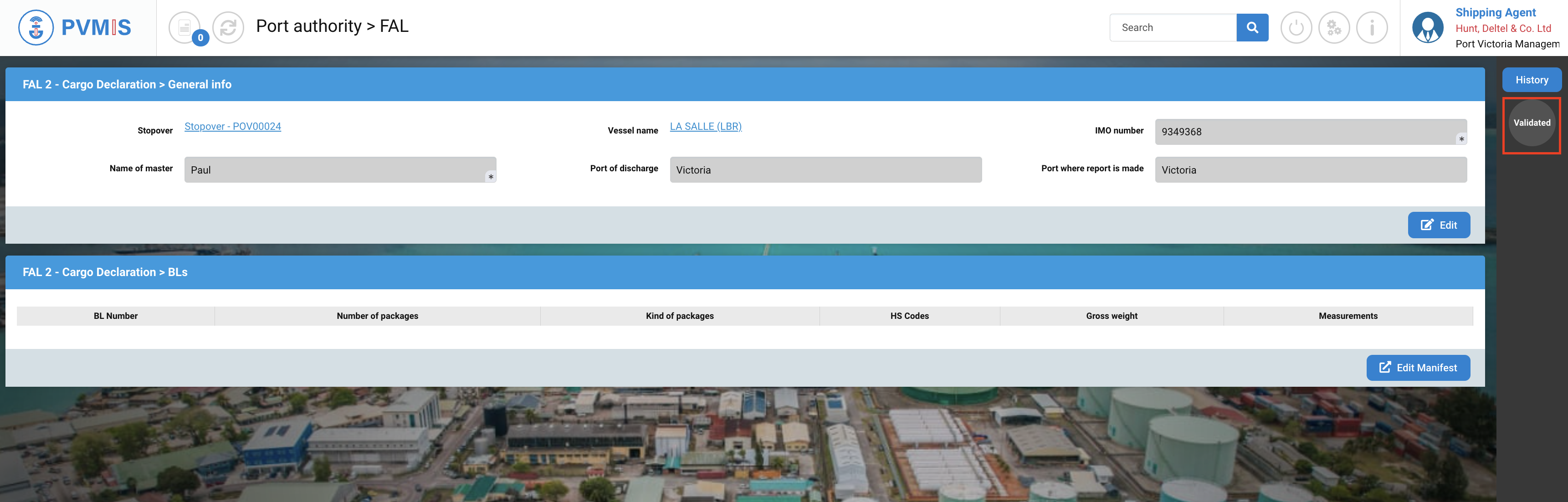
Click on Validate FAL.
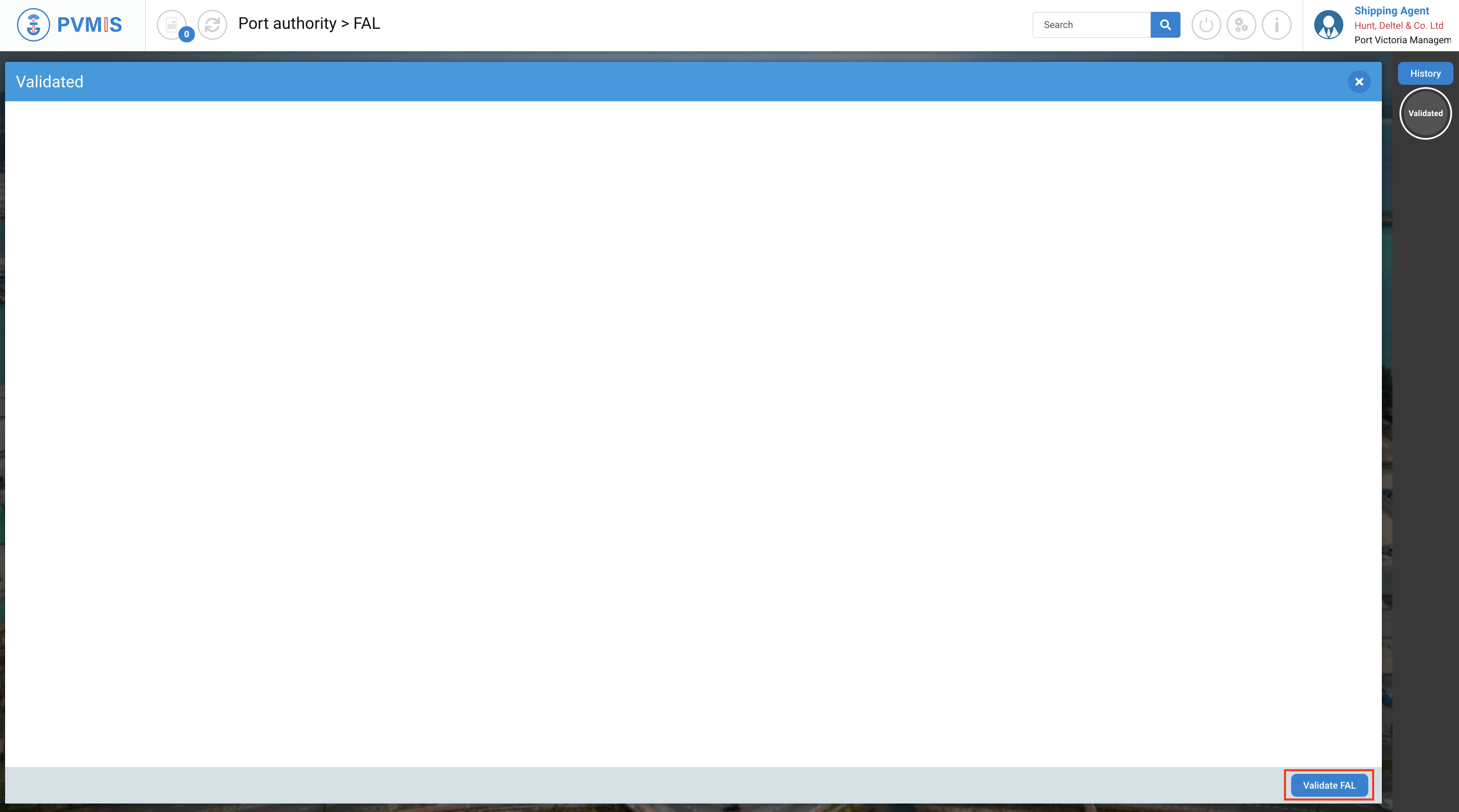
Click on Validate FAL.
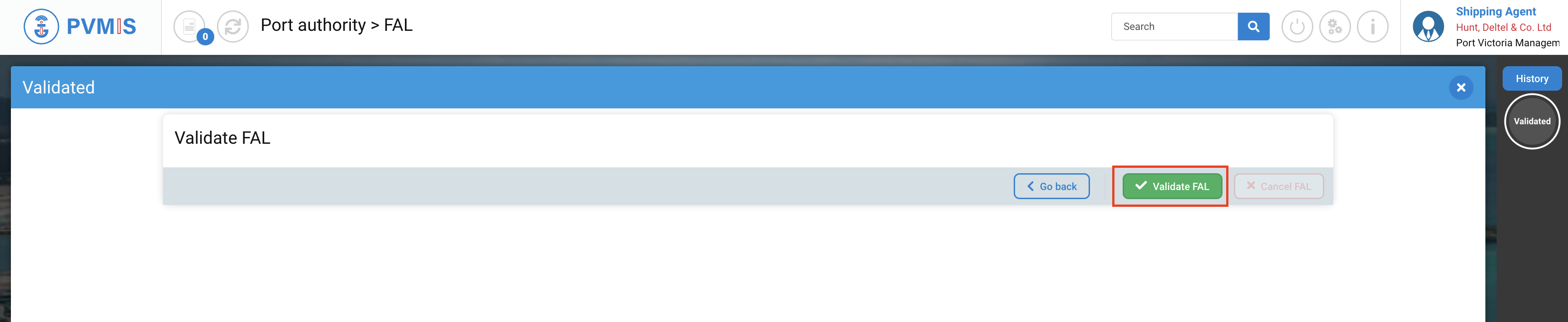
Then, click on Validated status green again.
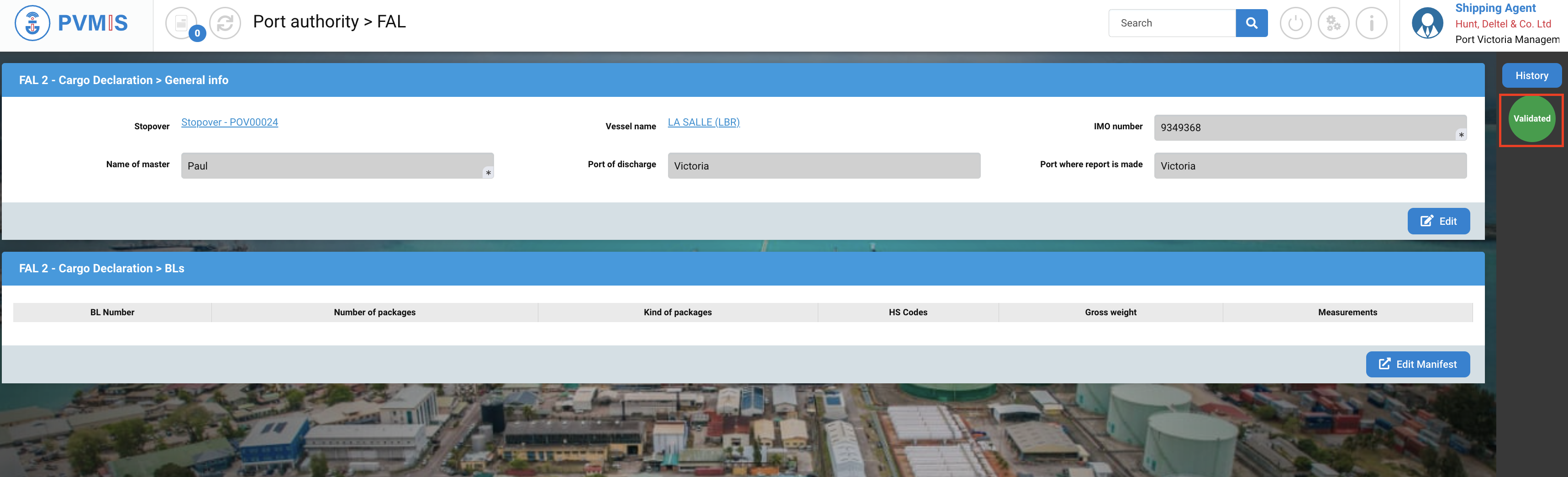
Click on Validate FAL.
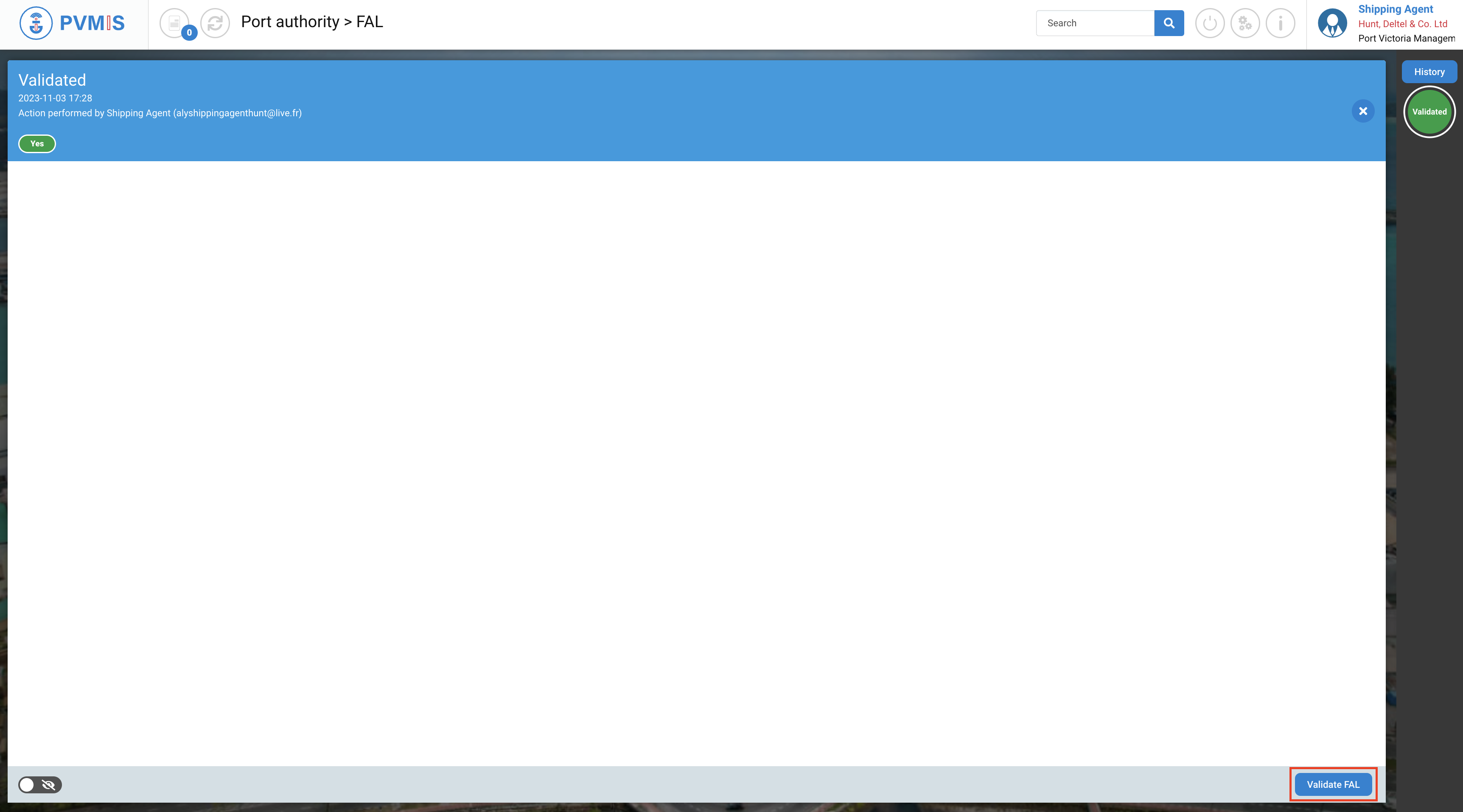
Click on Cancel FAL.
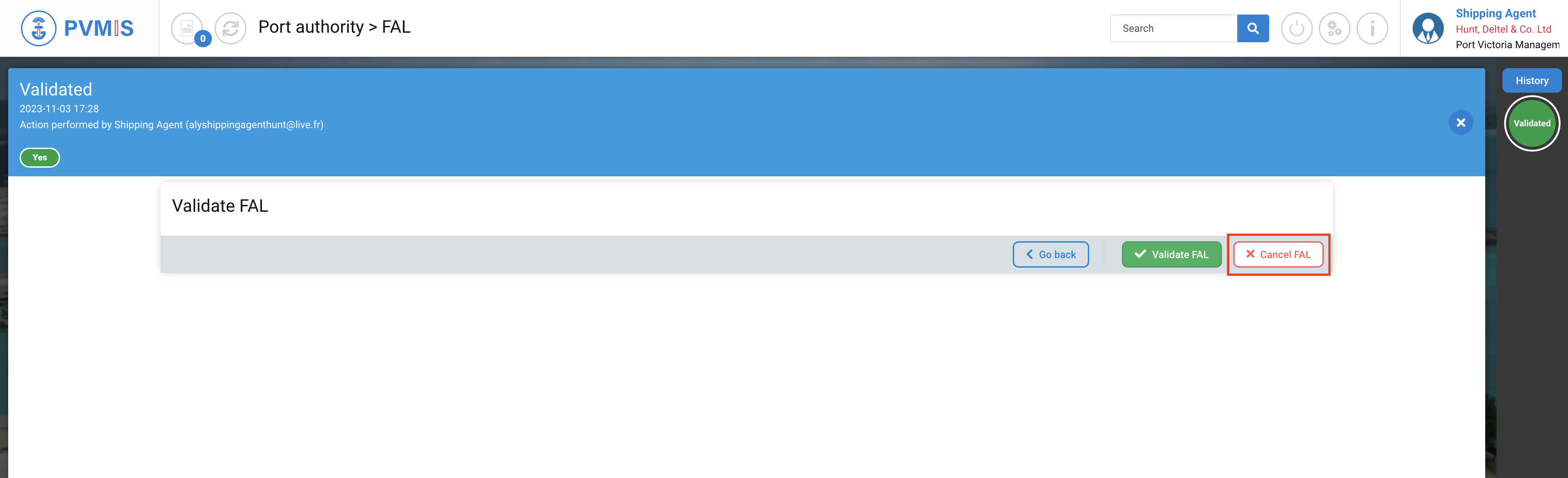
The FAL is rejected, the Validated status has changed to orange.
Download a FAL
To download a FAL, click on “Stopovers” menu in Harbor Master’s Office section.
A list of stopovers appears, click on the corresponding code.
To download FAL document, the shipping agent must validate the FAL (Validated status) after the creation of it.
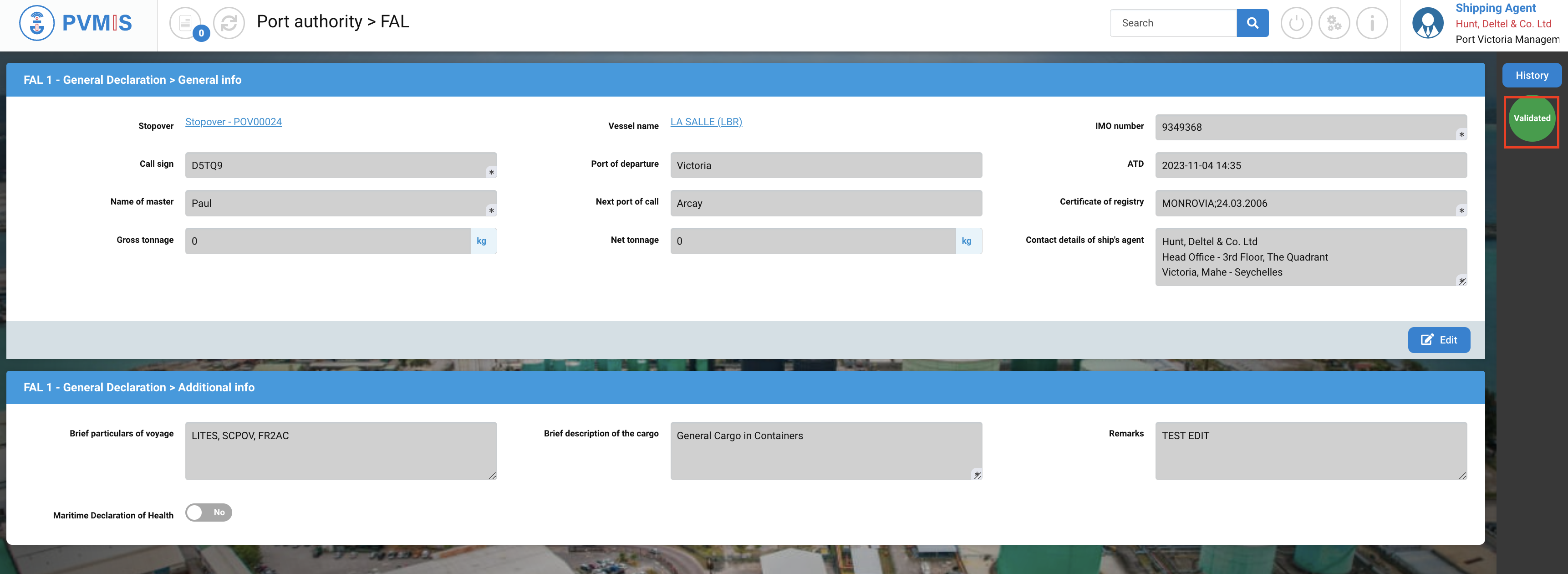
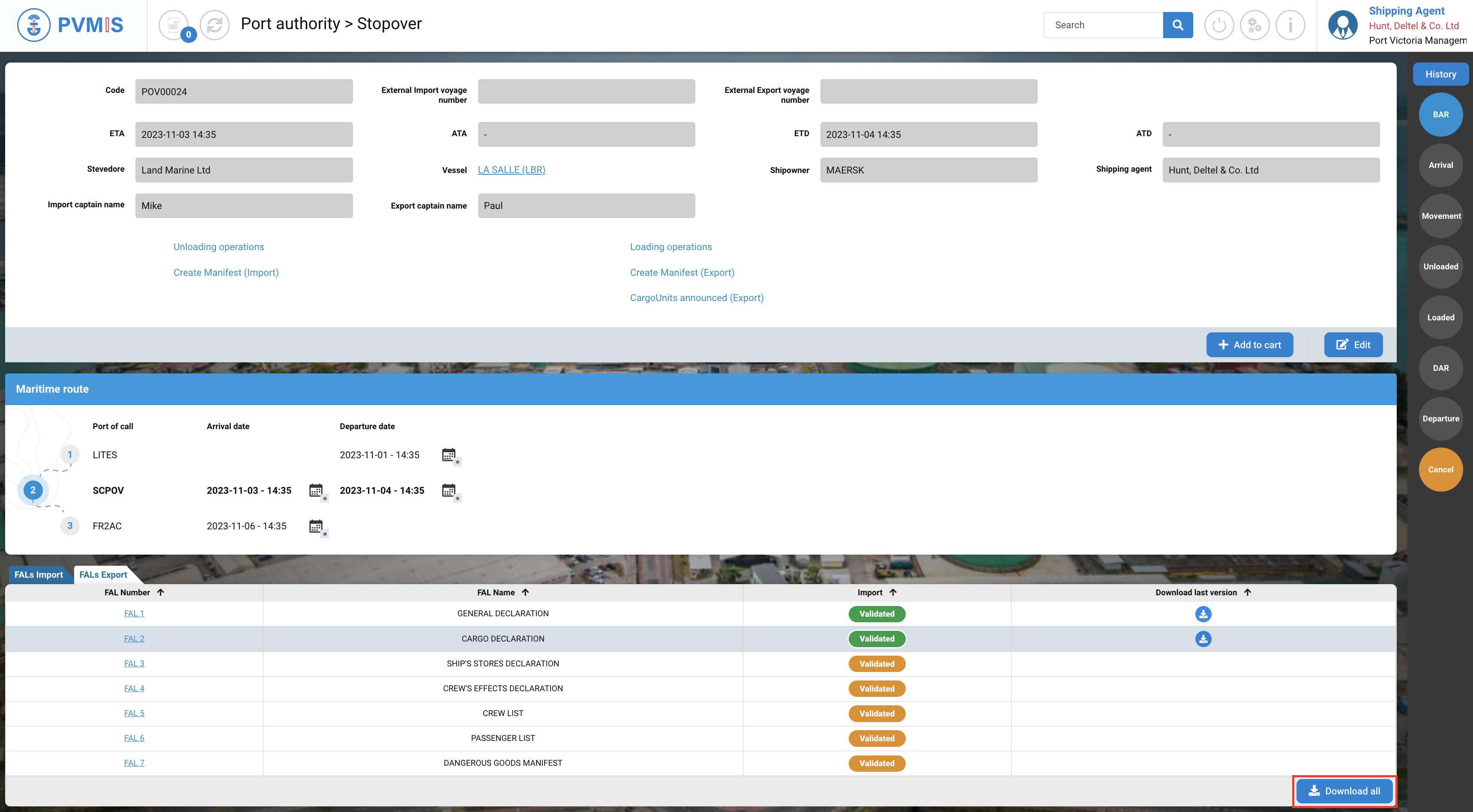
You can consult the information of the stopover, in the FALs Export section, by clicking on the download icon, for each FAL you can download the FAL document in PDF format.
You always obtained the PDF of the last validated FAL data.
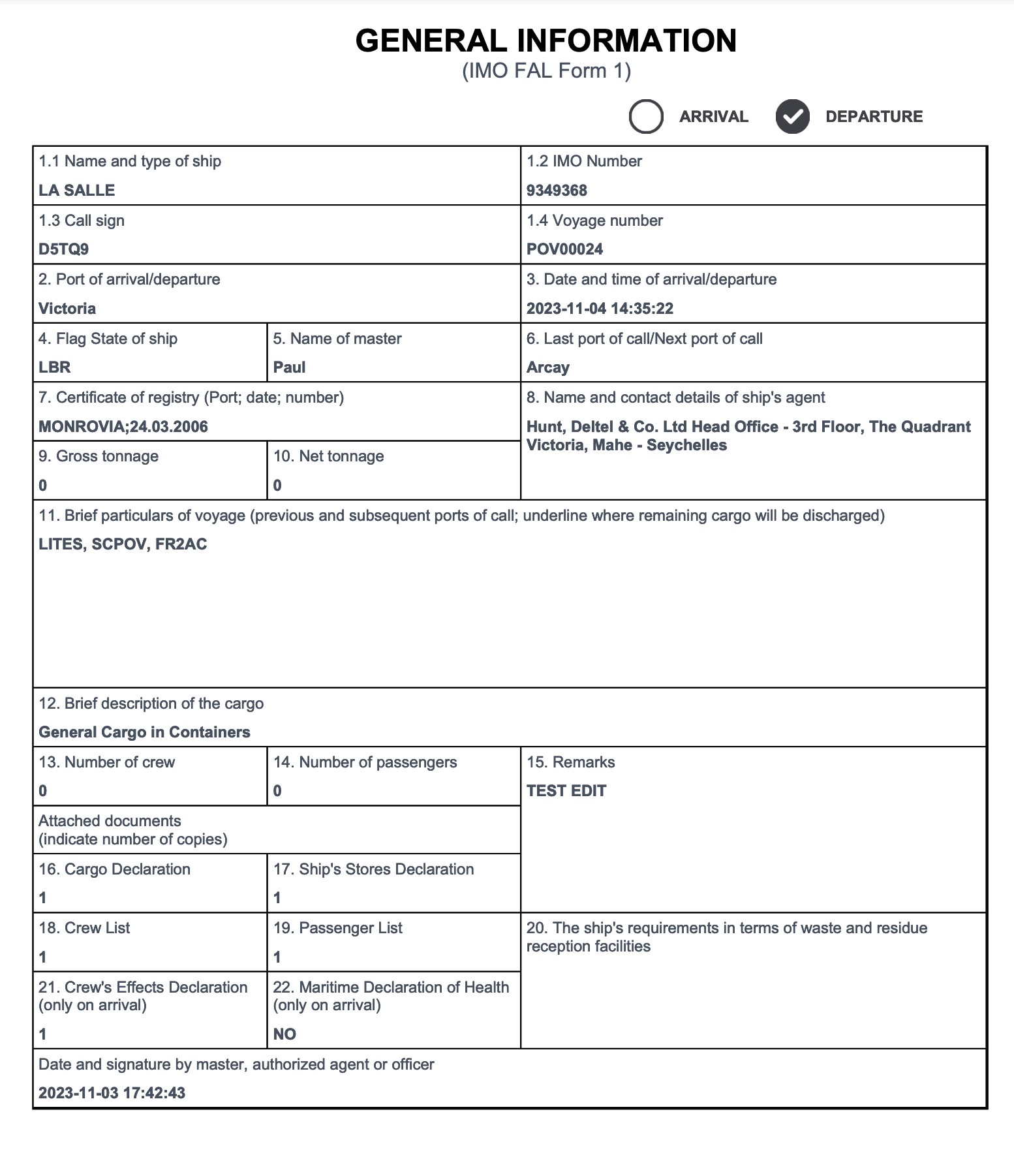
This is the document generated in PDF from the FAL.
Also, you have the possibility to download all FALs at the same time, click on Download all.