
|
Actors |
Claimant |
|---|---|
|
Description |
Indicate the carrier responsible for collecting the CargoUnit. |
|
Visibility rights |
Freight forwarder, Administrator. |
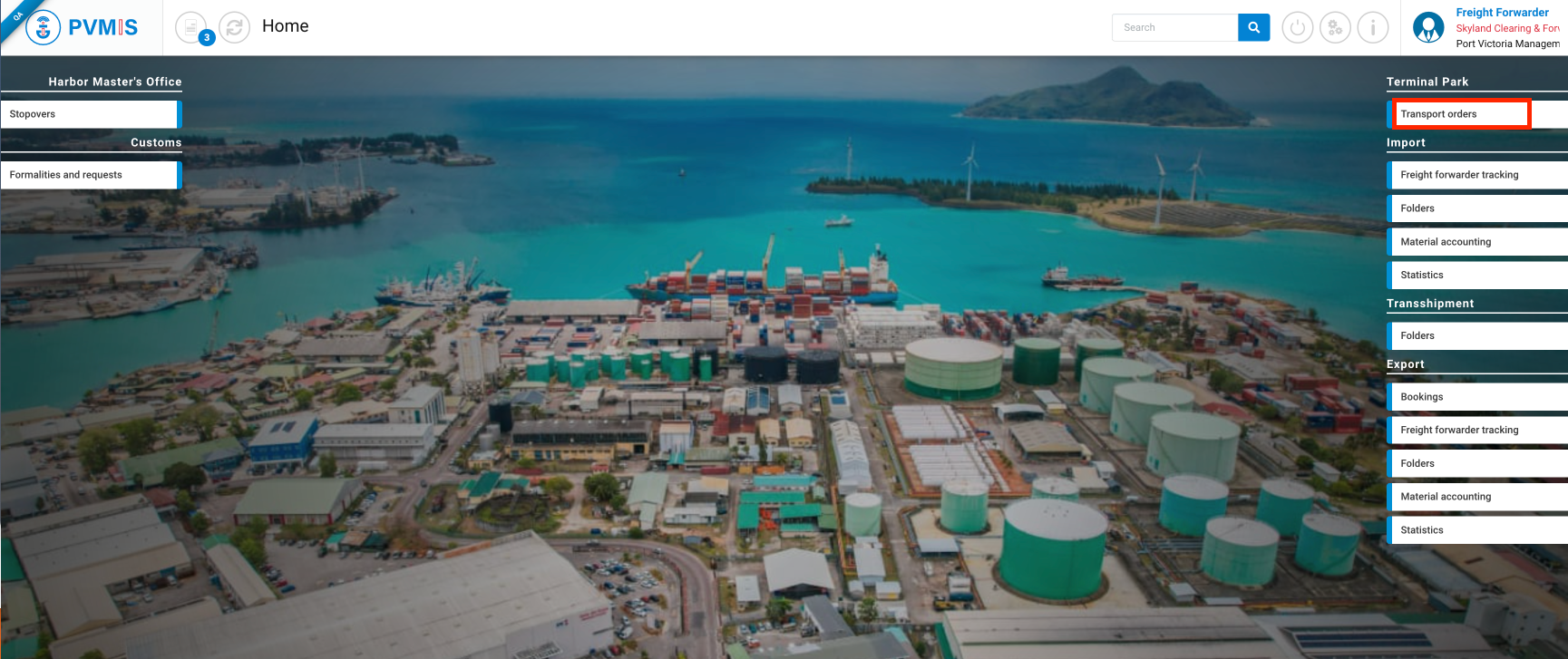
Access to create ETO (Exit Transport Order) by Transport Order menu
To generate an ETO (Exit Transport Order), click on “Transport orders” menu in Terminal Park section.
You are on the Transport order screen, you can see a list of transport orders with different status in different states.
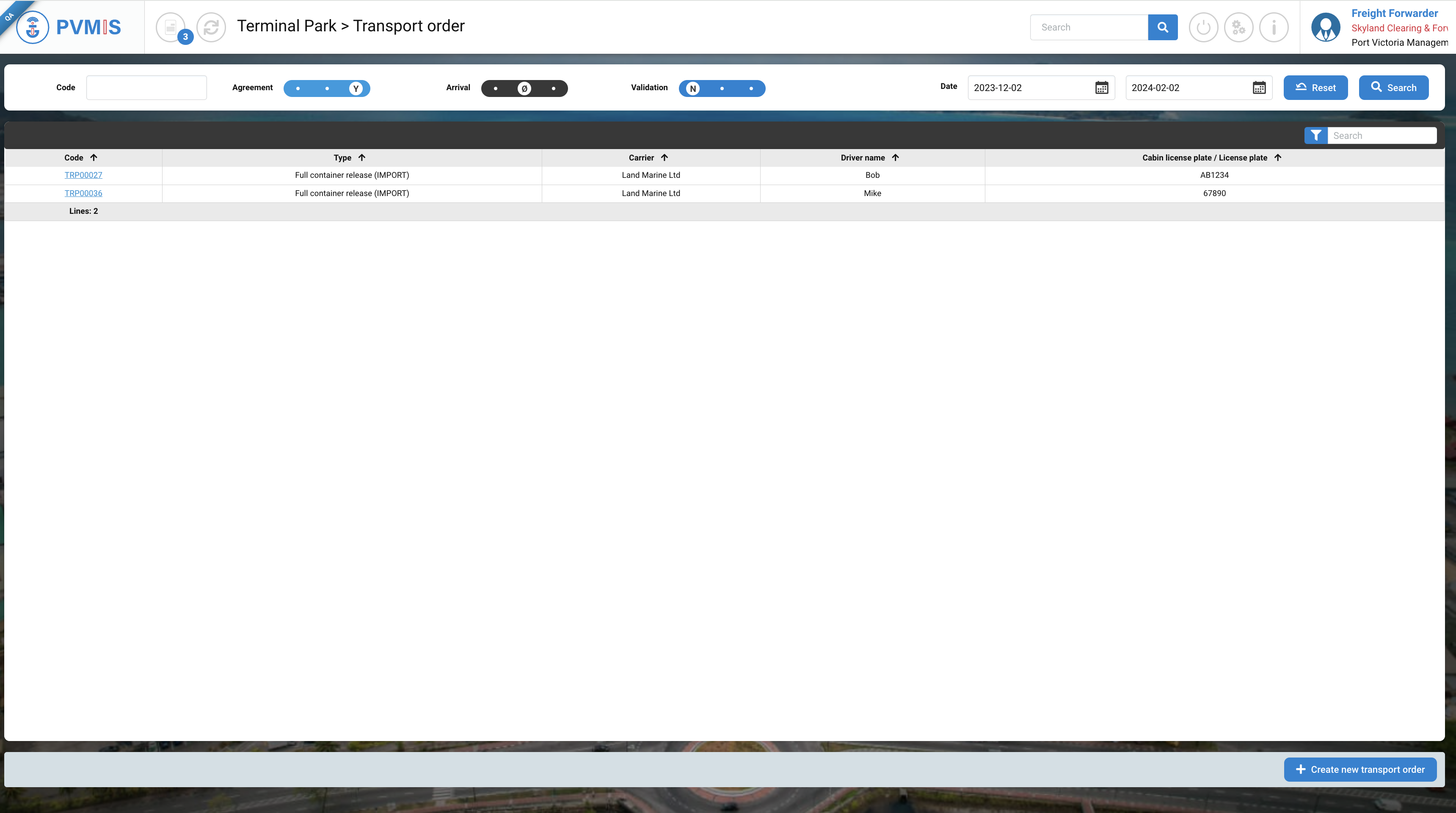
In the header, it’s possible to do a quick search by :
-
Code of transport order
-
Status (Agreement ; Arrival ; Validation) and for each status select the state (No, Neutral, Yes)
-
Date

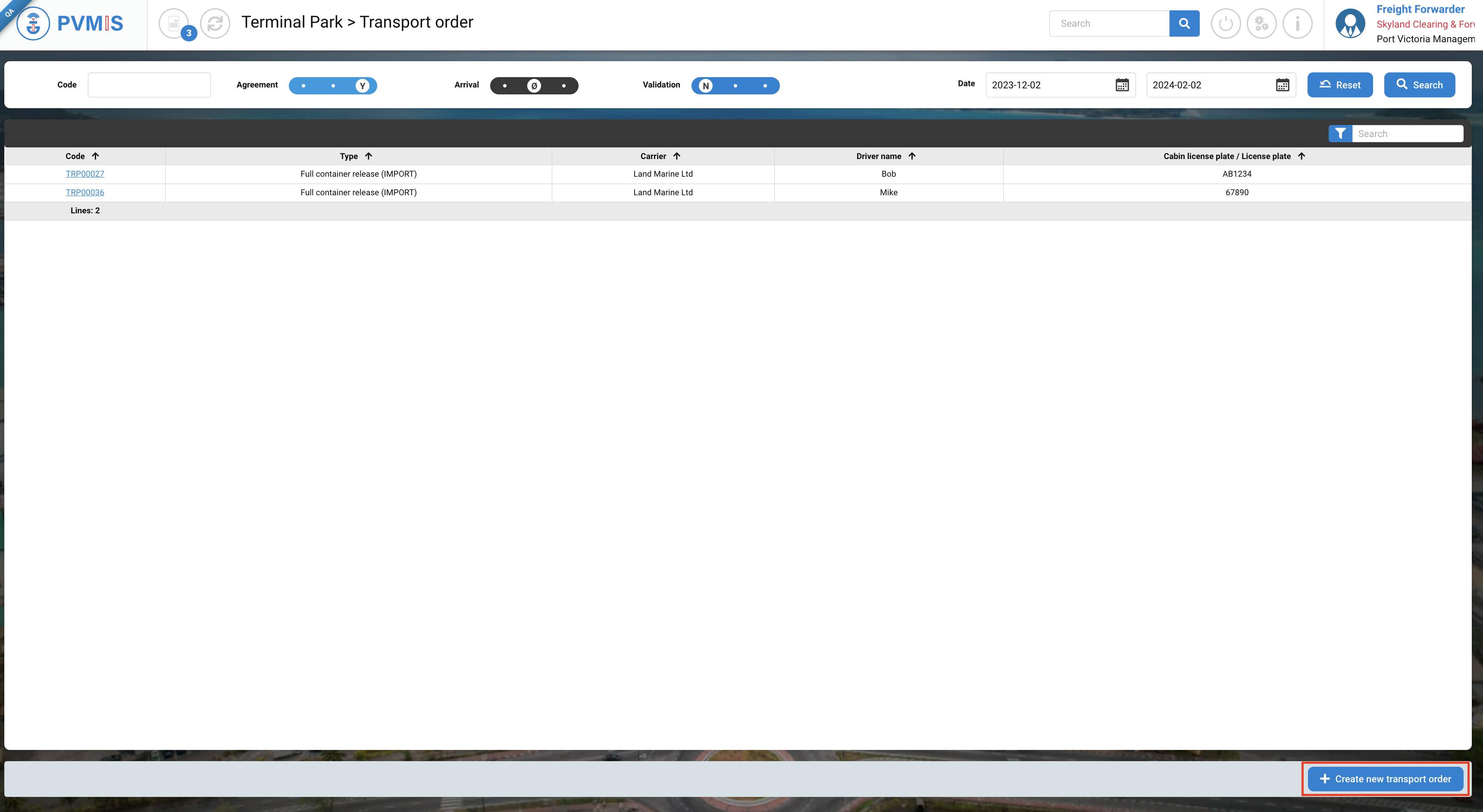
Click Create new transport order button:
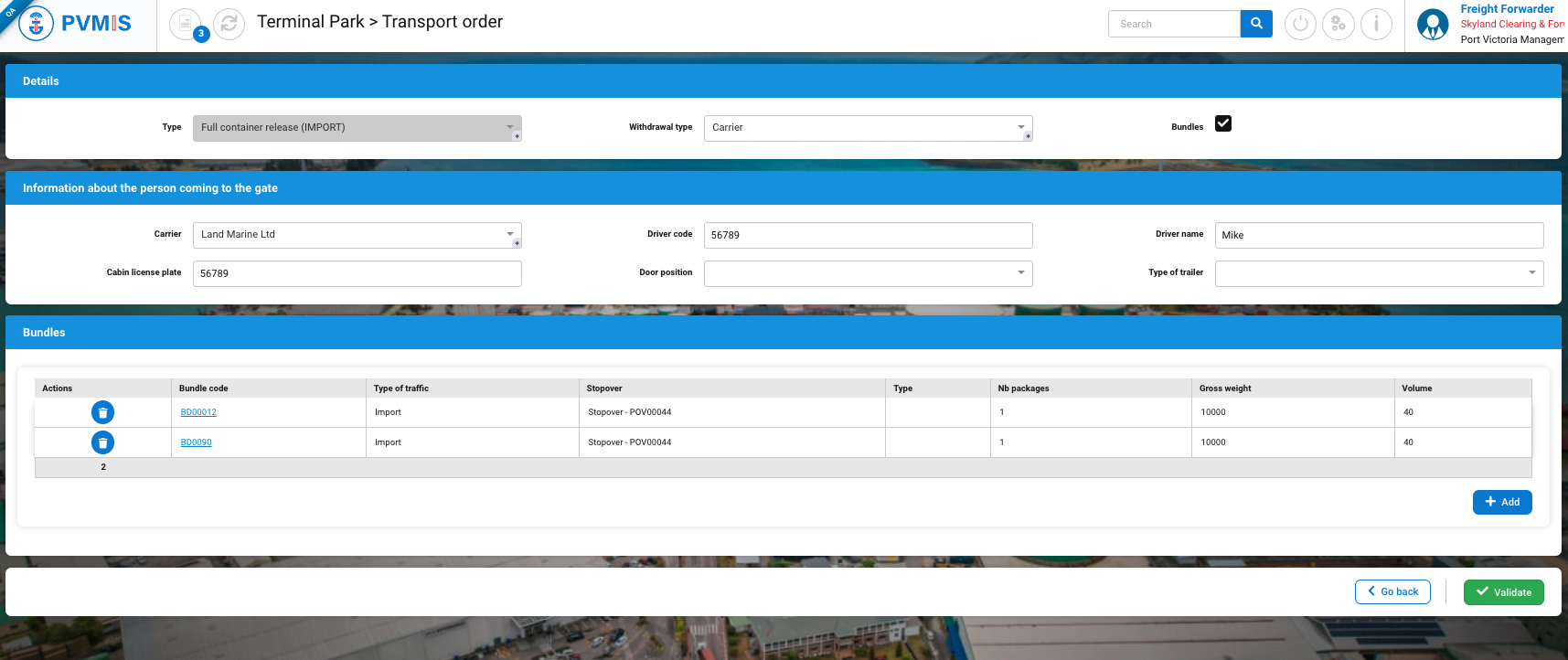
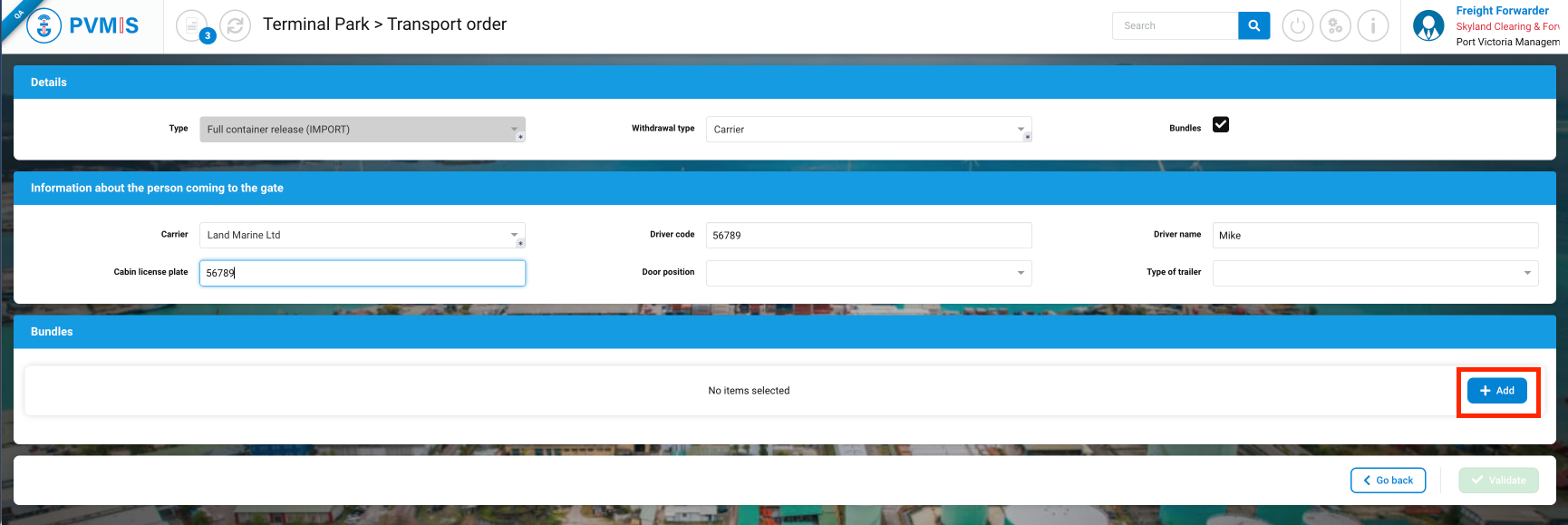
Select the type of the transport order, for an exit transport order is “Full container release (IMPORT)”:
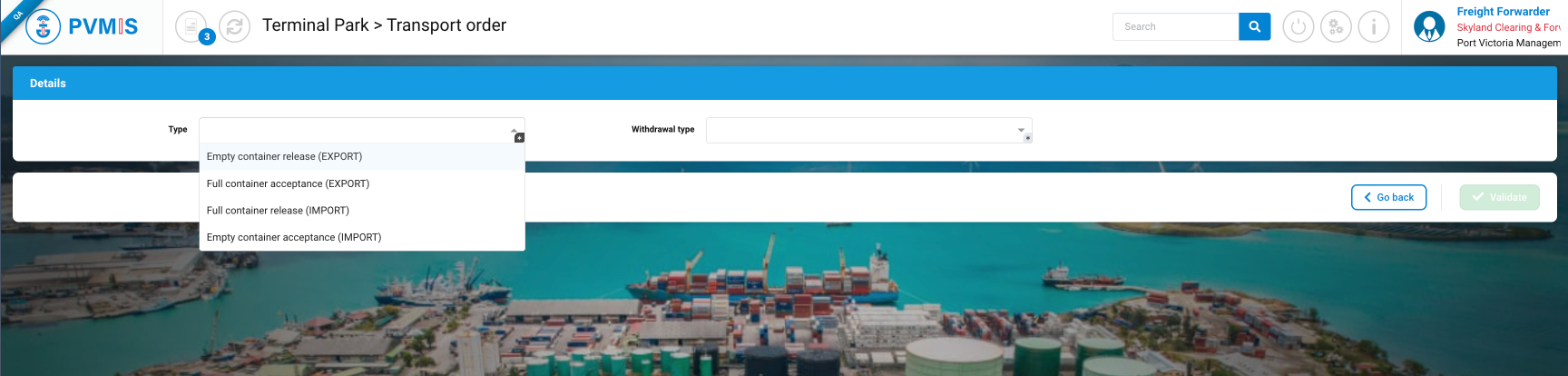
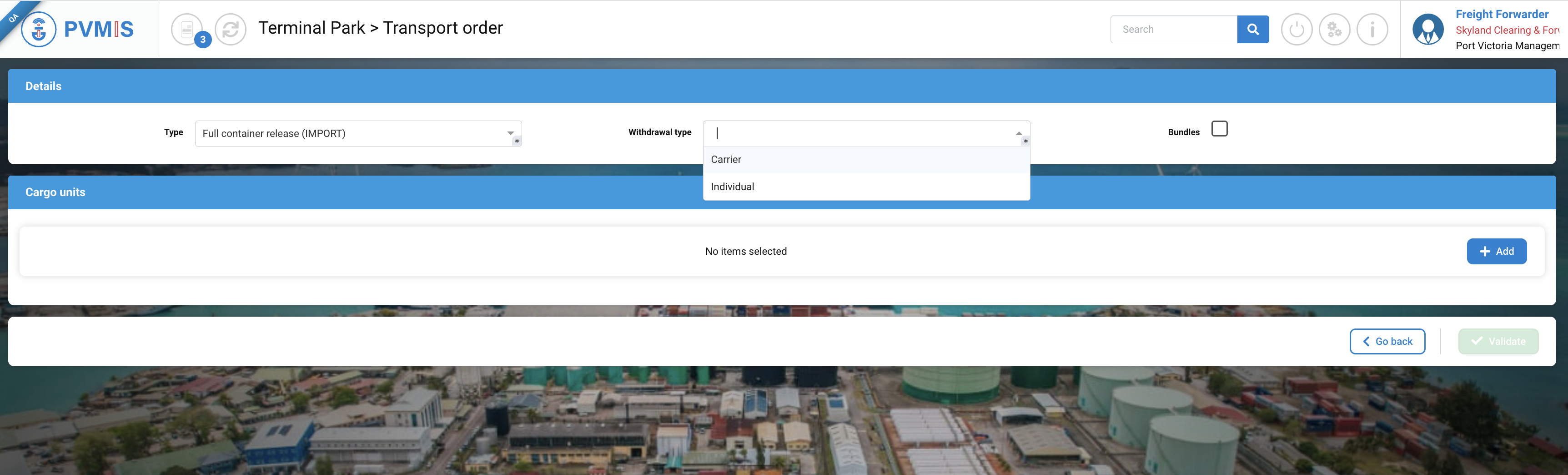
Select the withdrawal type:
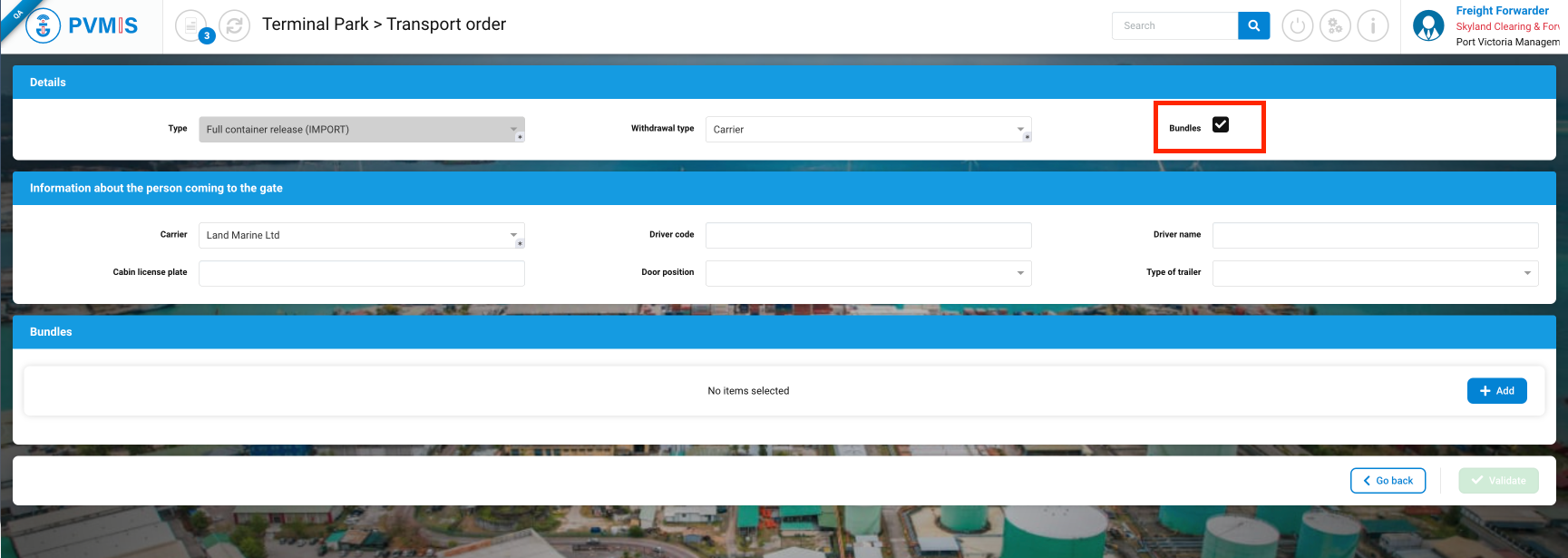
Check the box to indicate the creation of a transport order for bundles.
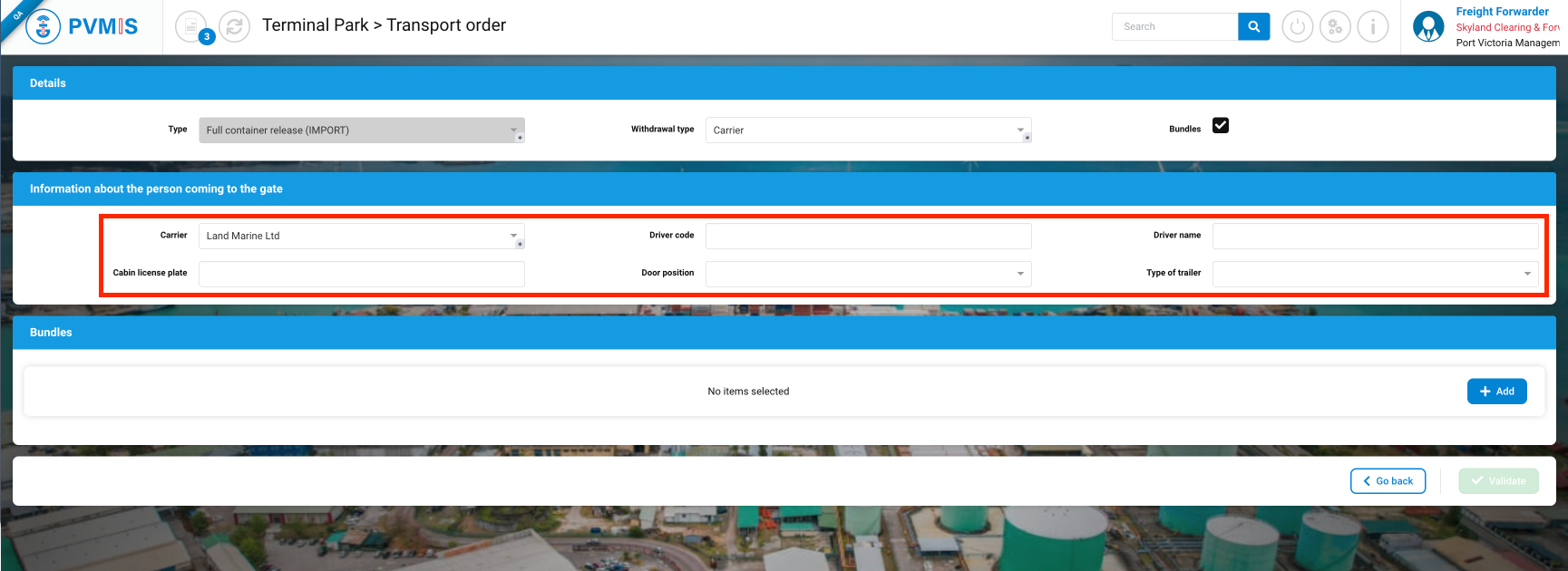
Complete the information about the person coming in the gate (optional):
Select bundles to include in this transport order by clicking on +Add button:
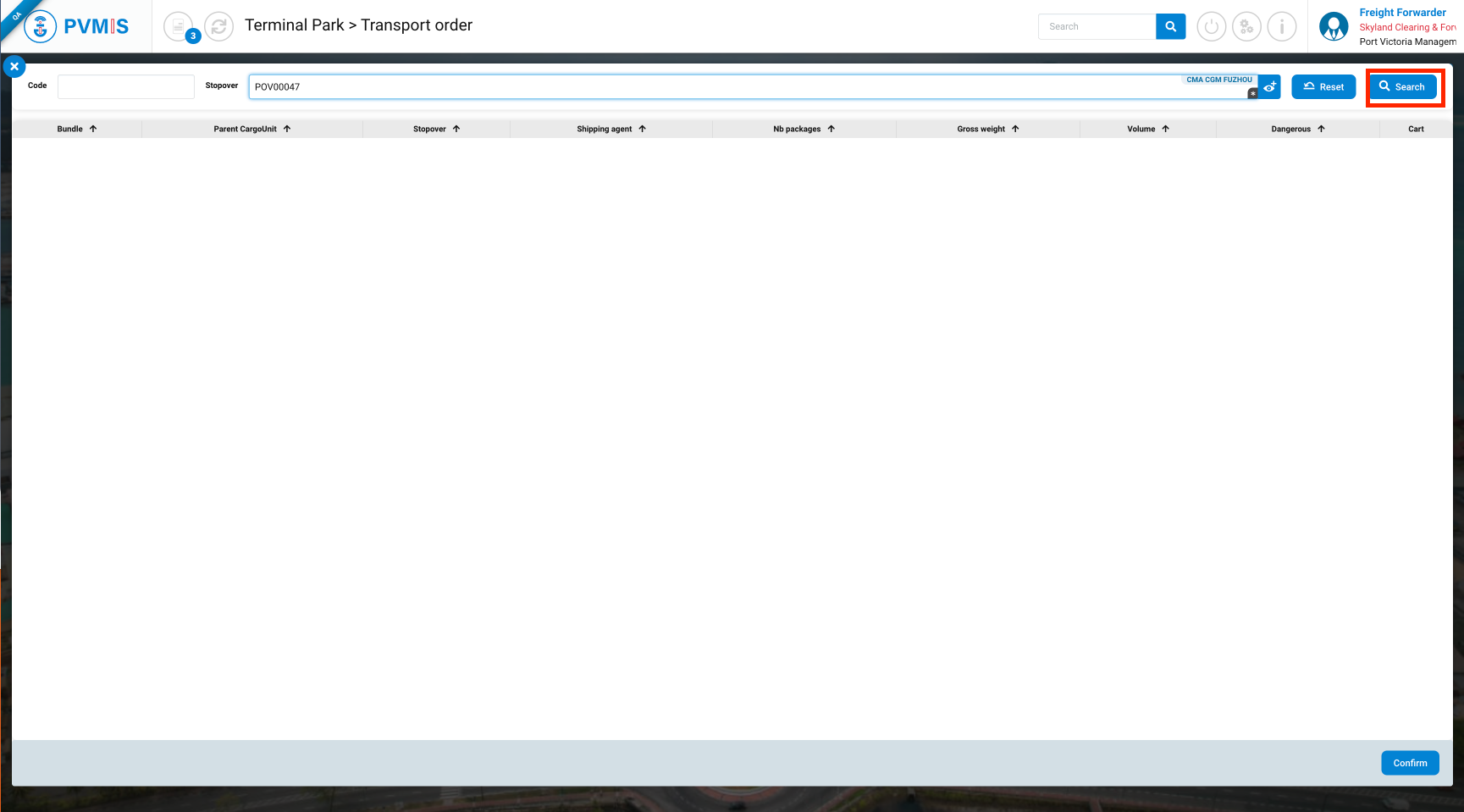
Complete the stopover code and click on Search button:
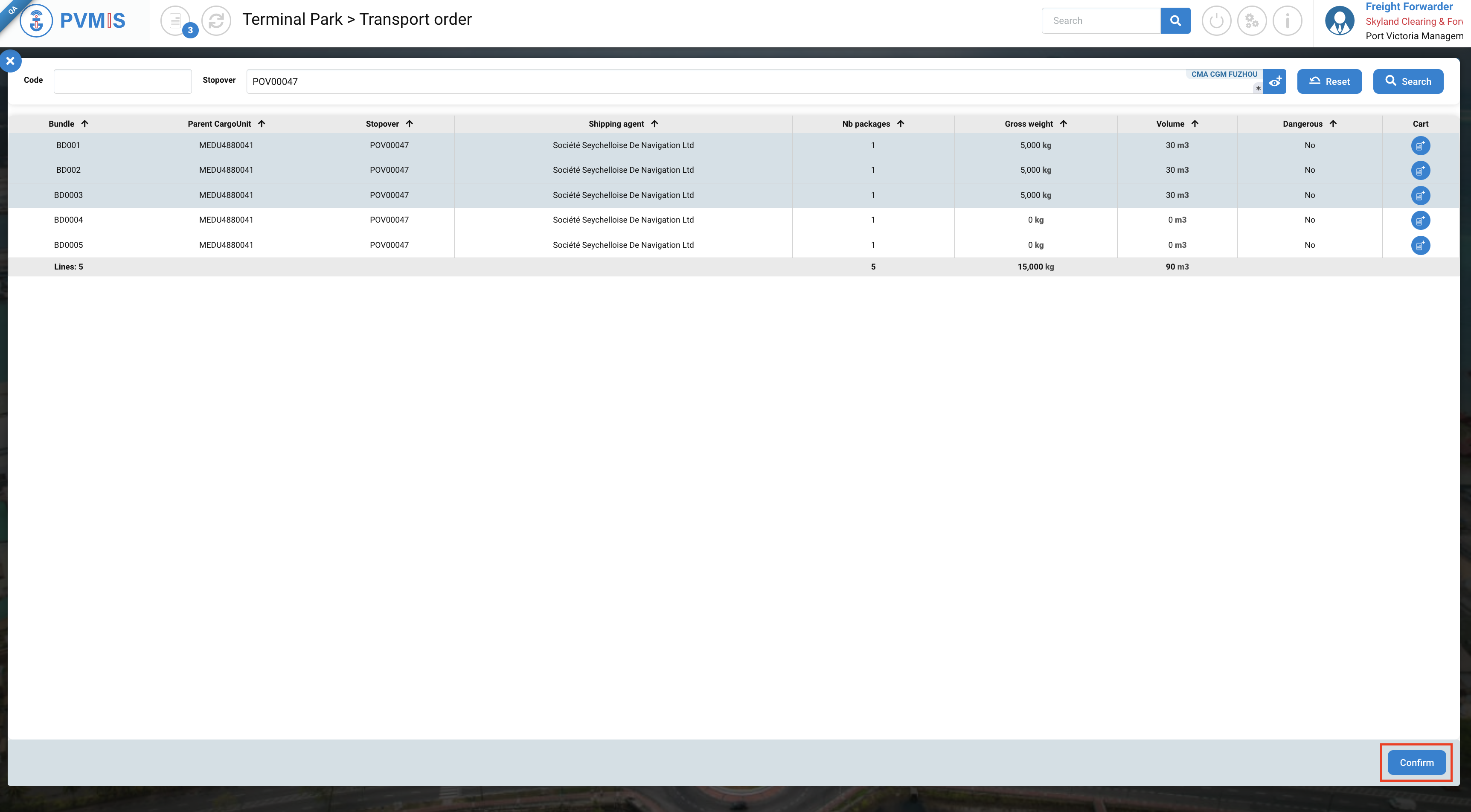
Click per line to select the bundles and click on Confirm button :
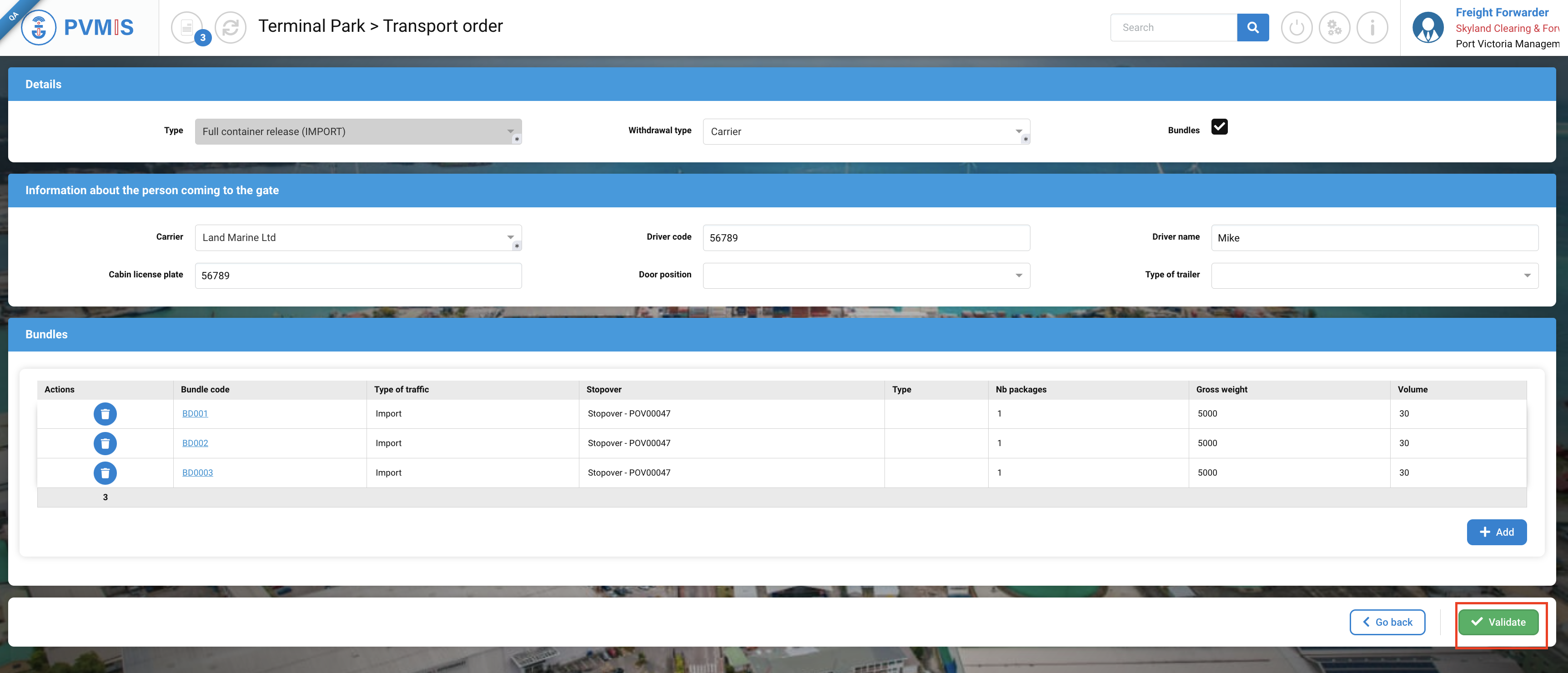
The transport order form is completed, click on Validate button:
Access to create ETO (Exit Transport Order) by Freight Forwarder Tracking menu:
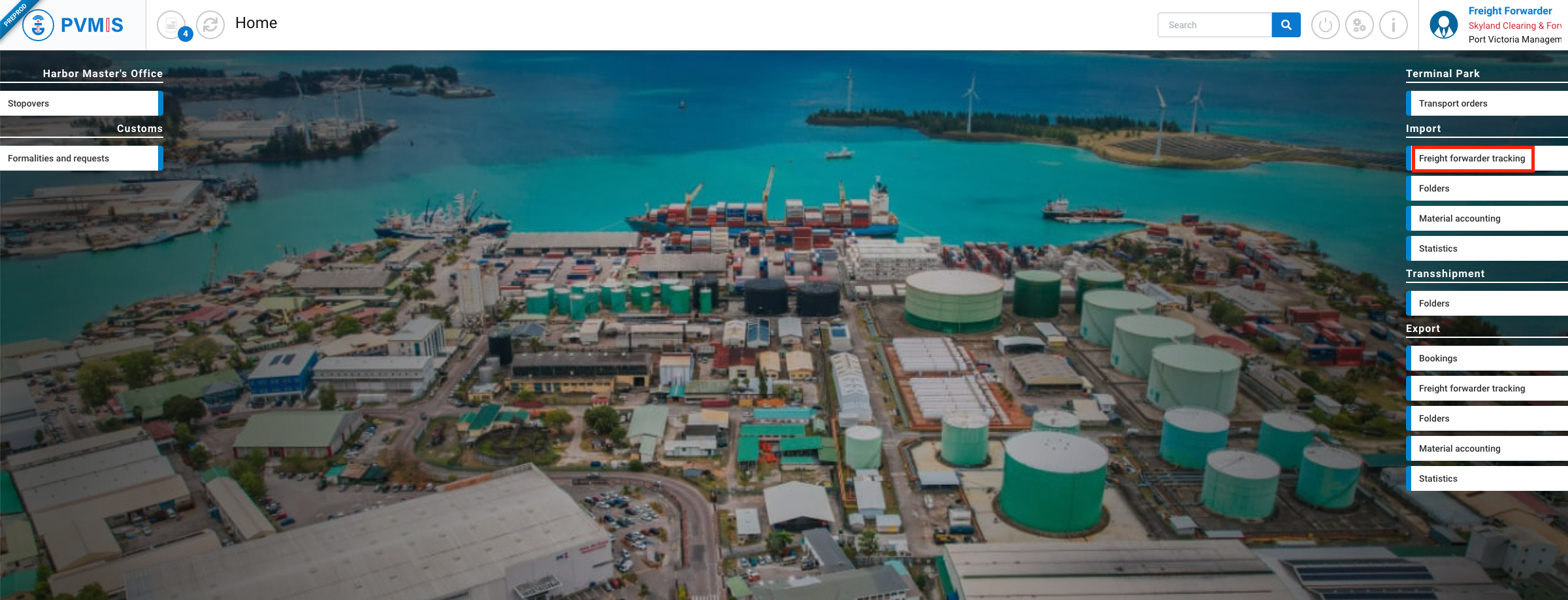
Click on Freight Forwarder menu in the Import section:
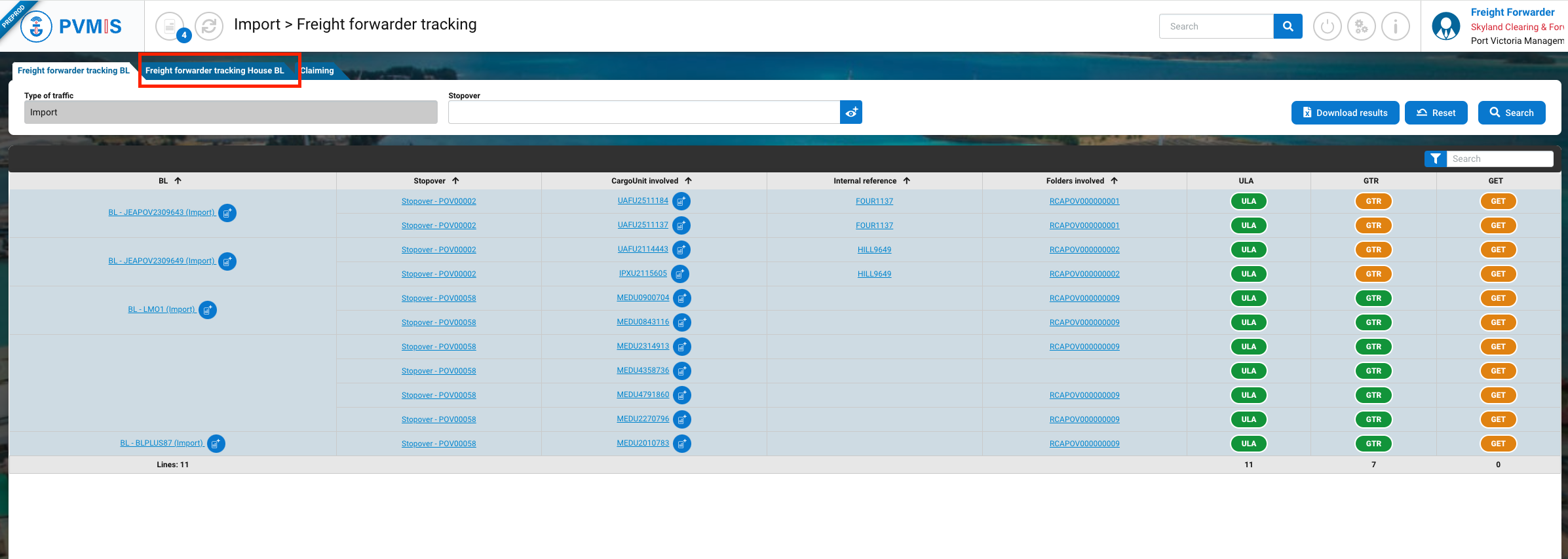
Click on the Freight forwarder tracking House section:
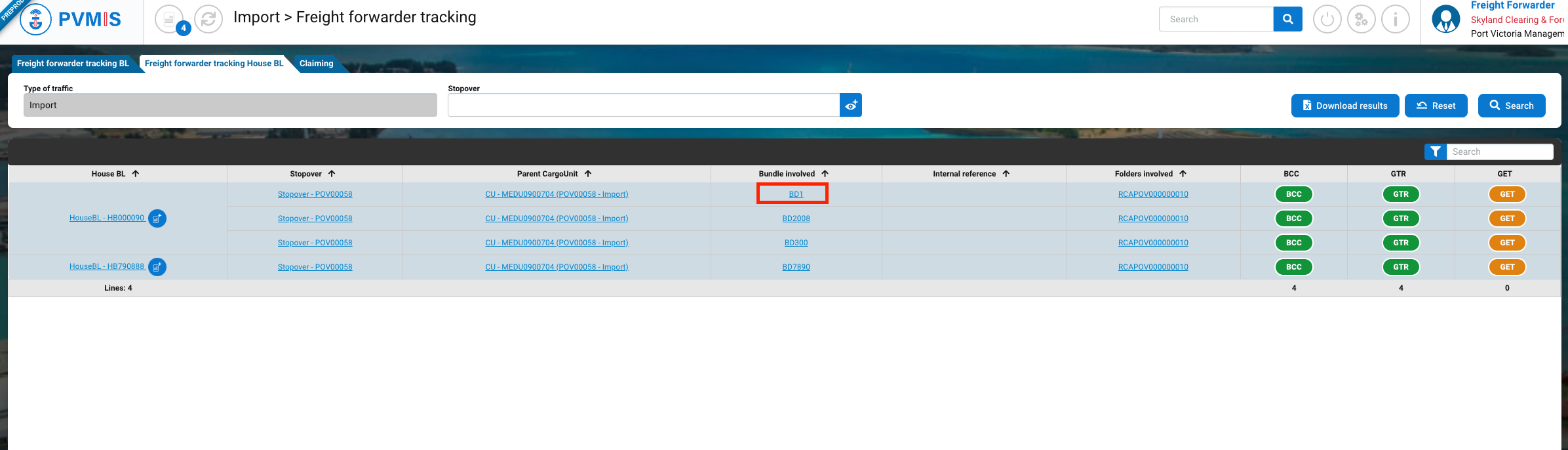
The list of the bundles display, click on the corresponding bundle code:
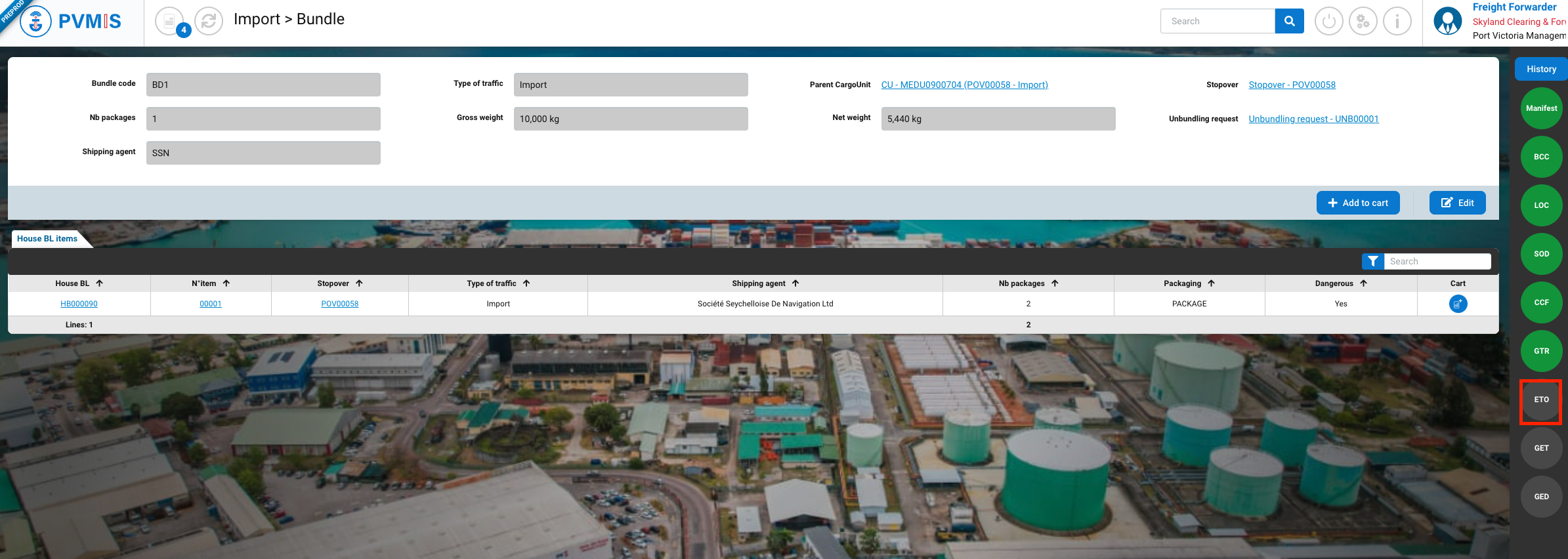
You can consult the information detail of the bundle, on the right of the screen click on ETO (Exit Transport Order) status:
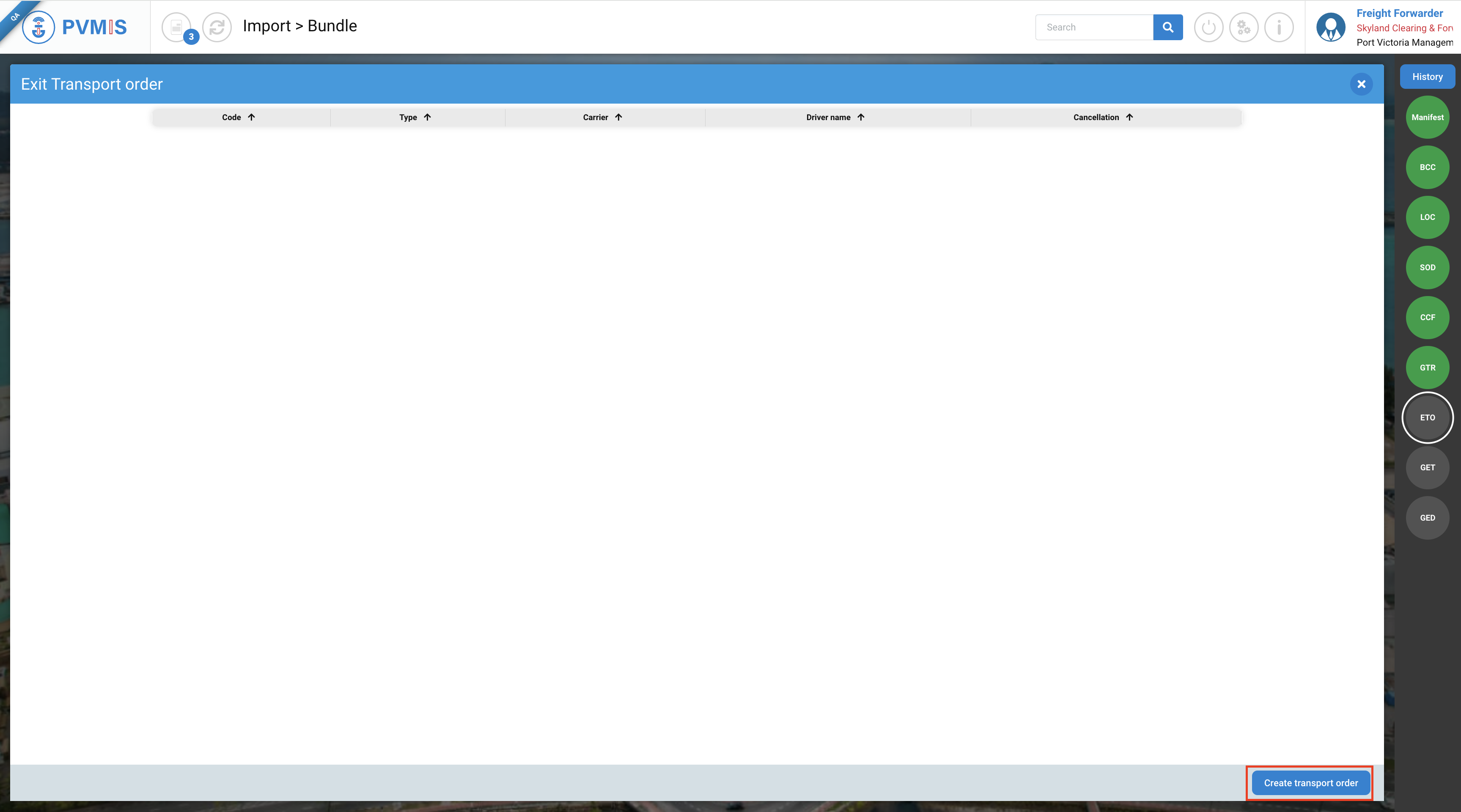
Click on Create transport order button:
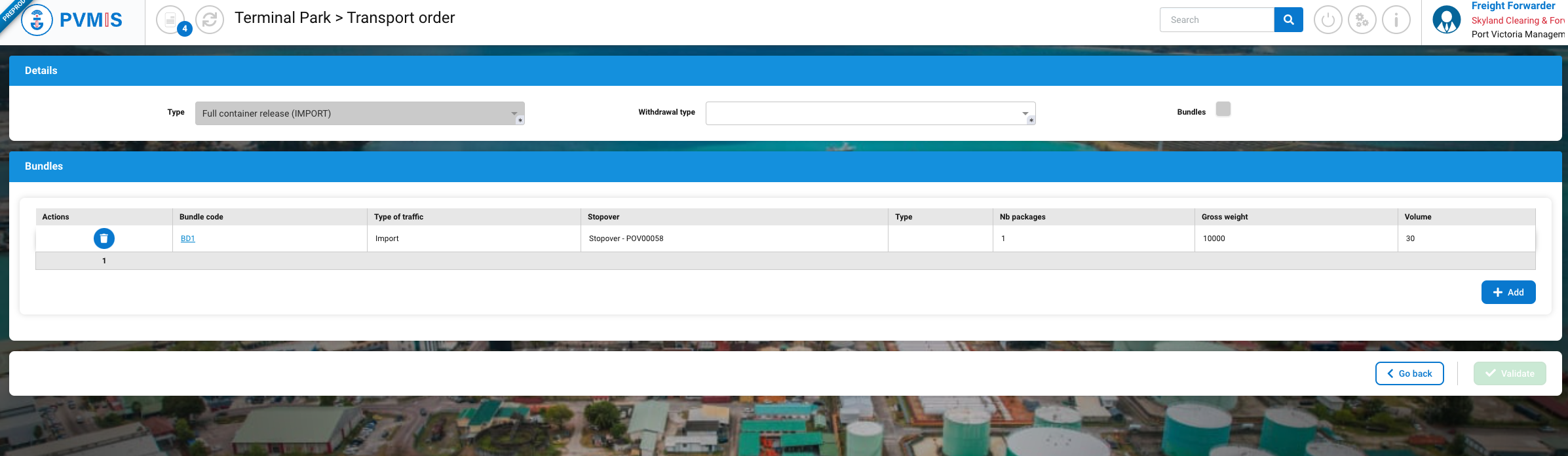
In the transport order form, the type is prefiled and the bundle is selected, but you can add more.
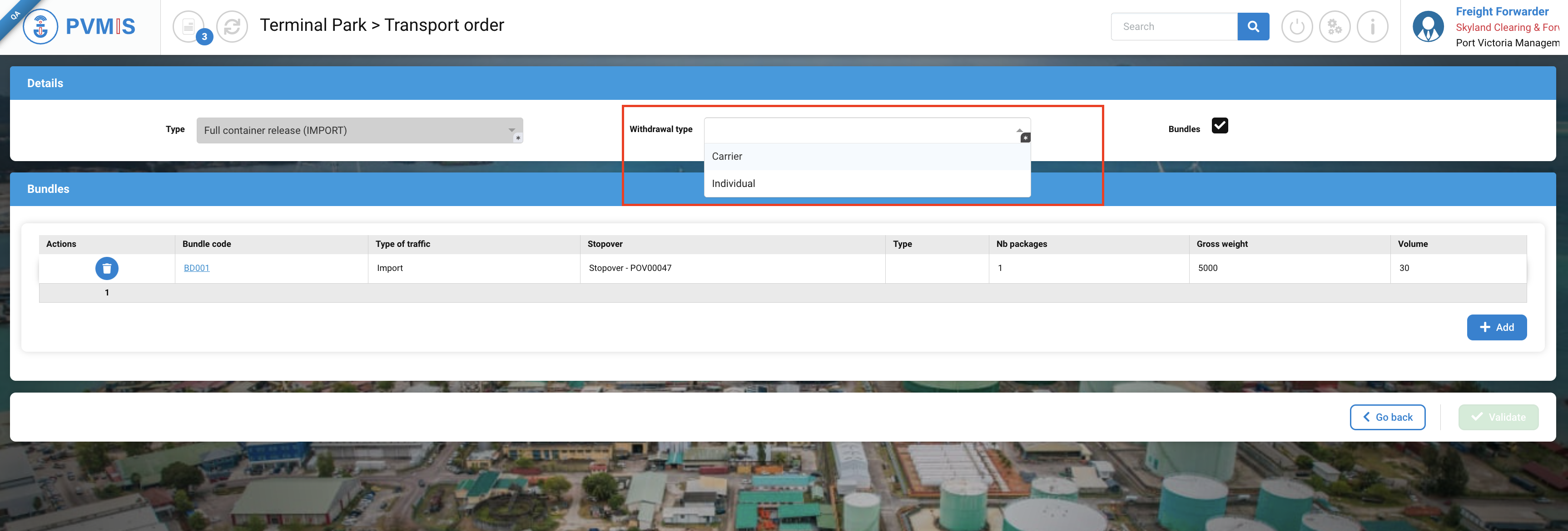
Select the withdrawal type:
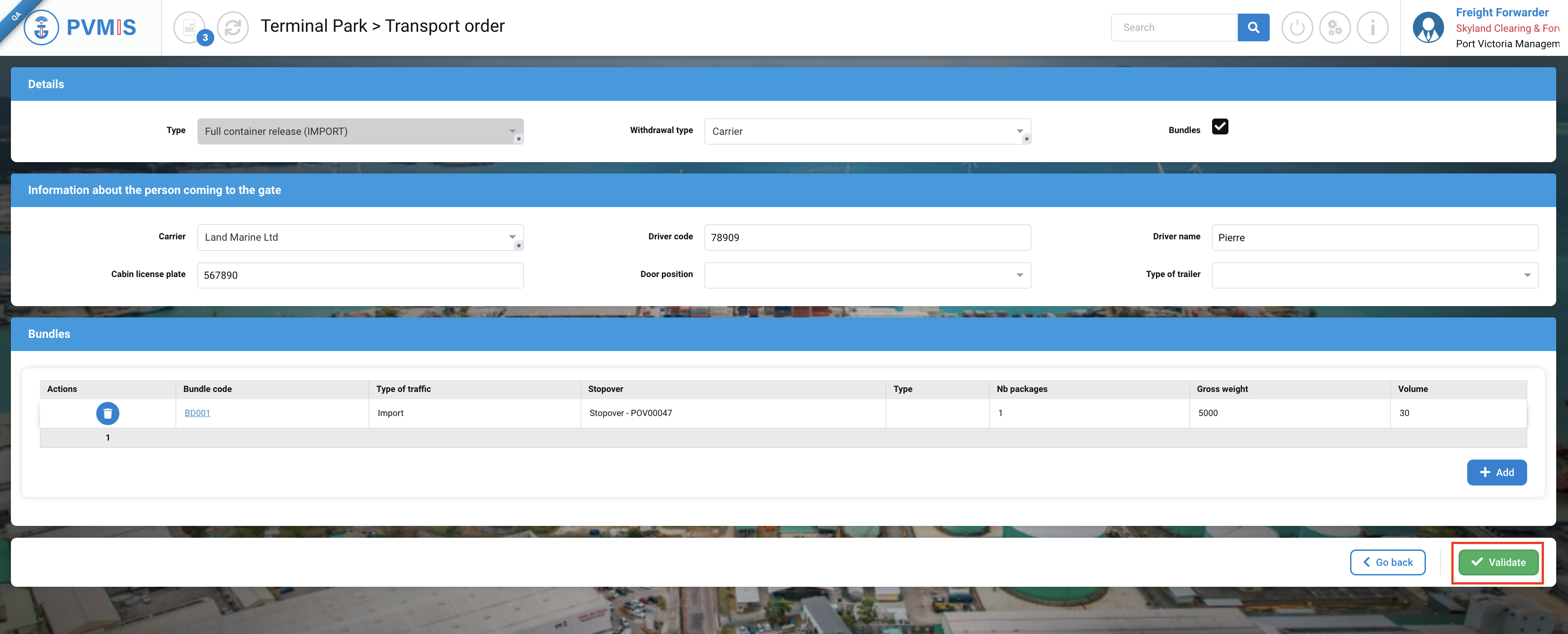
Complete the information about the person coming in the gate (optional) and click on Validate button:
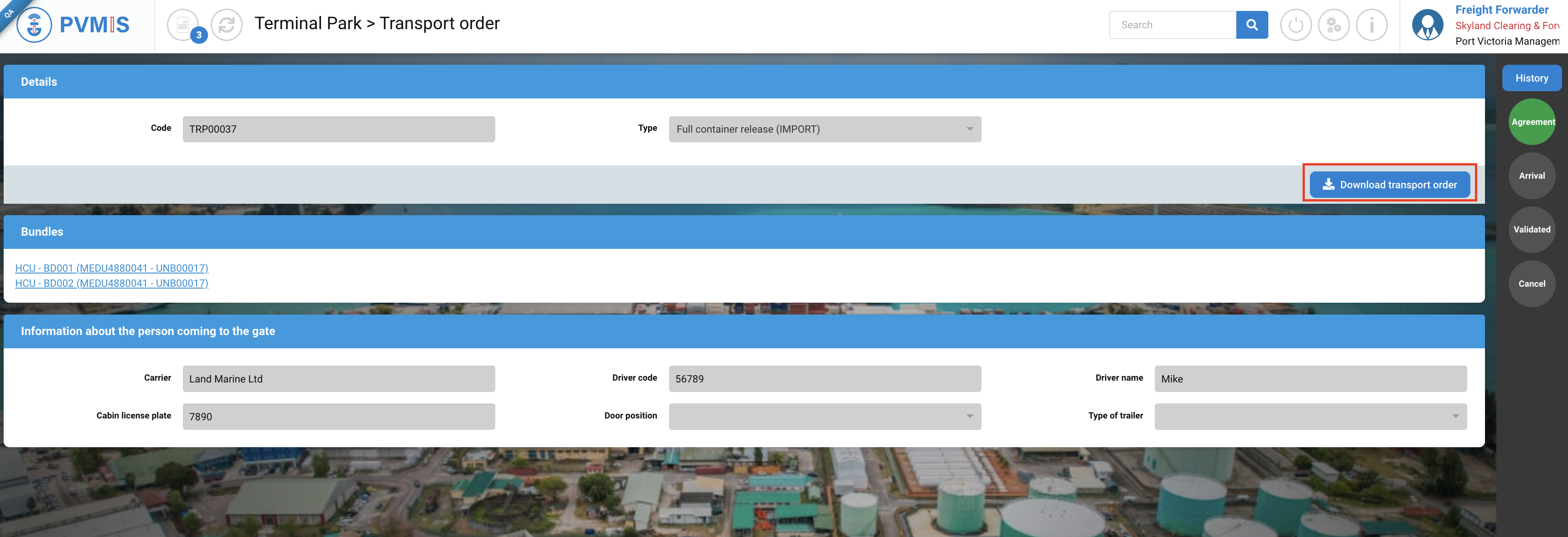
An ETO (Exit Transport Order) is generated for each bundles, and it is automatically accepted as part of the process if bundles are cleared (GTR indicator) and approve by an agent following the unbundling operations (SOD indicator).
You can download transport order by clicking the Download transport order button.
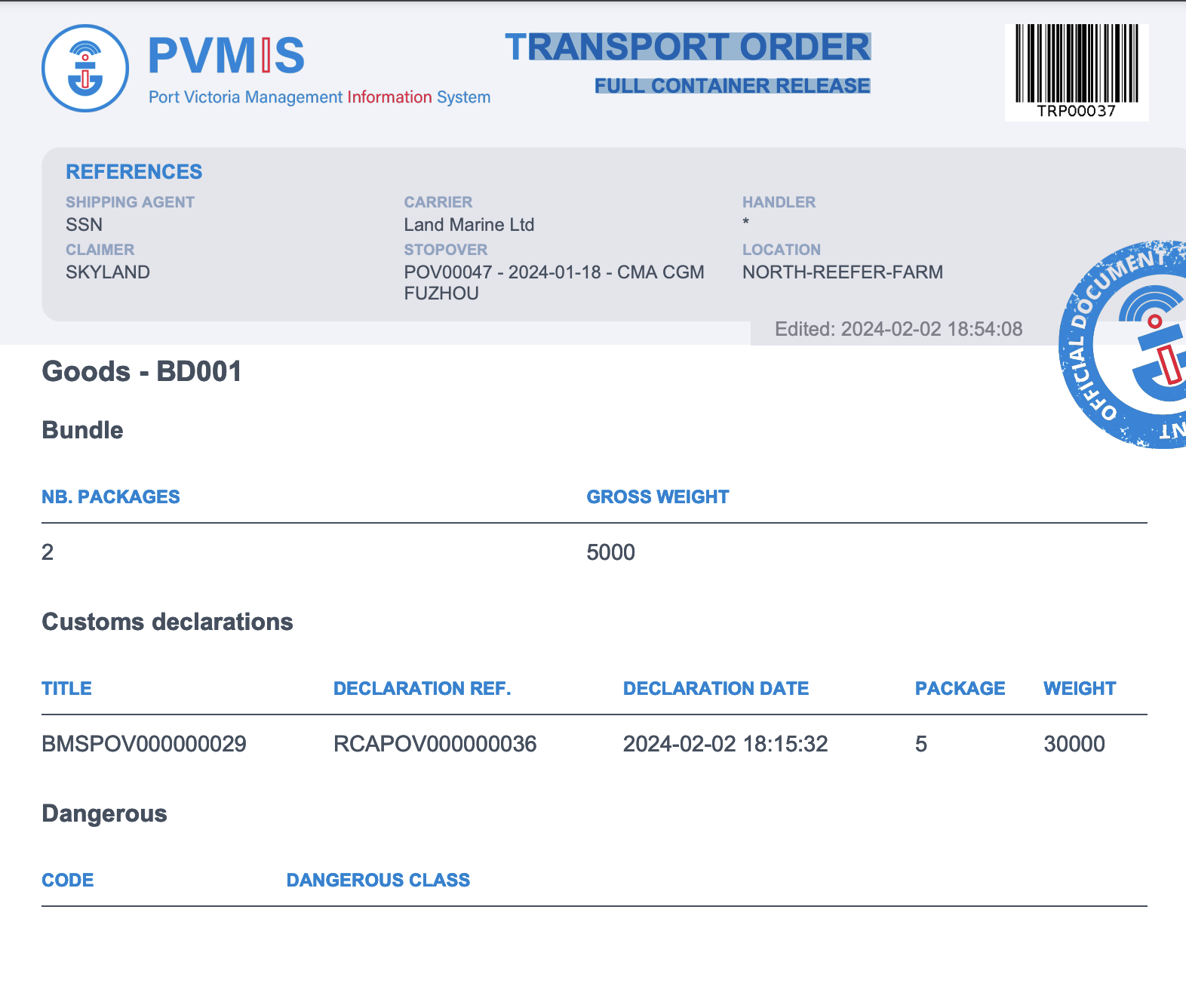
The transport order PDF document for the first bundle include:
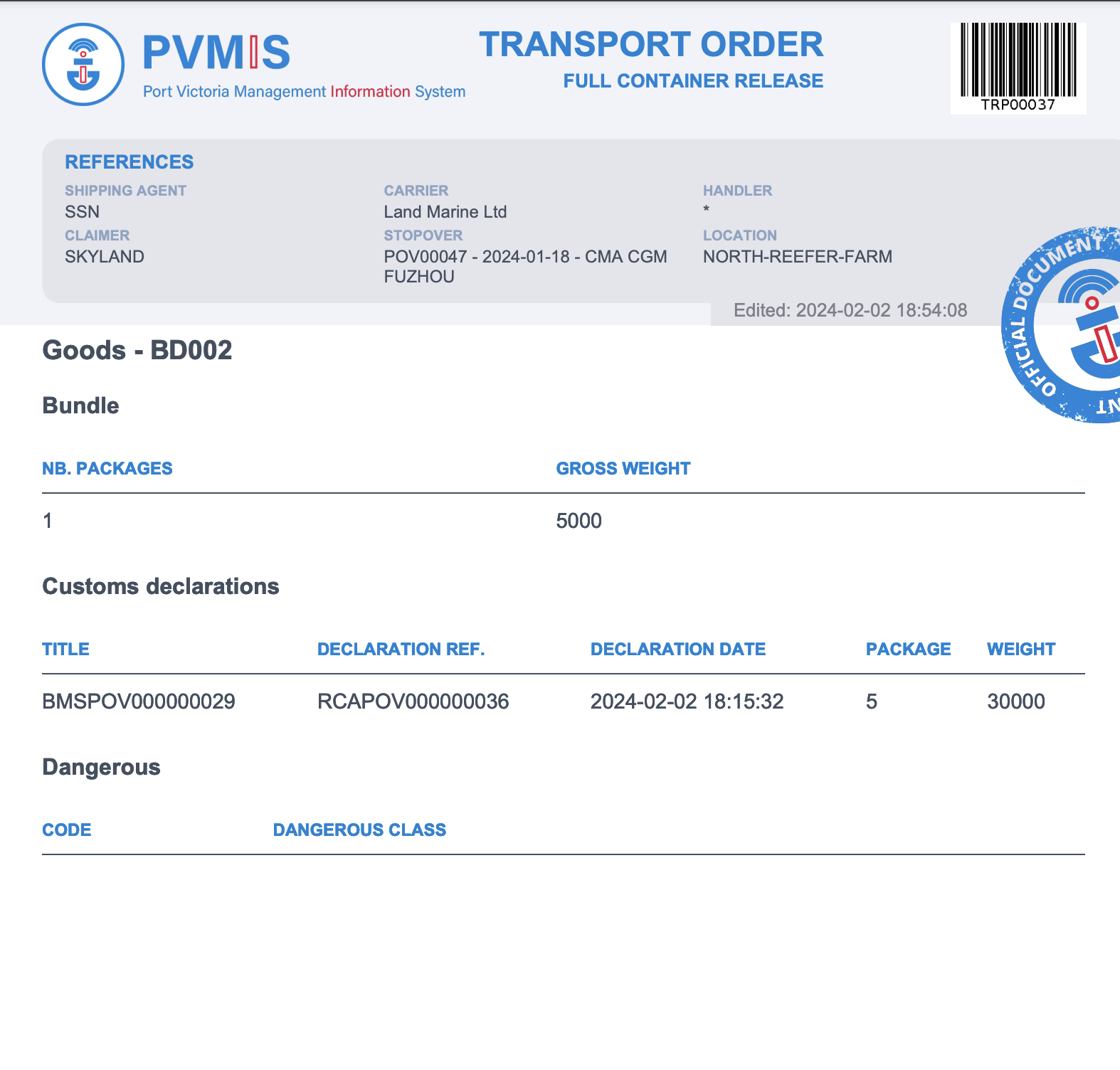
The transport order PDF document for the second bundle include:
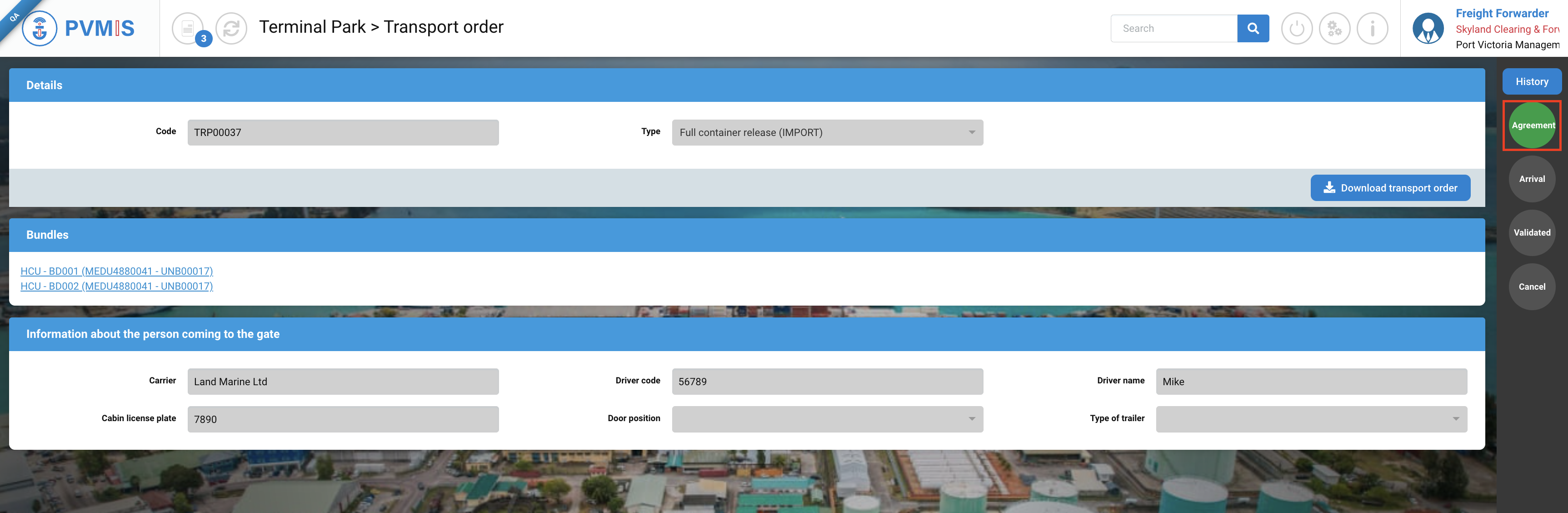
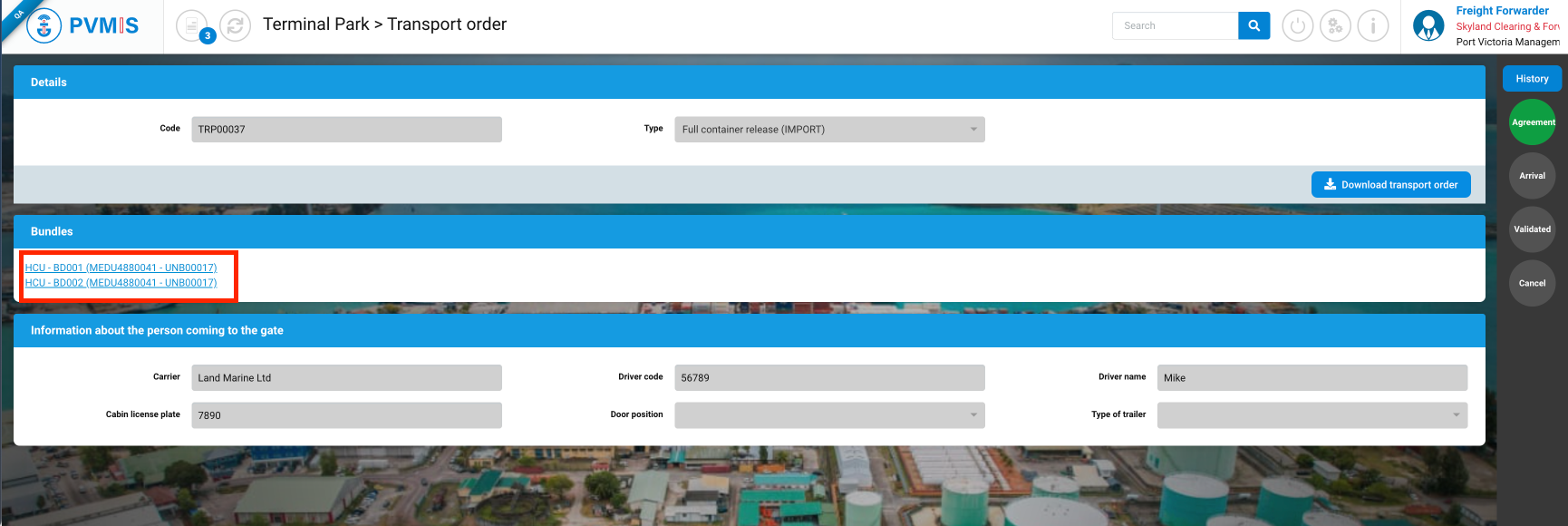
To consult your bundles and the details, click on the links at the bottom left.
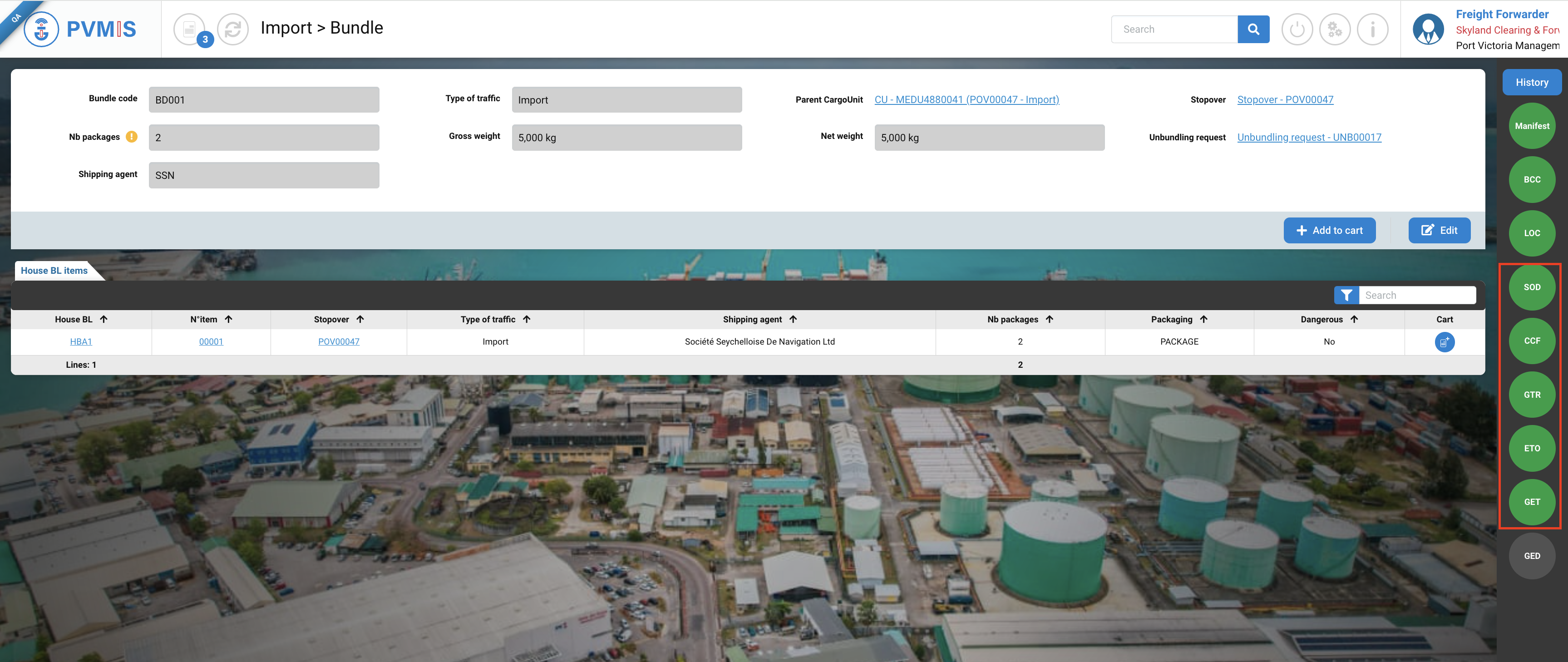
You can consult the information of your bundles. On the right of the screen, ETO (Exit Transport Order) has changed to green. If the required state is matched, GET (Good to Exit Terminal status) turns green.
GET status turns green only if SOD (State of Difference) + GTR (Good to Remove from Terminal) + ETO (Exit Transport Order) status are green.
Edit an ETO (Exit Transport Order)
When a gate operator declare the arrival of the truck you will be no able to edit the transport order.
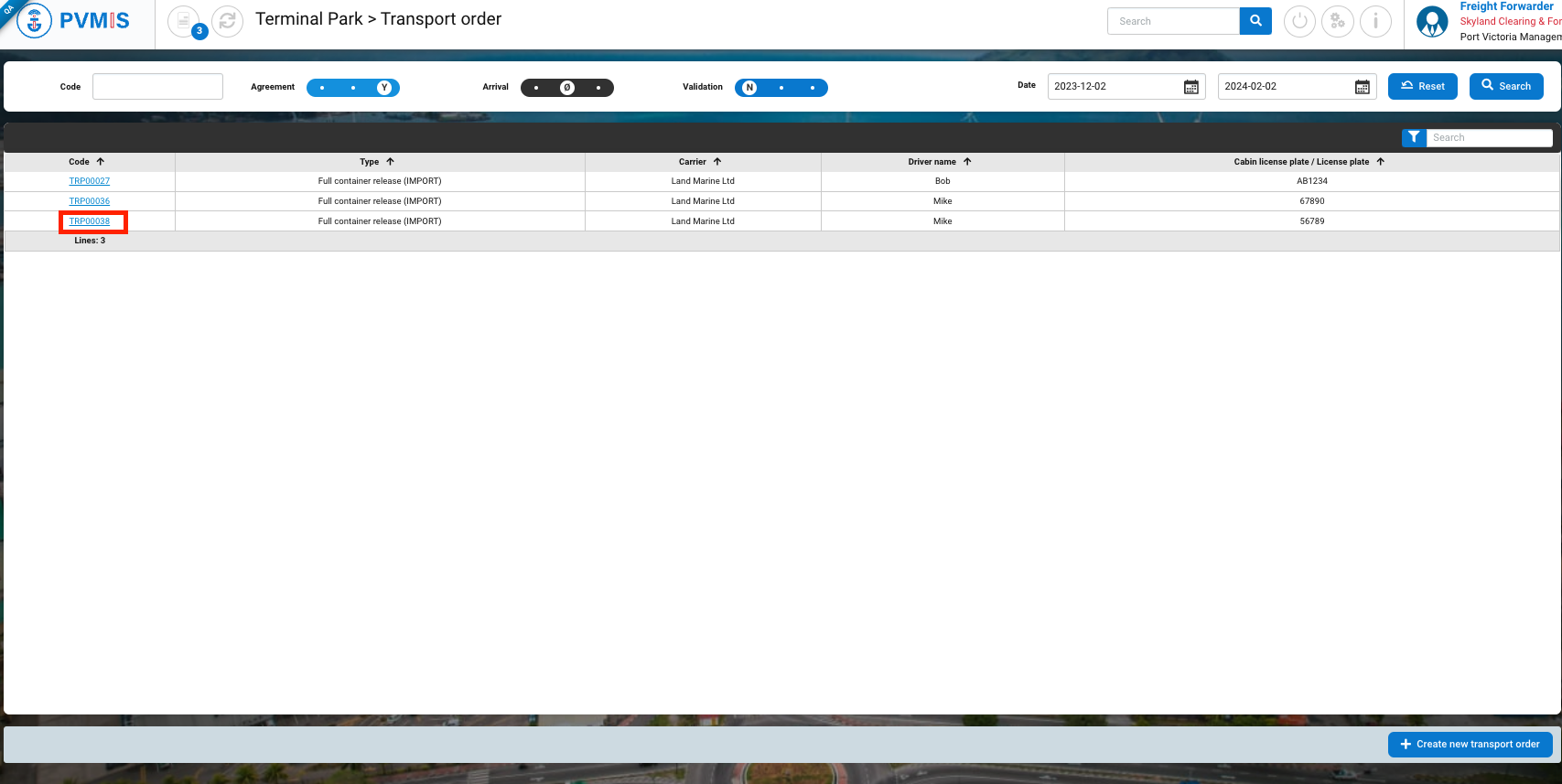
Click on “Transport orders” menu in Terminal Park section.
You are on the Transport order screen, click on the corresponding Code transport order:
In the detail of the transport order, click on Edit button.
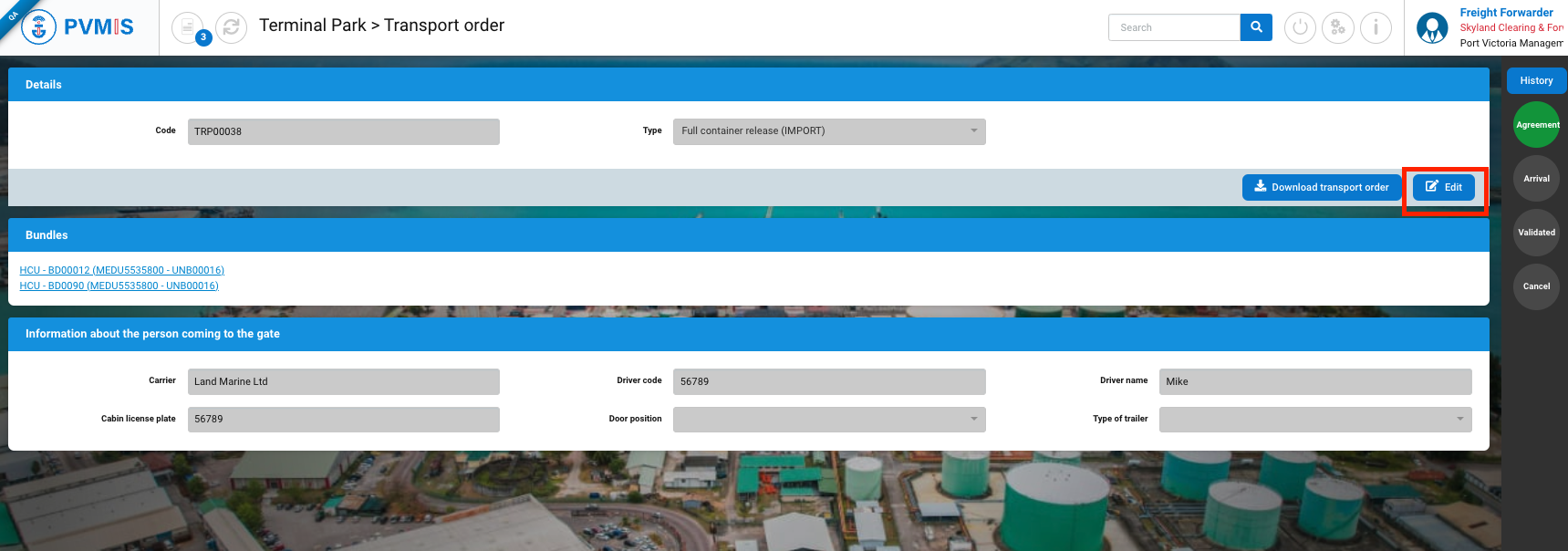
While on the transport order modification page, you have the flexibility to edit the fields as needed. You can also remove Bundles by clicking the trash icon or add additional bundles using the "+Add" icon. Once you've made the desired changes, click on "Validate", and your transport order will be updated accordingly.