

|
Actors |
Shipping agent |
|---|---|
|
Description |
Shipping agent must accept the difference report of the unbundling operations. |
Consult the difference report of an unbundling operation
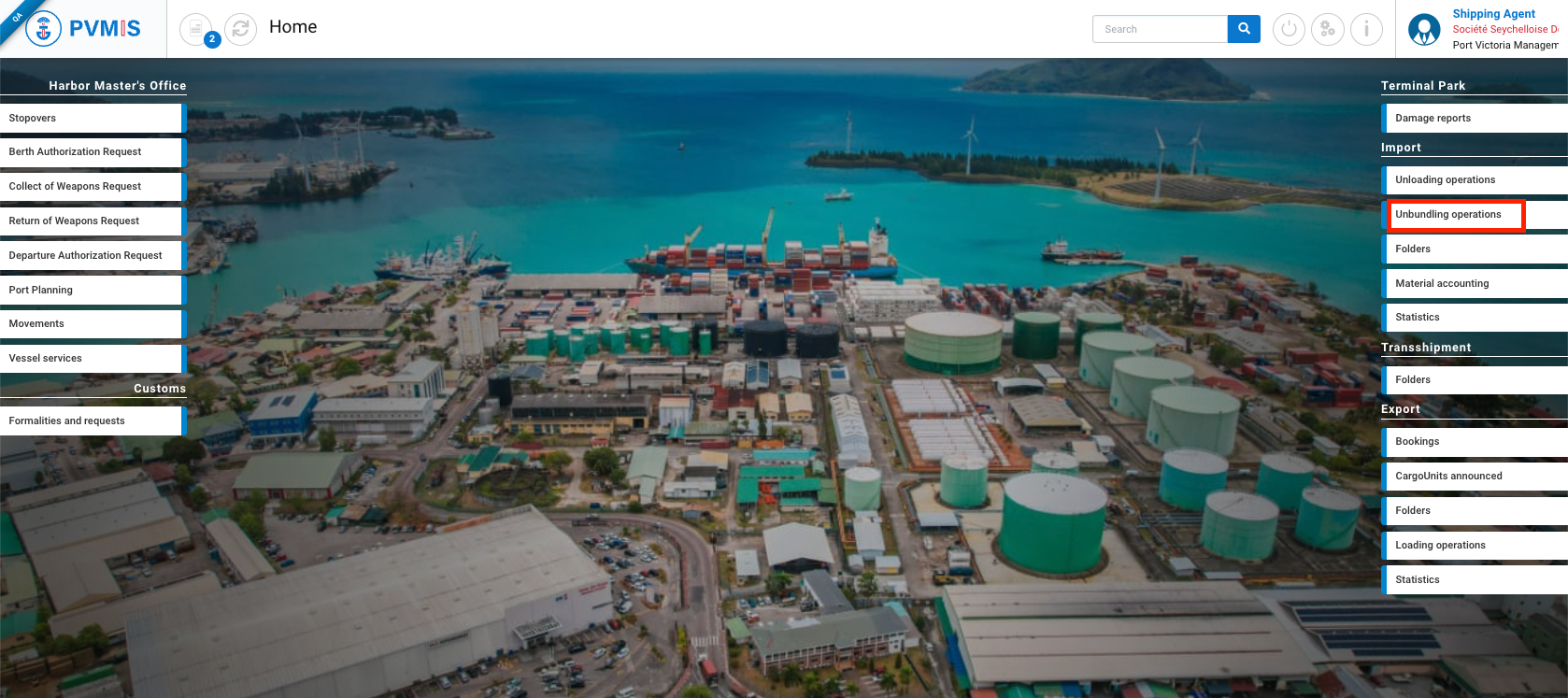
Click on Unbundling operations in the Import section :
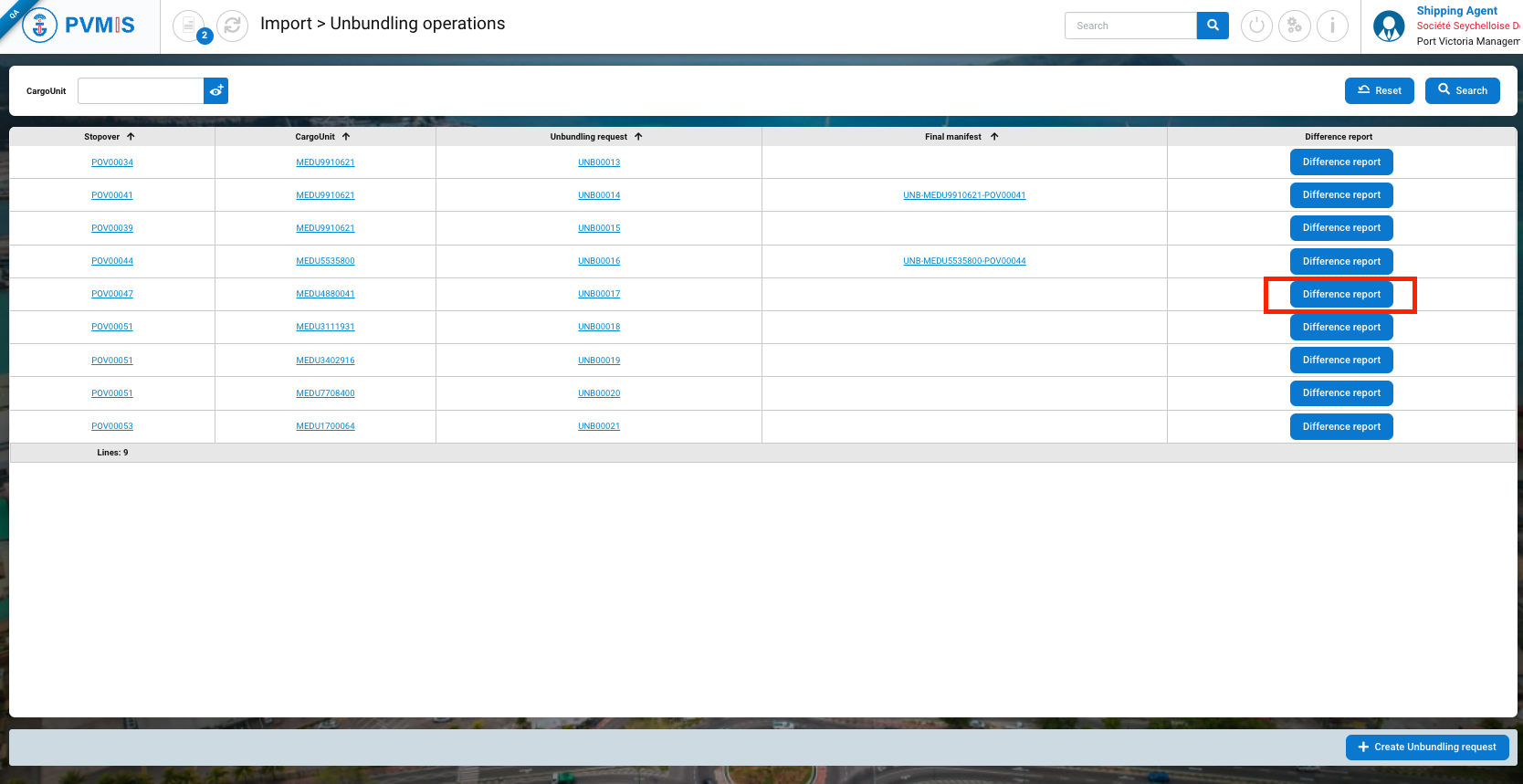
In the list, identify the correct unbundling operation. Click on the Difference report button:
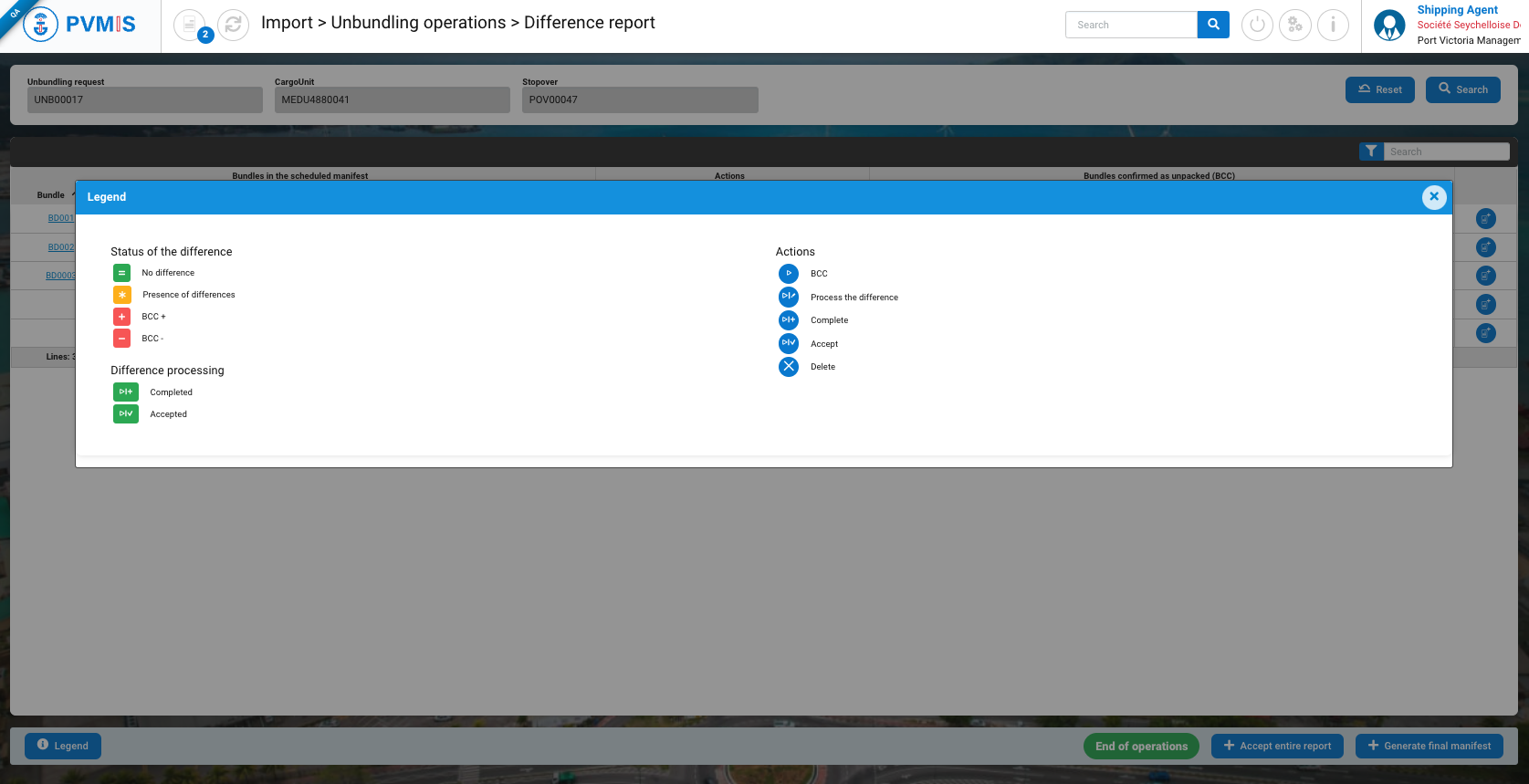
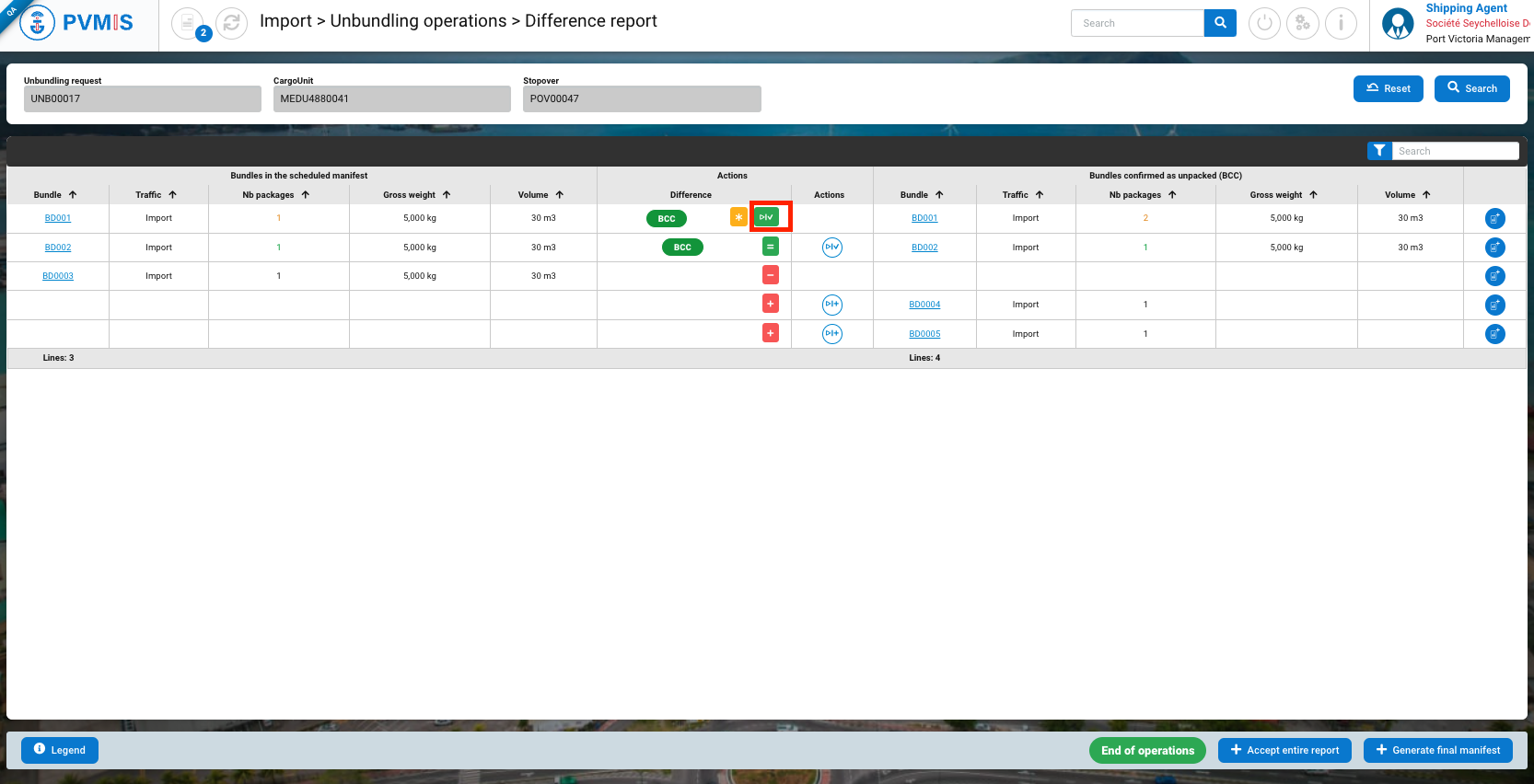
Upon redirection to the difference report as a shipping agent, your task is to accept all differences that have been declared by the stevedores. These differences will be highlighted in orange, while the corresponding information will be displayed in green. To understand the possible actions to accept differences, you can click on the "Legend" button, which will provide guidance on how to proceed with accepting these differences.
In the Actions column, if you click on the icon labelled “Accept”, it means that you are accepting the reported difference. This action confirms your acknowledgment and approval of the stated discrepancies.
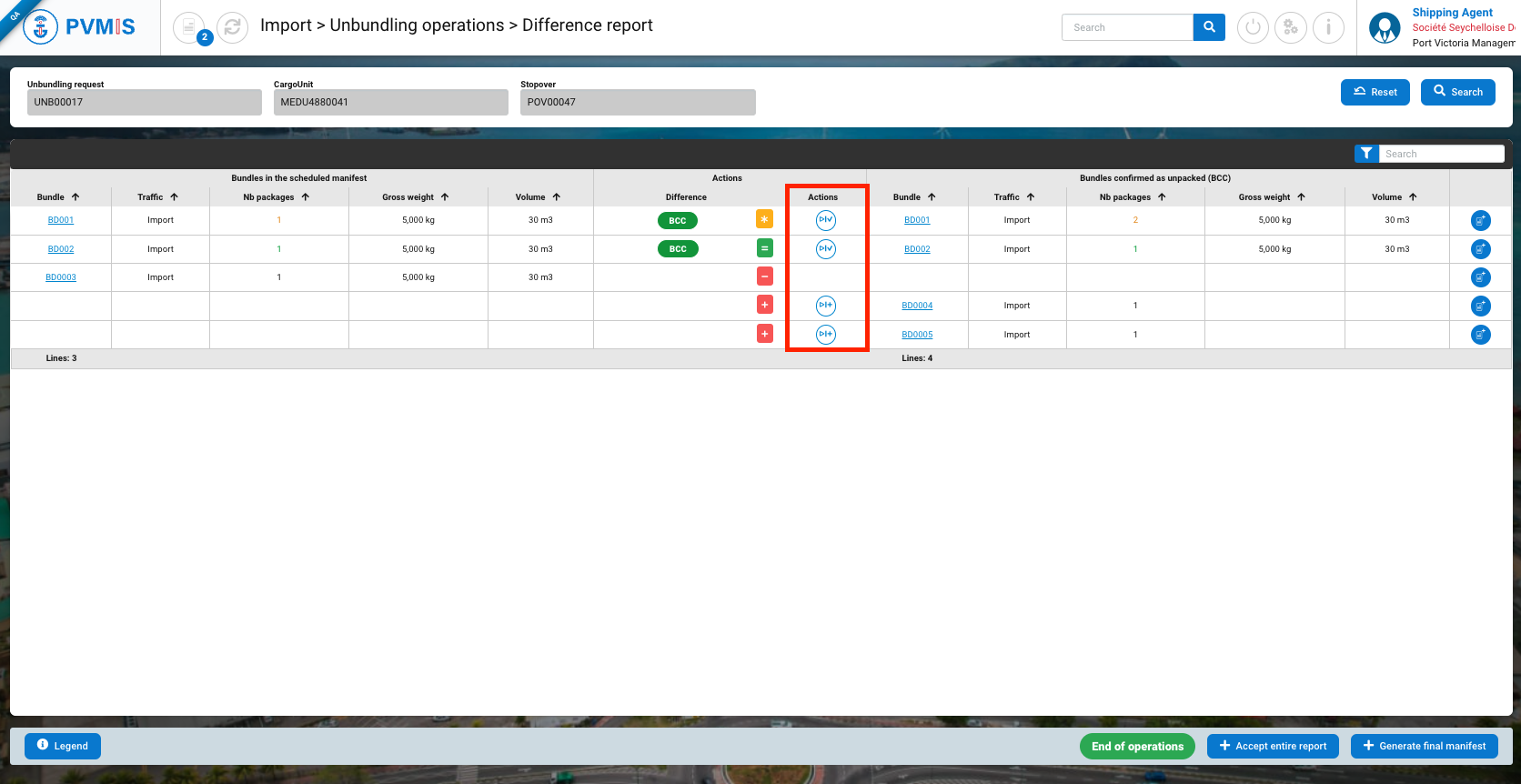
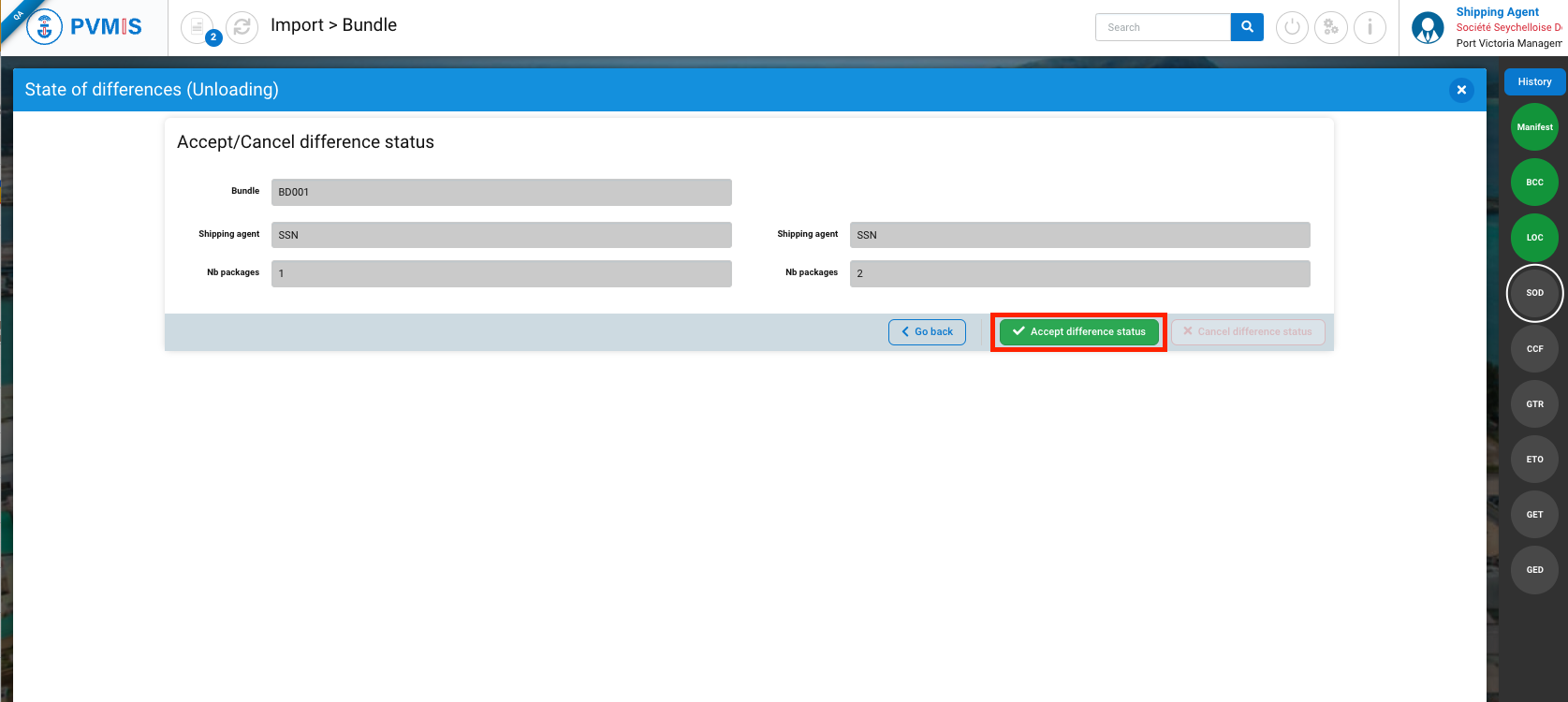
After clicking on these icons, you will be taken to the difference form for each bundle. On the right-hand side of the screen, you can view the statuses of a bundle.
Click on Accept differences status button:
Once you have accepted the difference for a CargoUnit, the table will be updated, and no further actions can be taken on it. In the Difference column, you will see the “Accepted” icon, indicating that the reported difference has been acknowledged and validated.
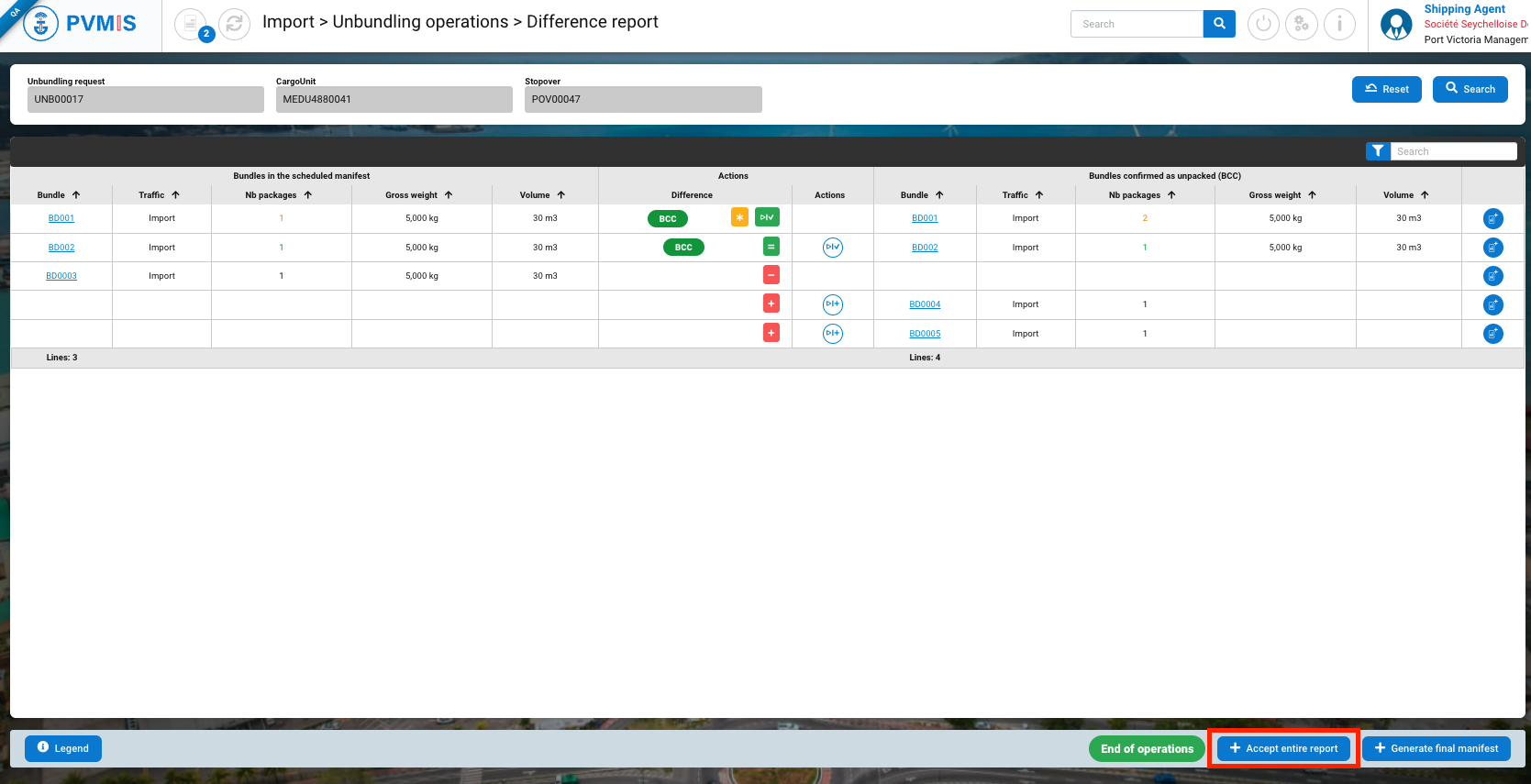
You can accept the differences for each CargoUnit or Accept the entire report by clicking on the button at the bottom of the screen.
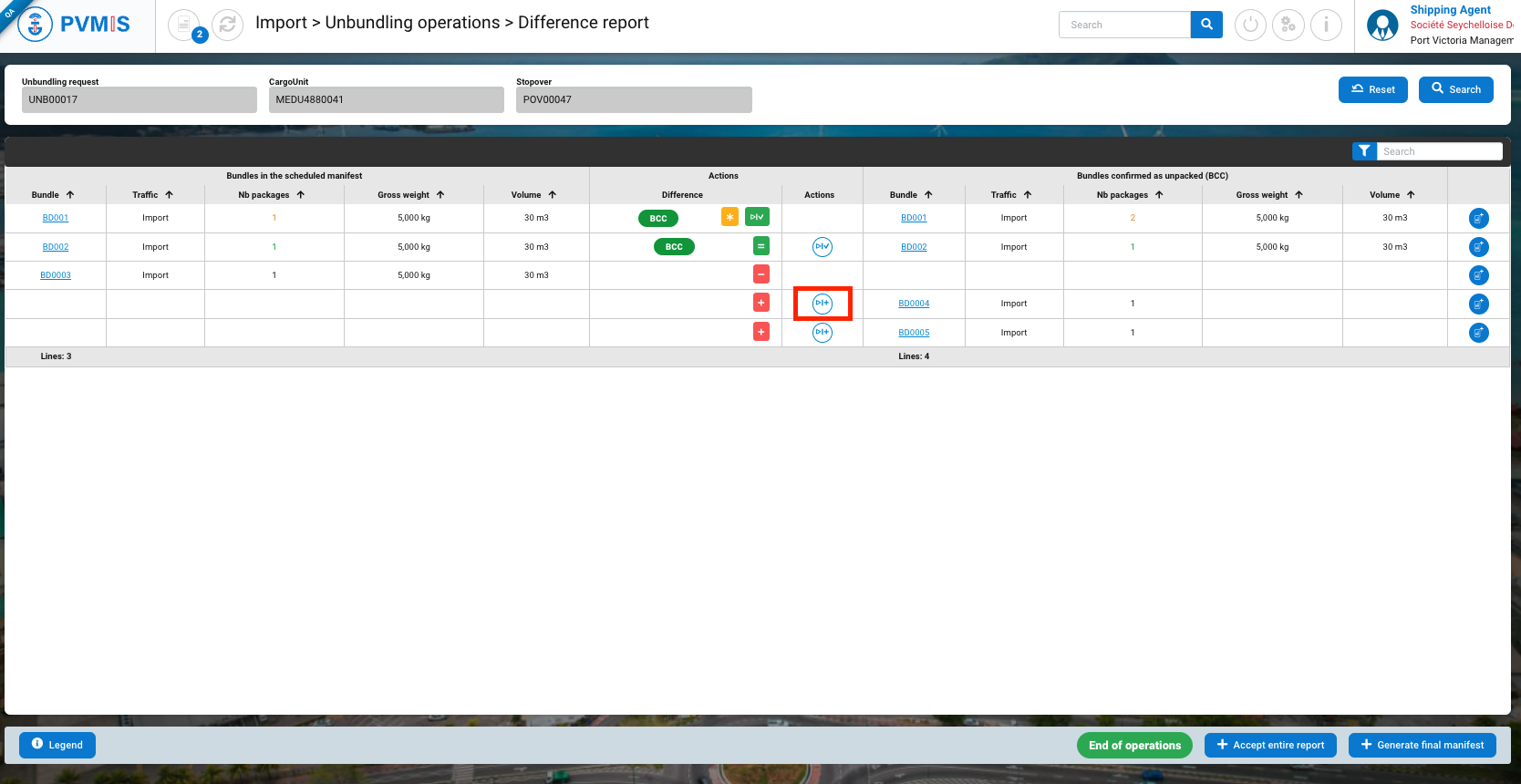
Container not included in scheduled manifest
This is represented by a “red plus”, indicating that the bundle was not in the scheduled manifest.
The agent must then indicate which House BL is linked to this bundle, mainly to inform customs of the contents and third parties linked to this new bundle.

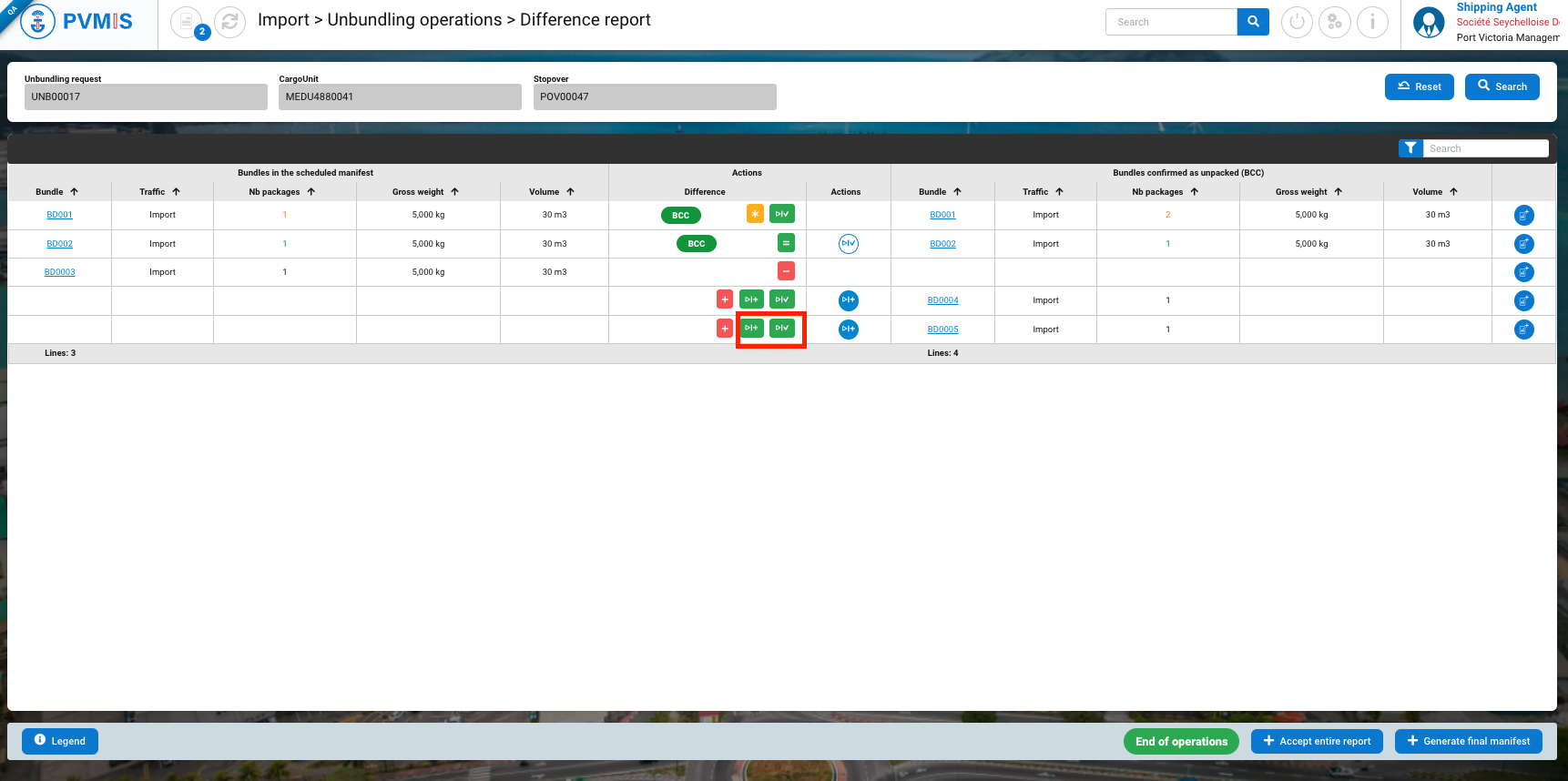
In the screen above, click on the “Complete” button to do the completion on an unmanifested bundle. It brings you to the completion screen:
Indicate if the unplanned bundle needs to be attached to a new or an existing House BL.
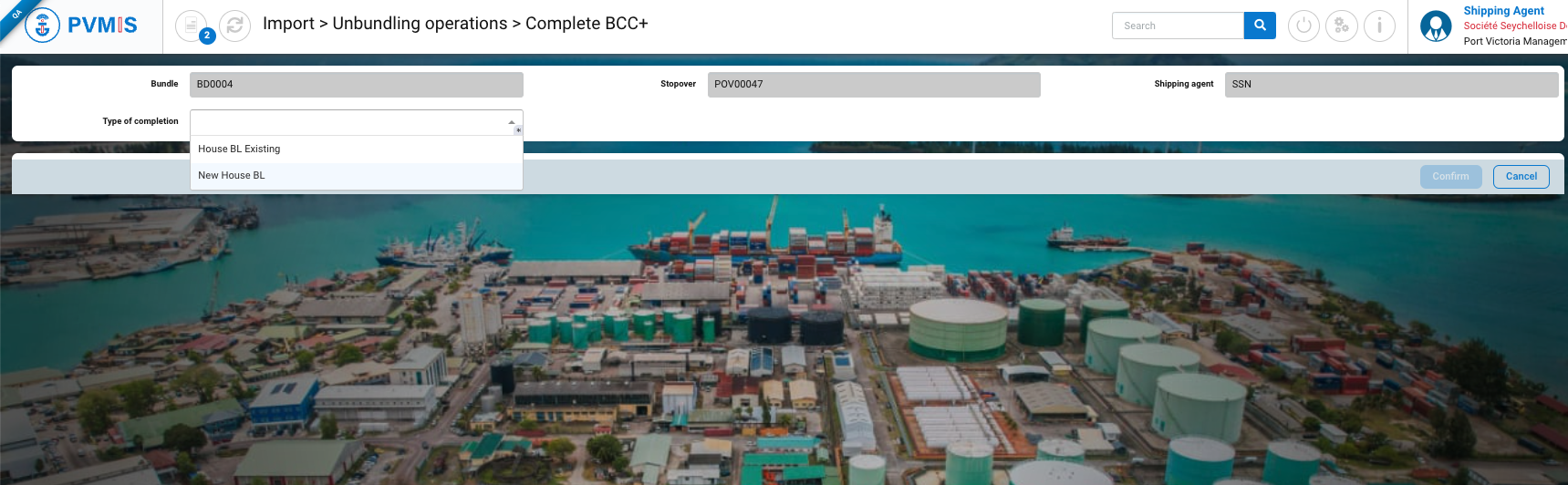
Attached to an existing House BL
Select House BL Existing in the Type of completion field:
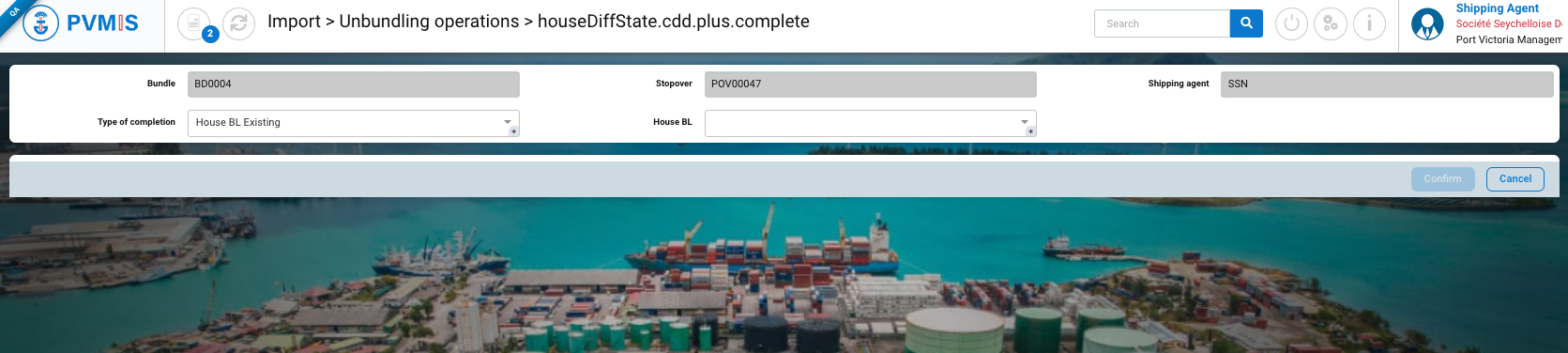
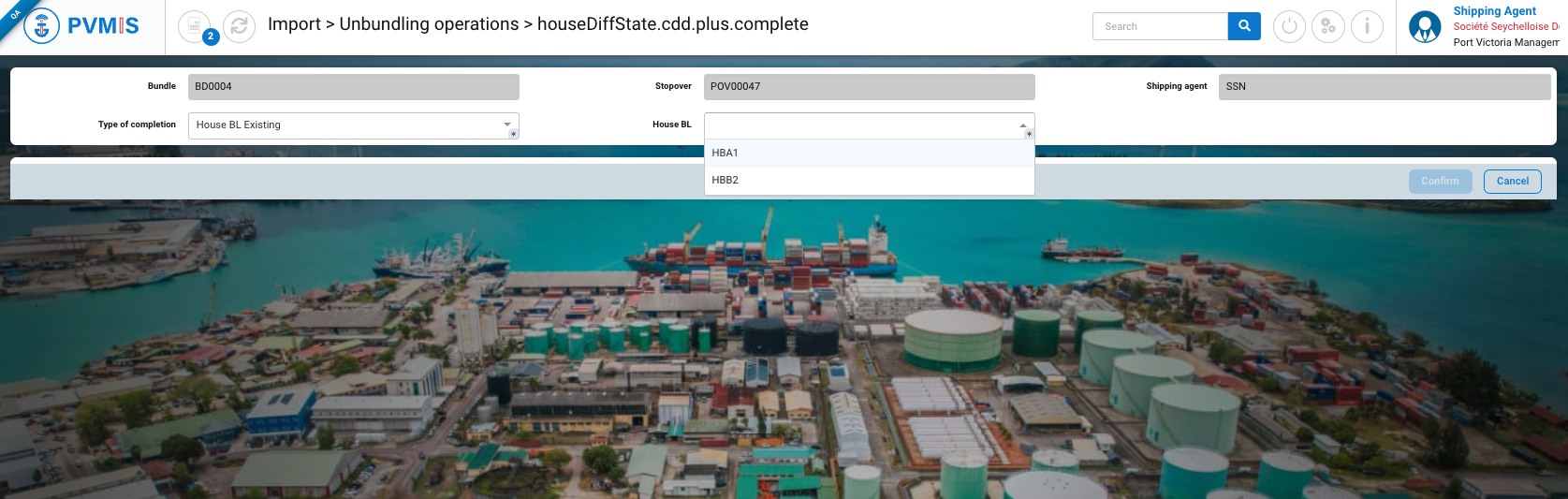
Select the corresponding existing House BL in the House BL field:
The BL information is presented, complete the New splitting section:
-
Number of packages
-
Net weight (kg)
-
Volume
-
Goods description
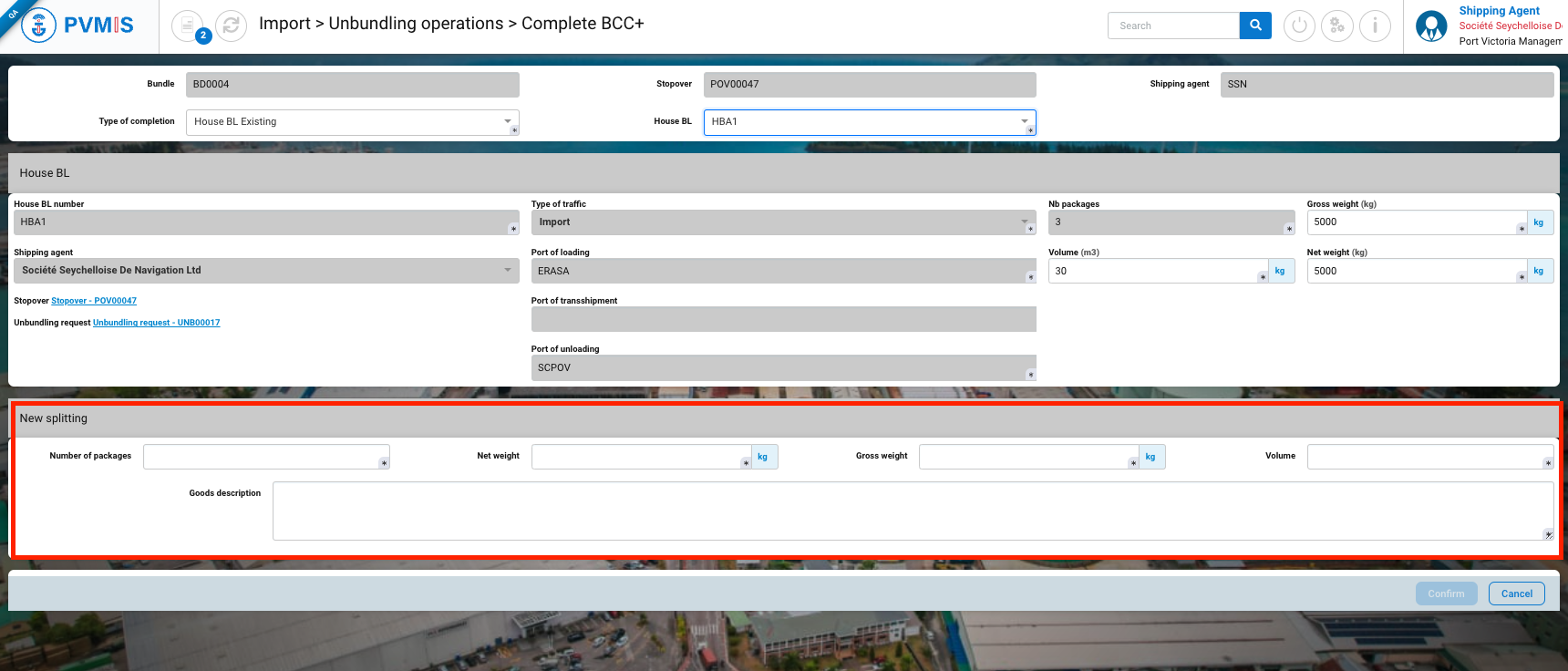
After completing, click on Confirm button:
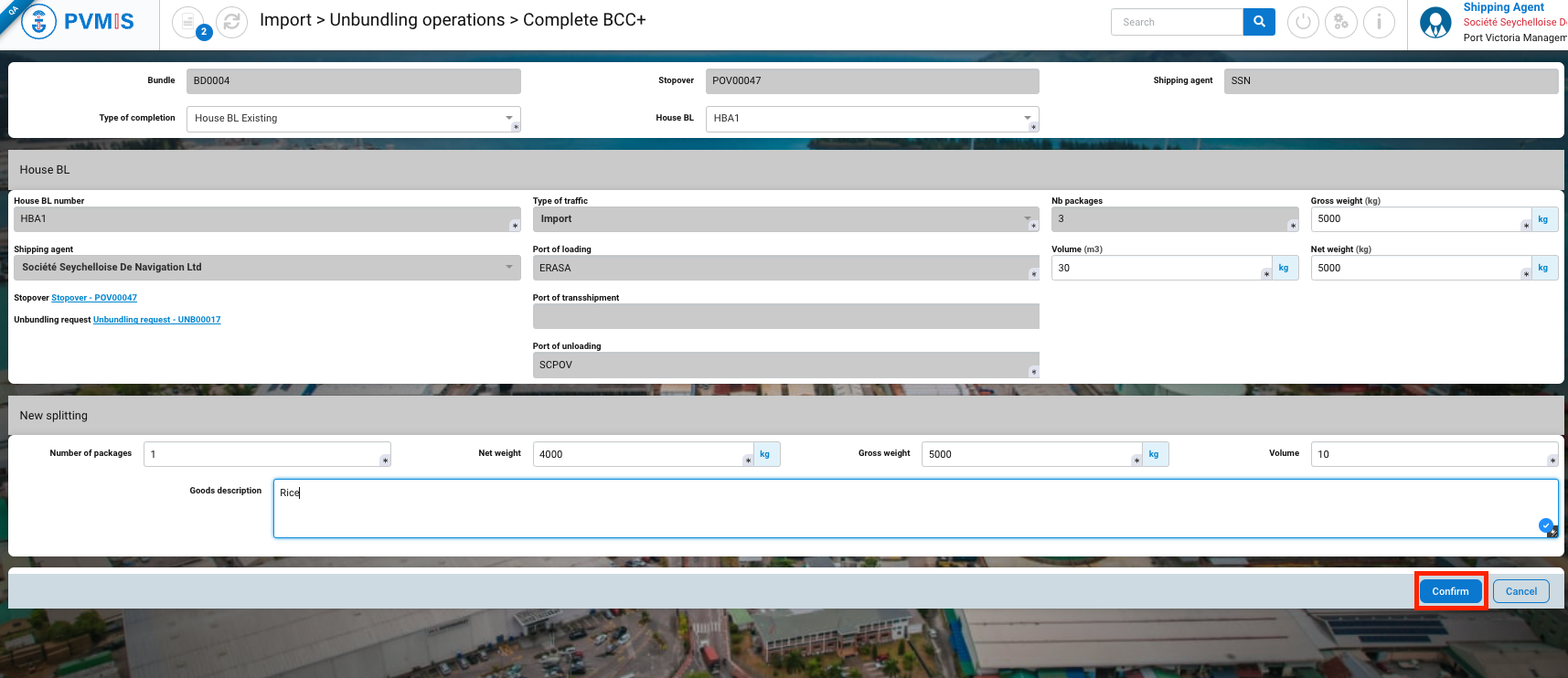
The bundle is included in an existing House BL.
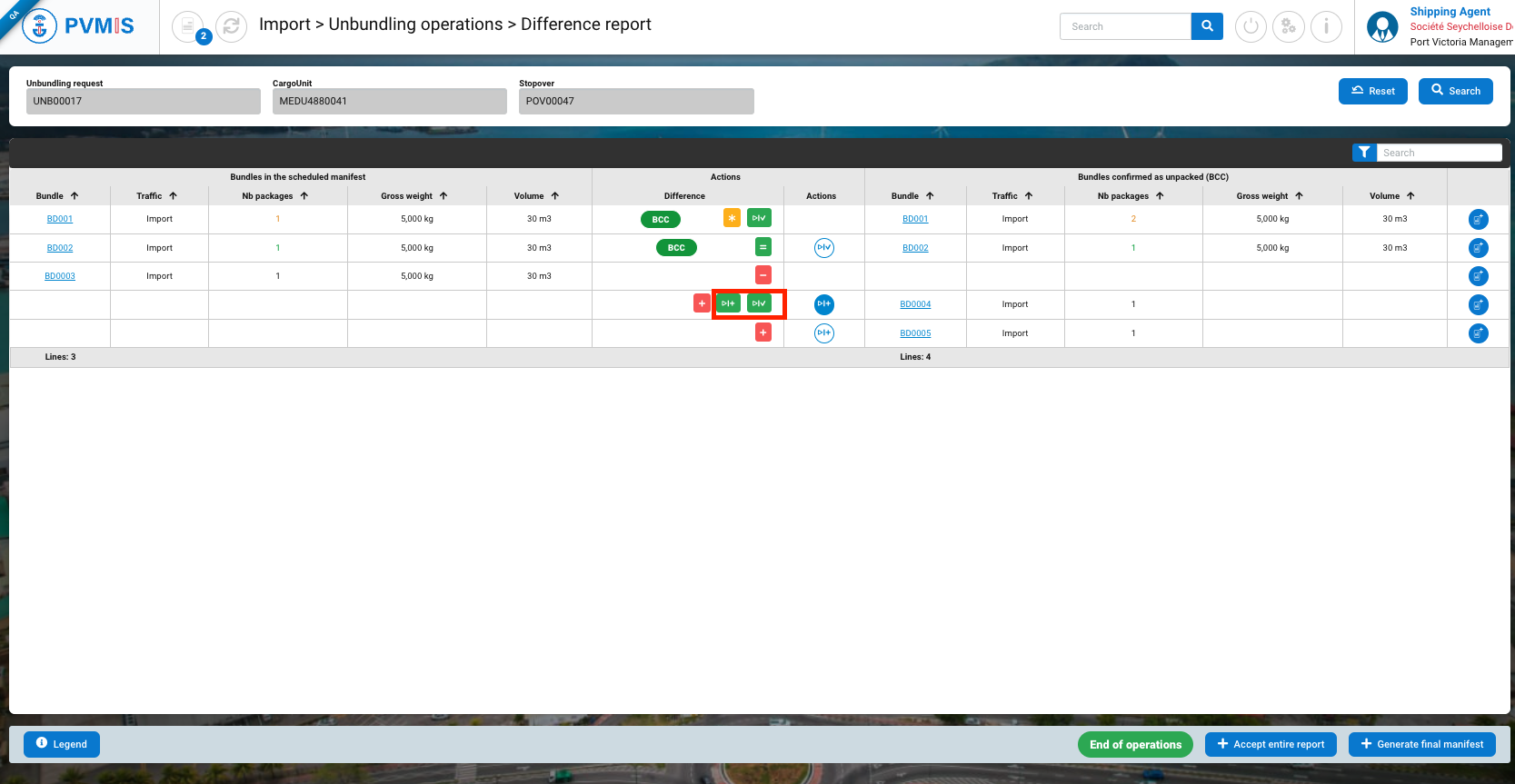
Attach a new House BL
Select BL Existing in the Type of completion field and complete the creation form :
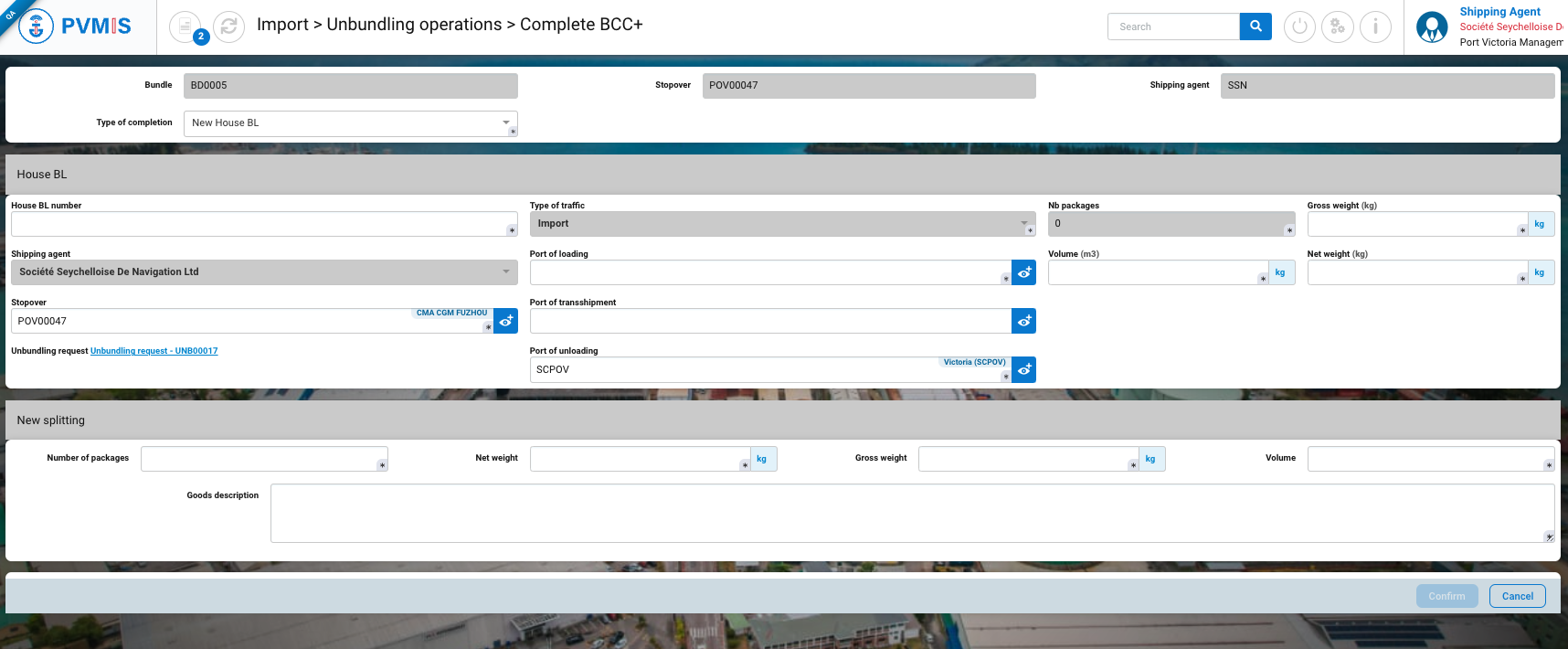
For the House BL section, you need to enter these fields:
|
Fields |
Description |
|---|---|
|
House BL number* |
Corresponds to the code number of the House BL. |
|
Type of traffic* |
Pre-filled and disabled. |
|
Nb packages* |
Disabled field. |
|
Gross weight (kg)* |
Total weight of the House BL |
|
Shipping agent |
Pre-filed with the shipping agent information that was entered during the creation of the scheduled manifest. |
|
Port of loading* |
Port of loading of goods of this House BL. |
|
Volume (m3)* |
Volume of the House BL container. |
|
Net weight (kg)* |
The weight of the goods contained within the package. |
|
Stopover* |
Pre-filled with the stopover code that was associated with the manifest. |
|
Port of transshipment |
This refers to the port through which the goods will pass or transit on their way to another port. |
|
Port of unloading* |
Pre-filled by SCPOV, in the Import process, Victoria port is the port of unloading. |
For the New splitting section, enter these fields:
|
Fields |
Description |
|---|---|
|
Number of packages* |
Corresponds to the number of packages into the bundle. |
|
Net weight (kg) * |
Net weight of the bundle. |
|
Volume (m3) * |
Volume of the bundle. |
|
Goods description |
Description of the goods. |
When you complete, click on Confirm button:
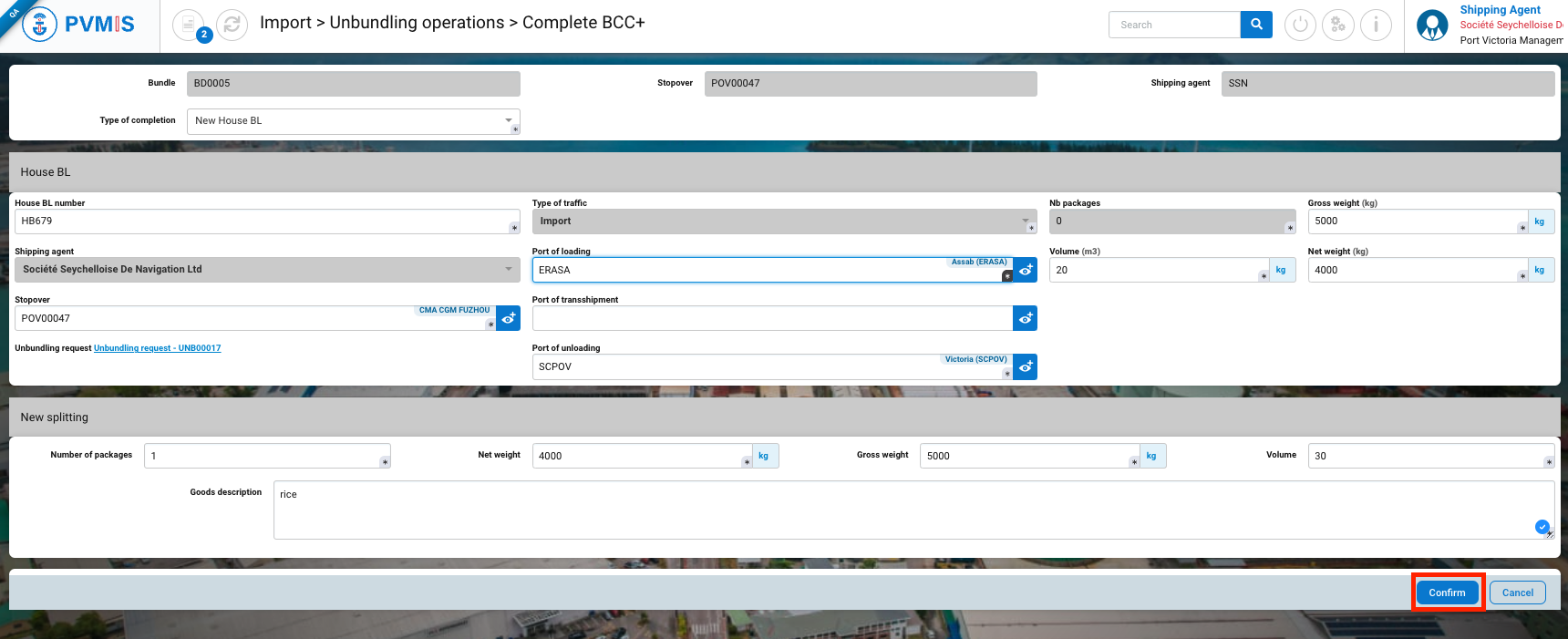
The bundle BCC+ (Bundle confirmation check) is included in a new House BL.
Missing bundle
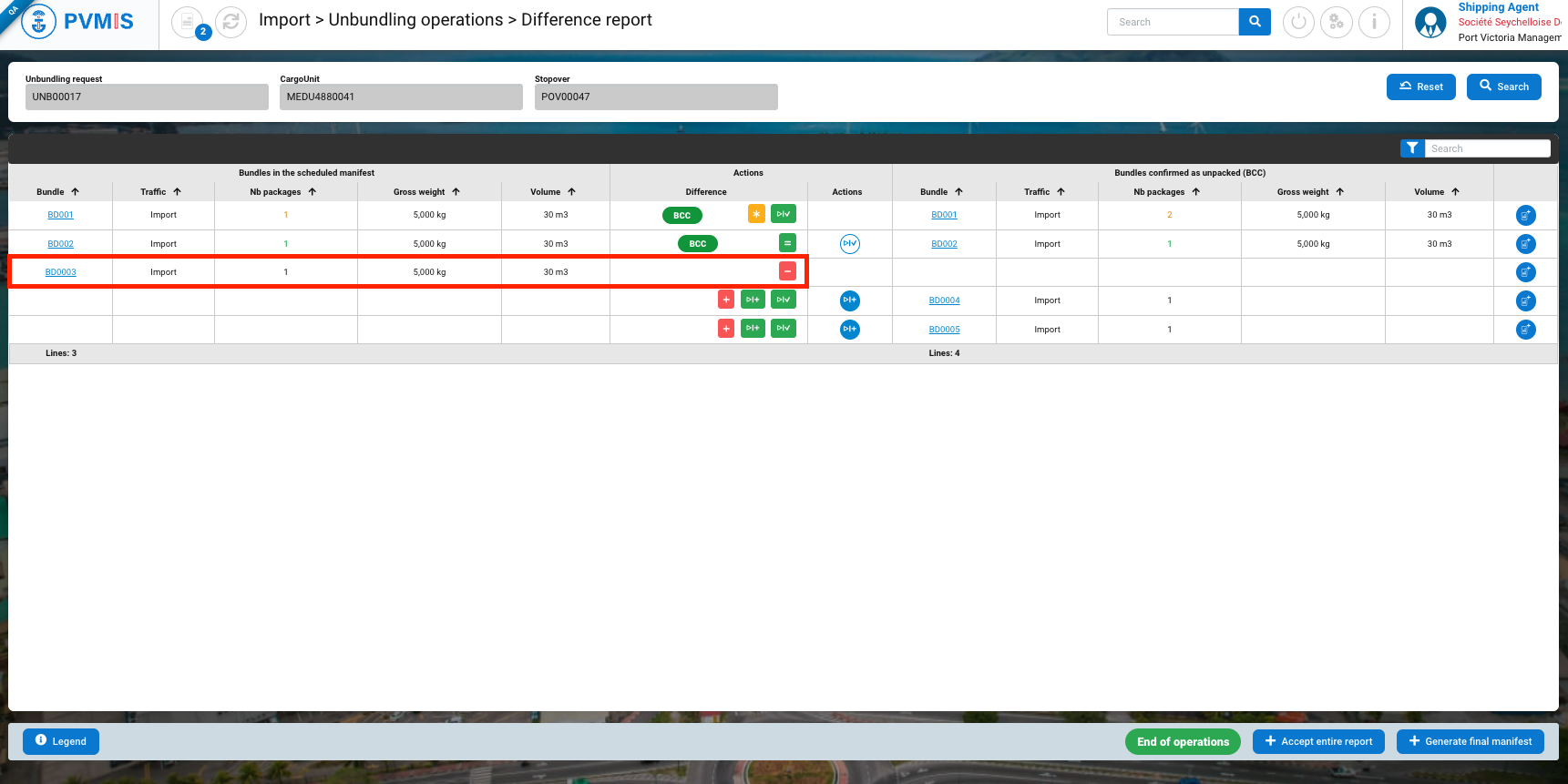
If a bundle has been declared missing according to the stevedore, don’t take any action, just click on Generate final manifest. It won’t appear in the definitive manifest.