

|
Actors |
Claimant (Freight forwarder) |
|---|---|
|
Description |
A transport order of the Empty Container Release Export type is generated after the creation of a Booking. This order allows for an equipment request (empty container) to be made to the handler so that it can be delivered to the forwarder or their client to be filled with goods. |
Access to create an Empty release order (EXPORT) transport order from the Transport Order menu
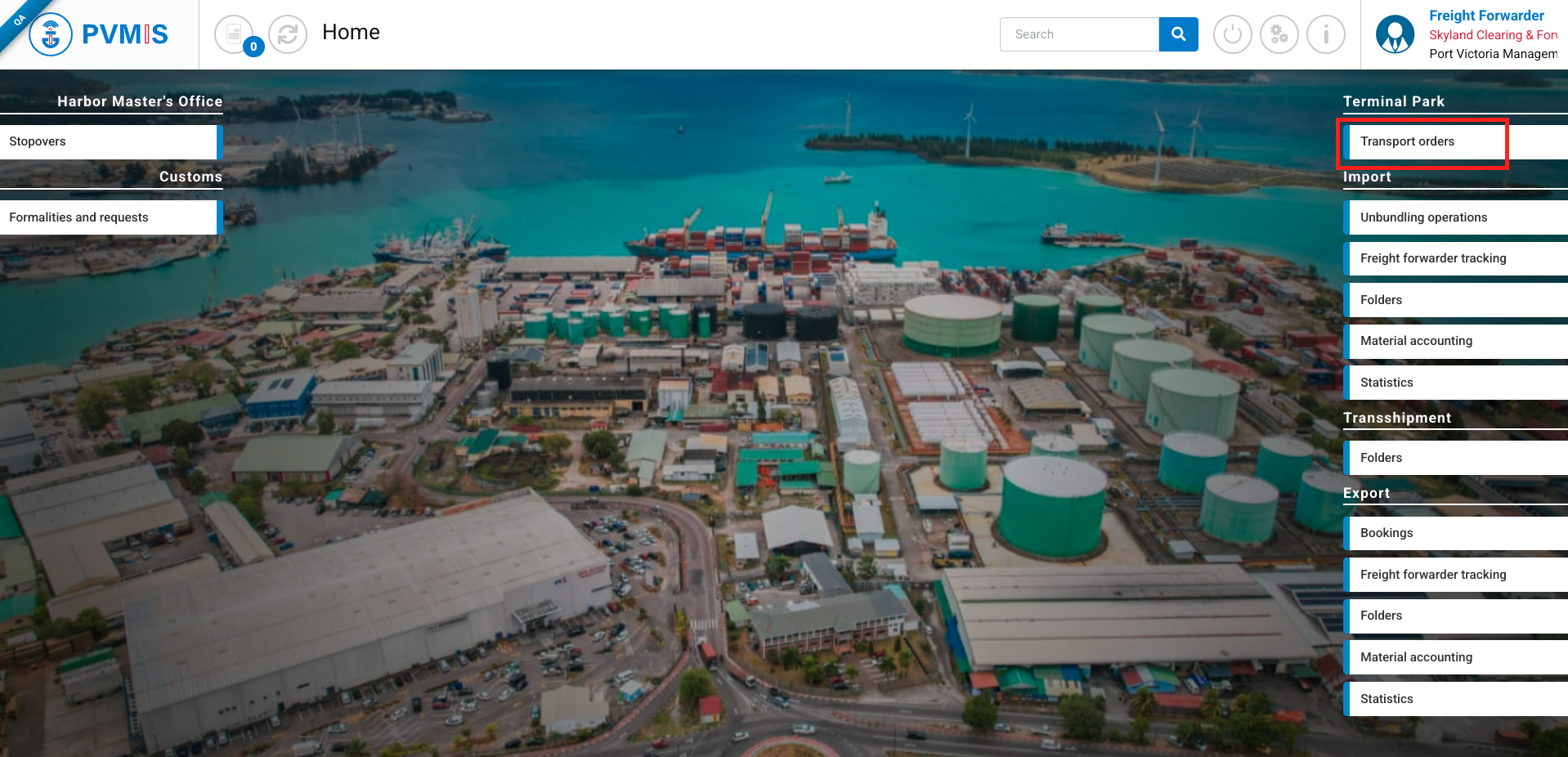
Connected as a Claimant role, from the Home page, click on “Transport orders” menu in Terminal Park section.
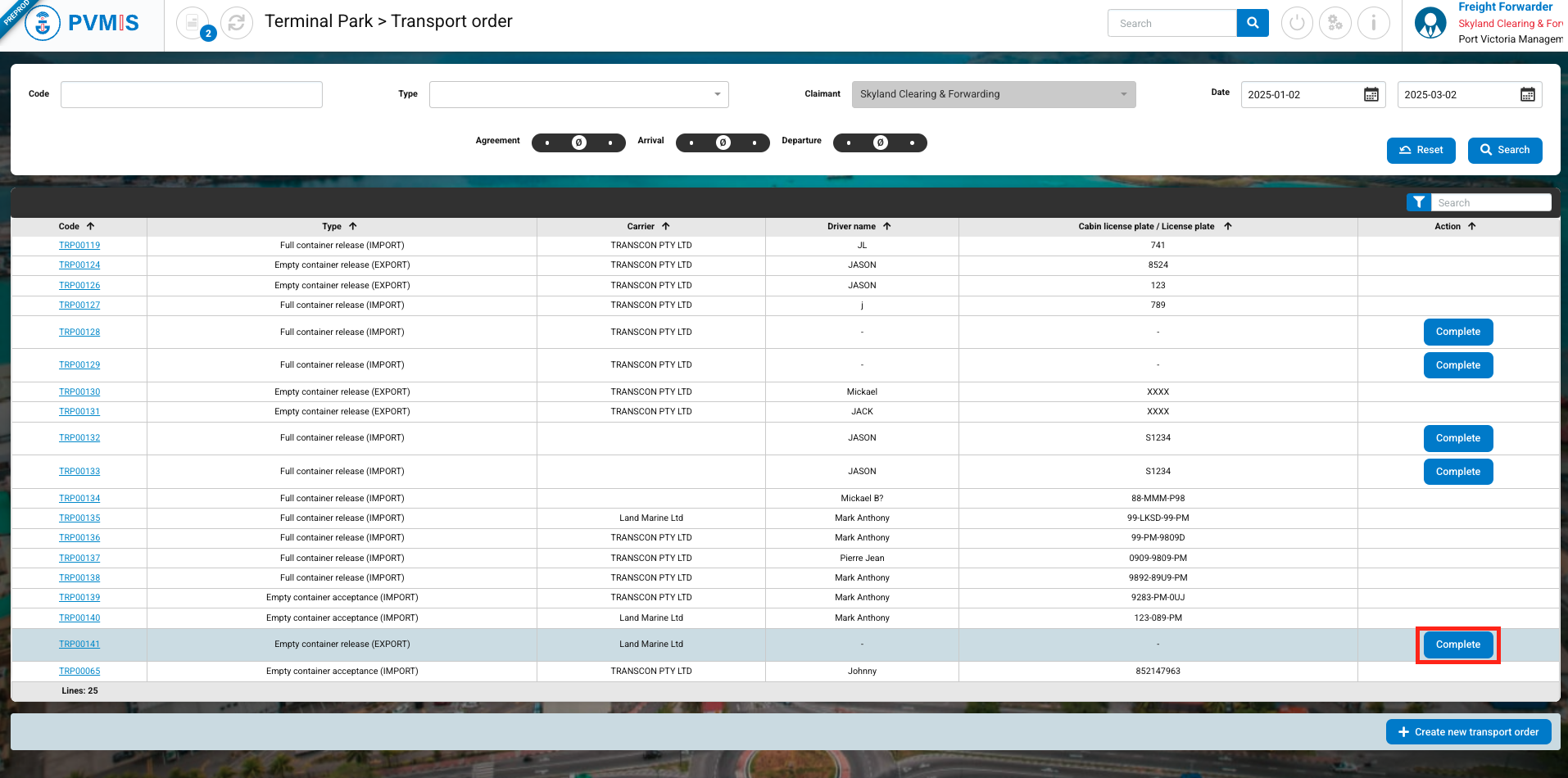
The user is redirected to the transport order list screen. The screen displays only the list of transport orders created by the freight forwarder company of the logged-in claimant.
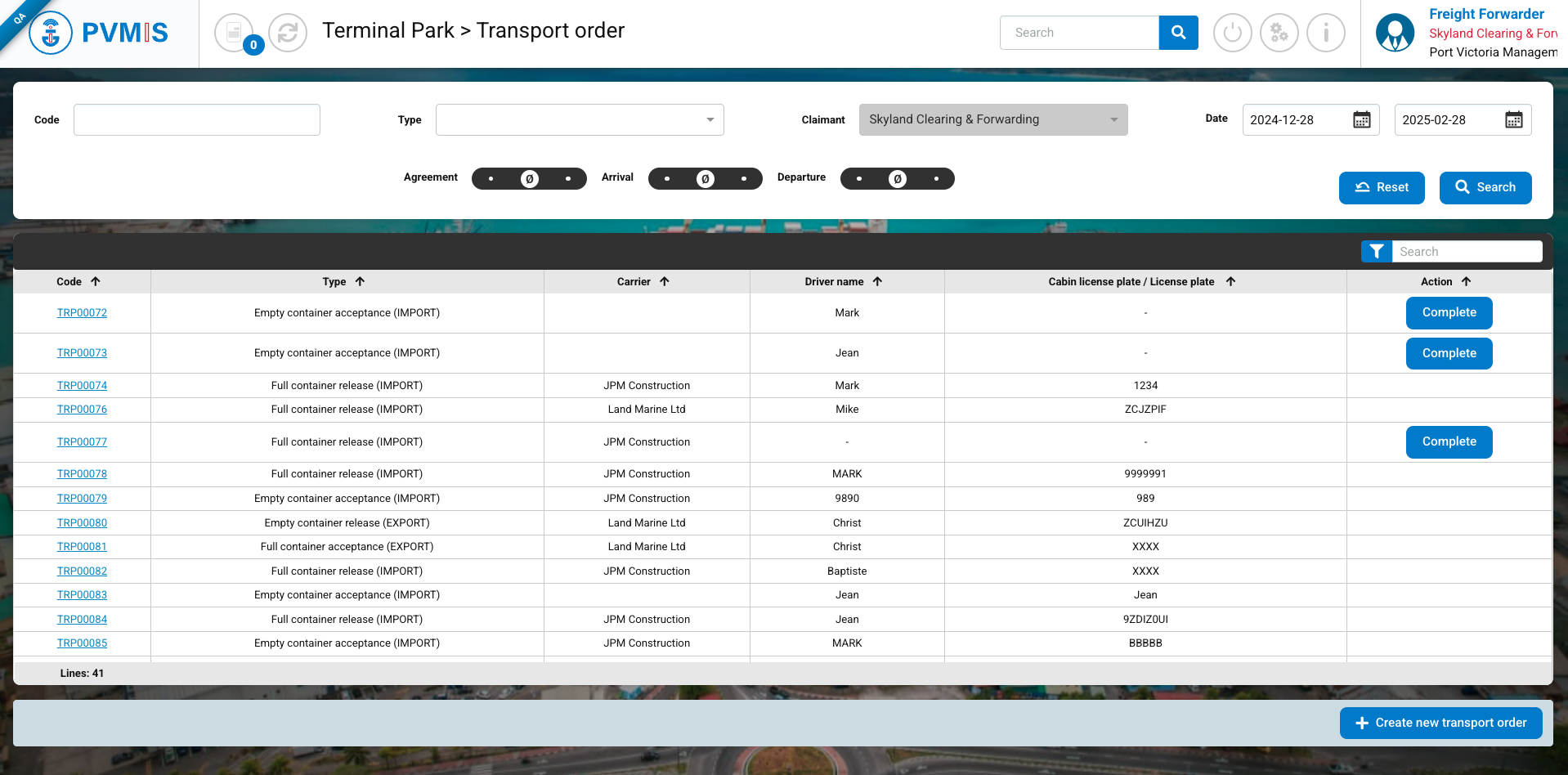
In the header, it’s possible to do a quick search by :
-
Code of transport order
-
Type of transport order (Empty container release (EXPORT), Full container acceptance (EXPORT), Full container release (IMPORT), Empty container acceptance (IMPORT)).
-
Date of the creation of the transport order
-
Status of the transport (Agreement ; Arrival ; Departure) and for each status select the state (No, No activated, Yes)
In the results table, the following columns are displayed:
-
Code, which corresponds to the transport order number generated by the system upon creation (when clicking the link, the user will be redirected to the transport order details screen).
-
Type of transport order
-
Carrier, which corresponds to the name of the transport company. If the column is empty, it means that the chosen mode of transport is an individual person (who does not belong to a transport company).
-
Driver name
-
Cabin license plate / License plate of the driver
-
Action : In this column, action buttons can be displayed. When logged in as a Claimant, if the transporter's information (Driver code, Driver name, Cabin license plate) has not been filled in, the Complete button will be shown. By clicking this button, the user will be redirected to the transport order editing form to complete the information. This action can also be performed by a Carrier role holder with their company name listed on the transport order as the transport company.
To create an Empty release order (EXPORT) transport order, click on the Create transport order button and you will be redirected on the transport order creation form.
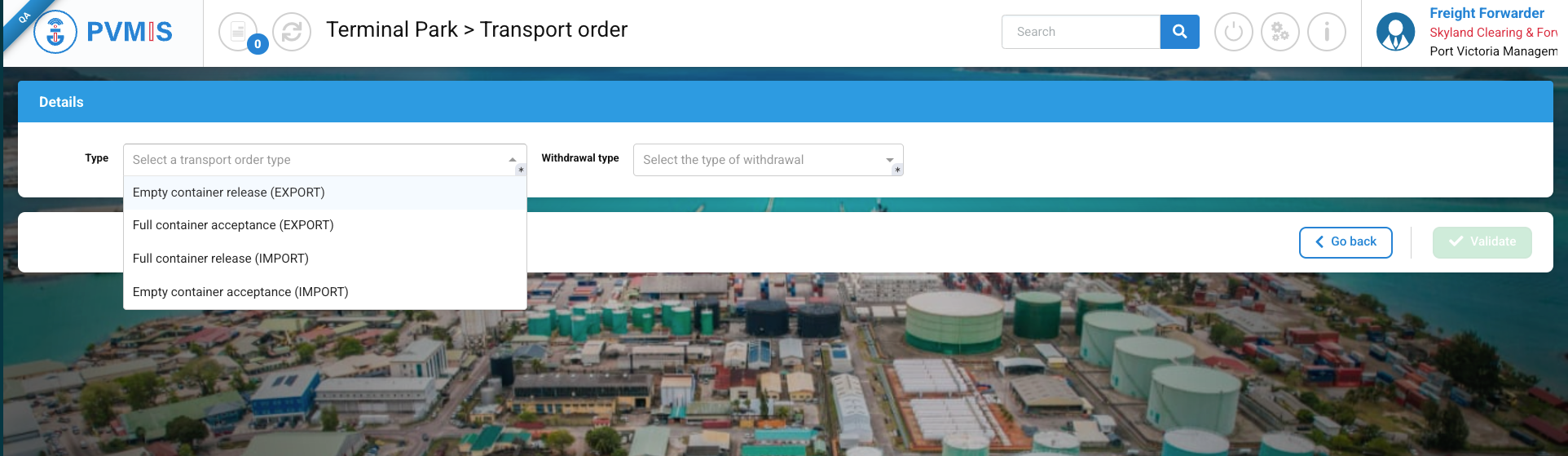
On the “Type” field, select “Empty release order (EXPORT) and the form will display the fields to be completed based on this type.
Access to create an Empty release order (EXPORT) transport order from the Bookings menu
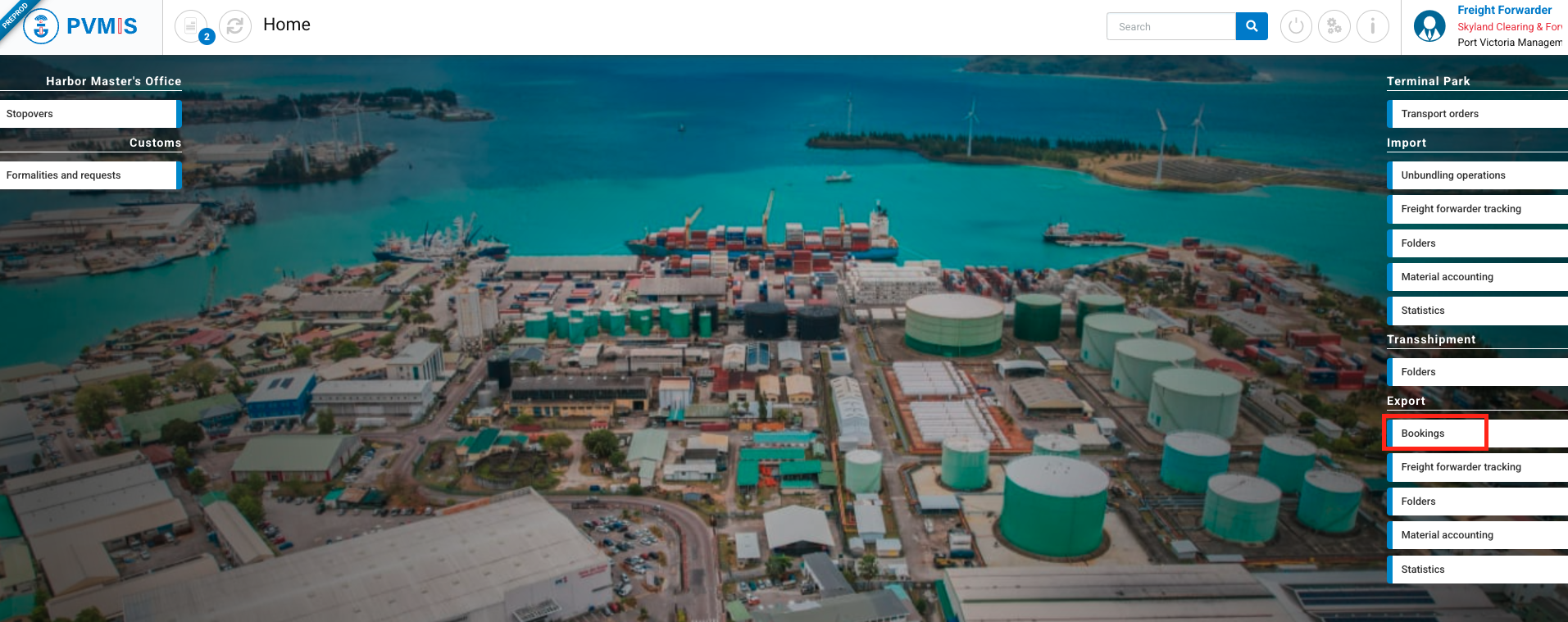
Connected as a Claimant role, from the Home page, click on “Bookings” menu in Export section.
The list of Bookings on which the forwarder is named is presented.
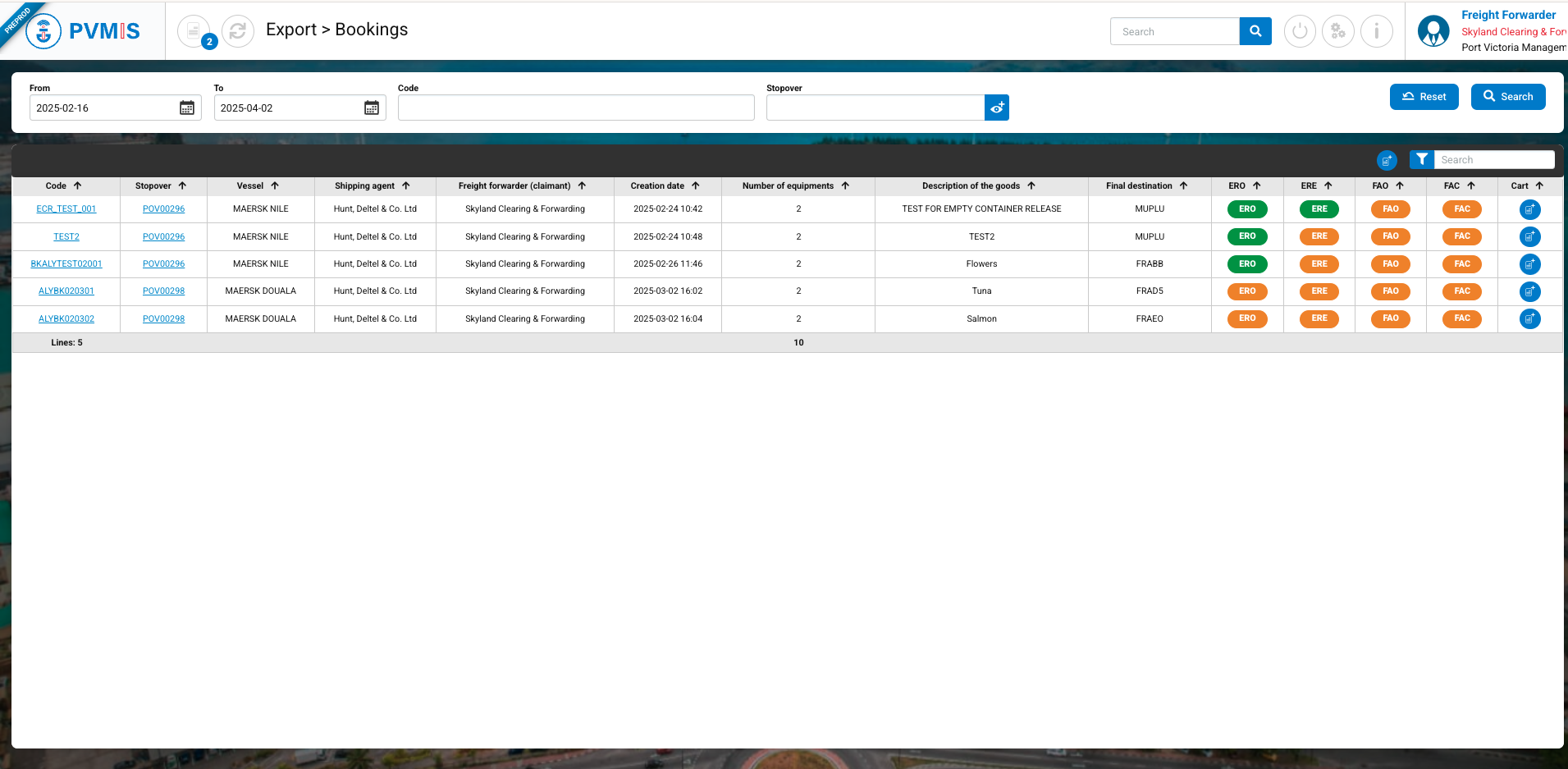
The list is filterable by booking creation date, booking code, and stopover. Each line represents a booking, displaying the following details: booking code, stopover, vessel name, shipping agent company, freight forwarder's name, creation date, number of equipment items, description of goods, final destination, and the booking statuses, which correspond to the consolidation of all equipment statuses included in:
-
ERO (Empty release order) - Which corresponds to the creation of the transport order.
-
ERE (Empty release) - Which corresponds to the confirmation of equipment delivery to the freight forwarder or client (validation of the carrier's departure form by a Gate operator).
-
FAO (Full acceptance order) - Which corresponds to the creation of the transport order.
-
FAC (Full acceptance) - Which corresponds to the confirmation of a full container being placed at the quay on the terminal (validation of the carrier's departure form by a Gate operator)
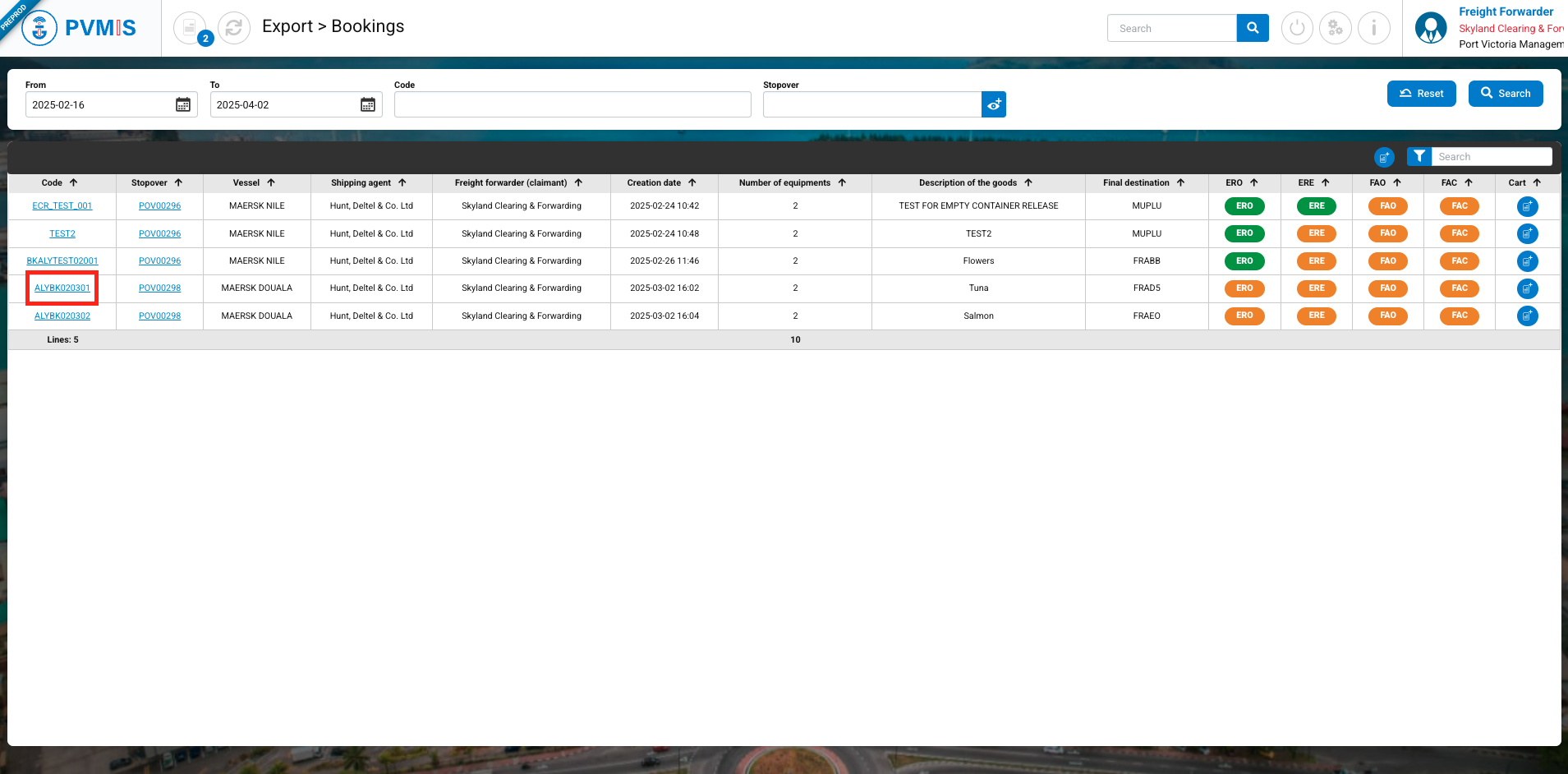
On the list, click on the link of a booking to access its detail screen:
You will be redirected to the Booking details screen. Check the statuses and verify if the ERO (Empty release order) status is in NEUTRAL state (grey color). This means that no transport order of type Empty release order (EXPORT) has been created for all the equipments in the booking.
If the status is PARTIAL, it means that at least one equipment from this booking has a transport order of this type created.
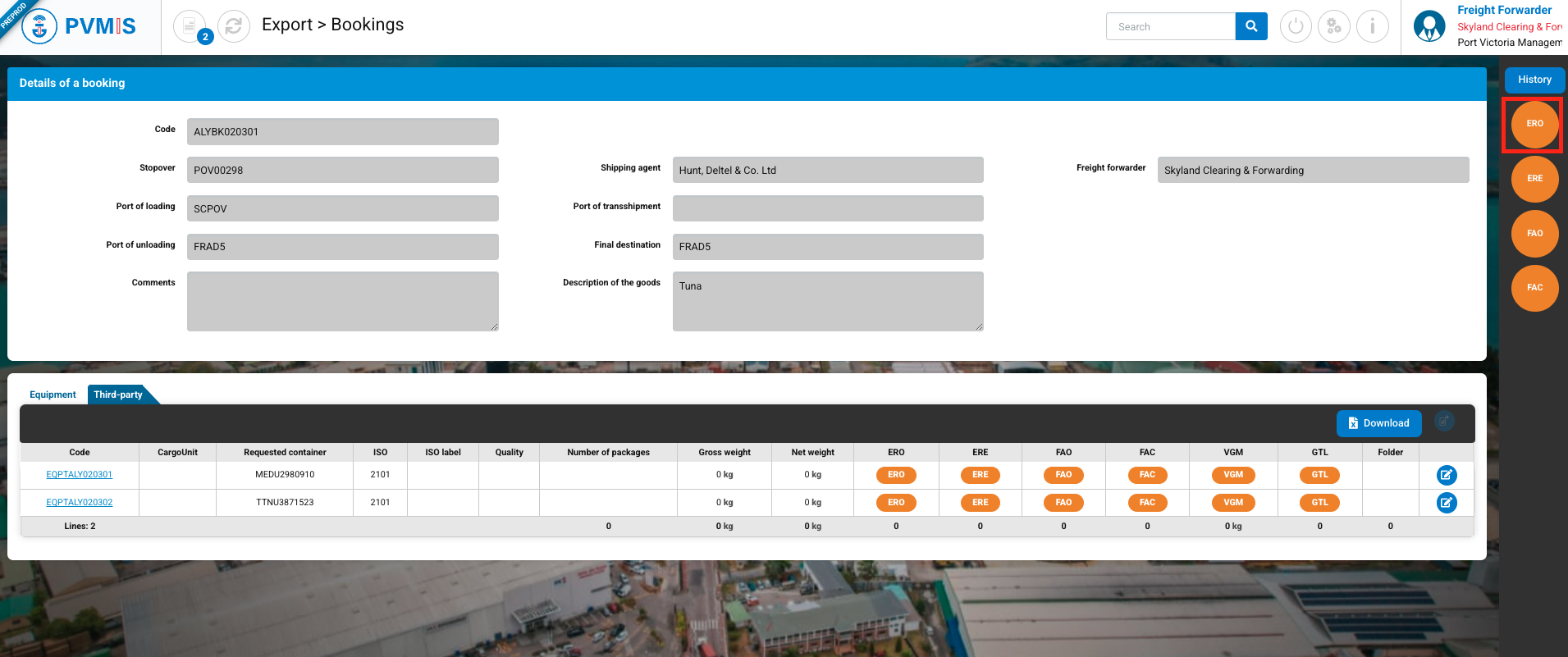
Include all the equipment from a booking in an ERO order
On a booking detail, click on ERO status and click on Create transport order button:
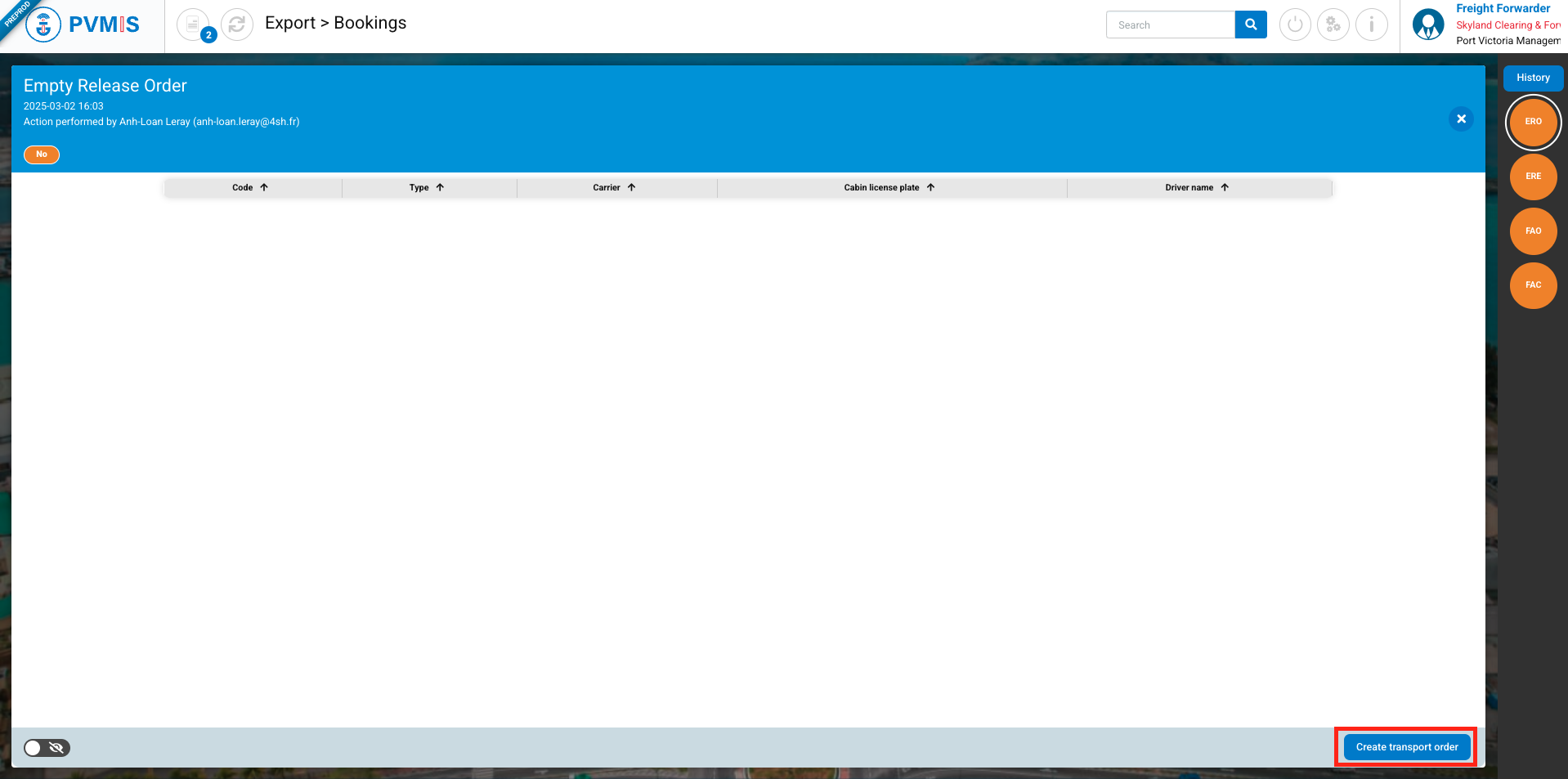
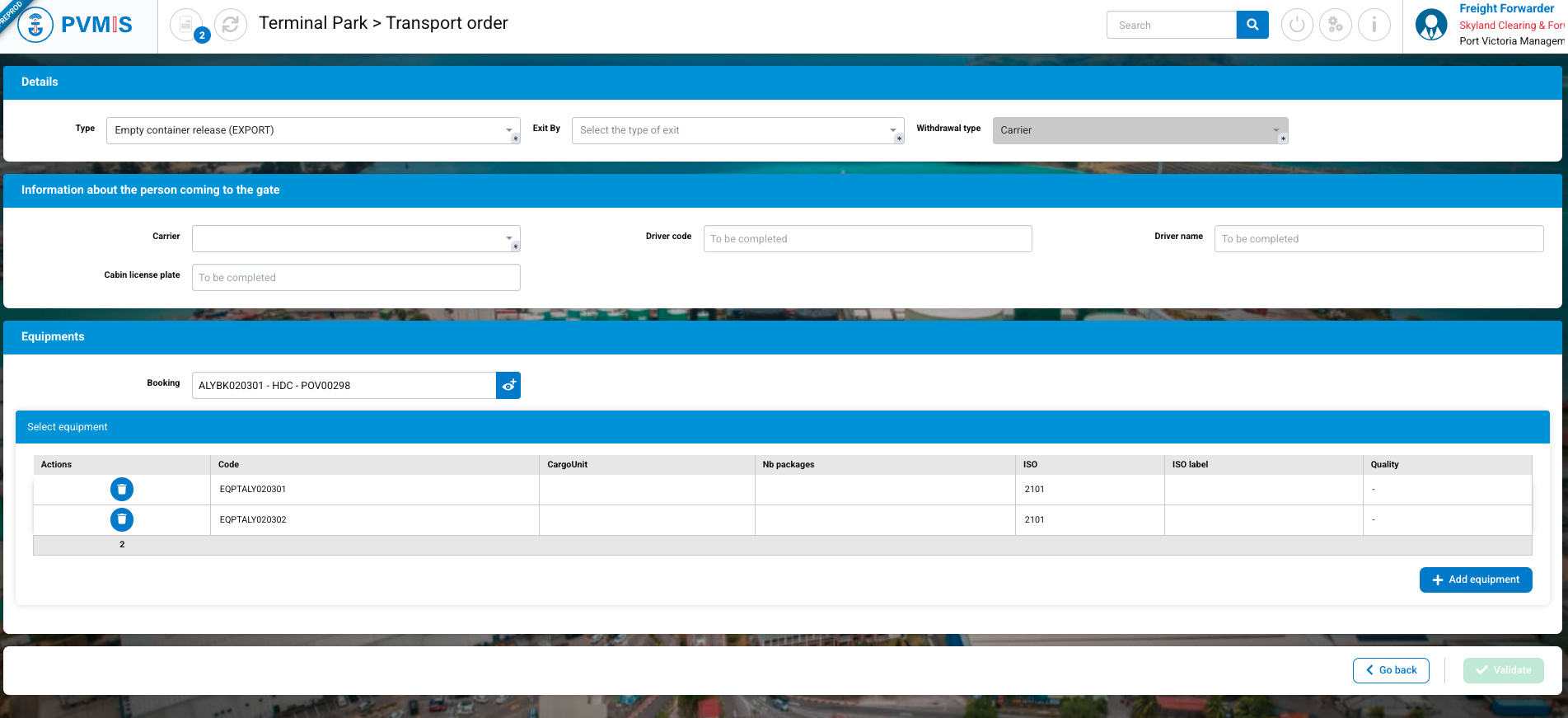
On the transport order creation form, the type of the transport order is prefiled and all the equipments present in the booking is selected (Equipments section), but you can add more by clicking on +Add equipments button.
Include only one equipment from a booking in an ERO order
On a booking detail, in the Equipment tab, click on the code of an equipment:
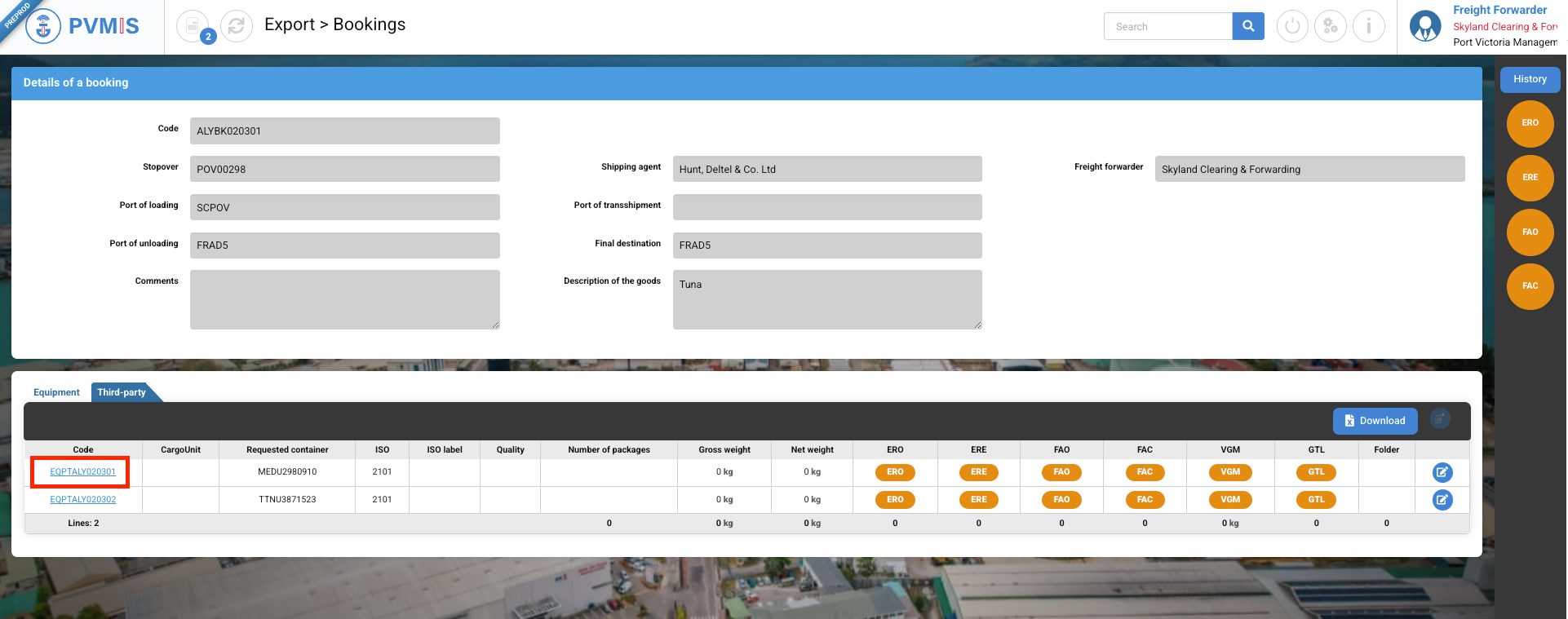
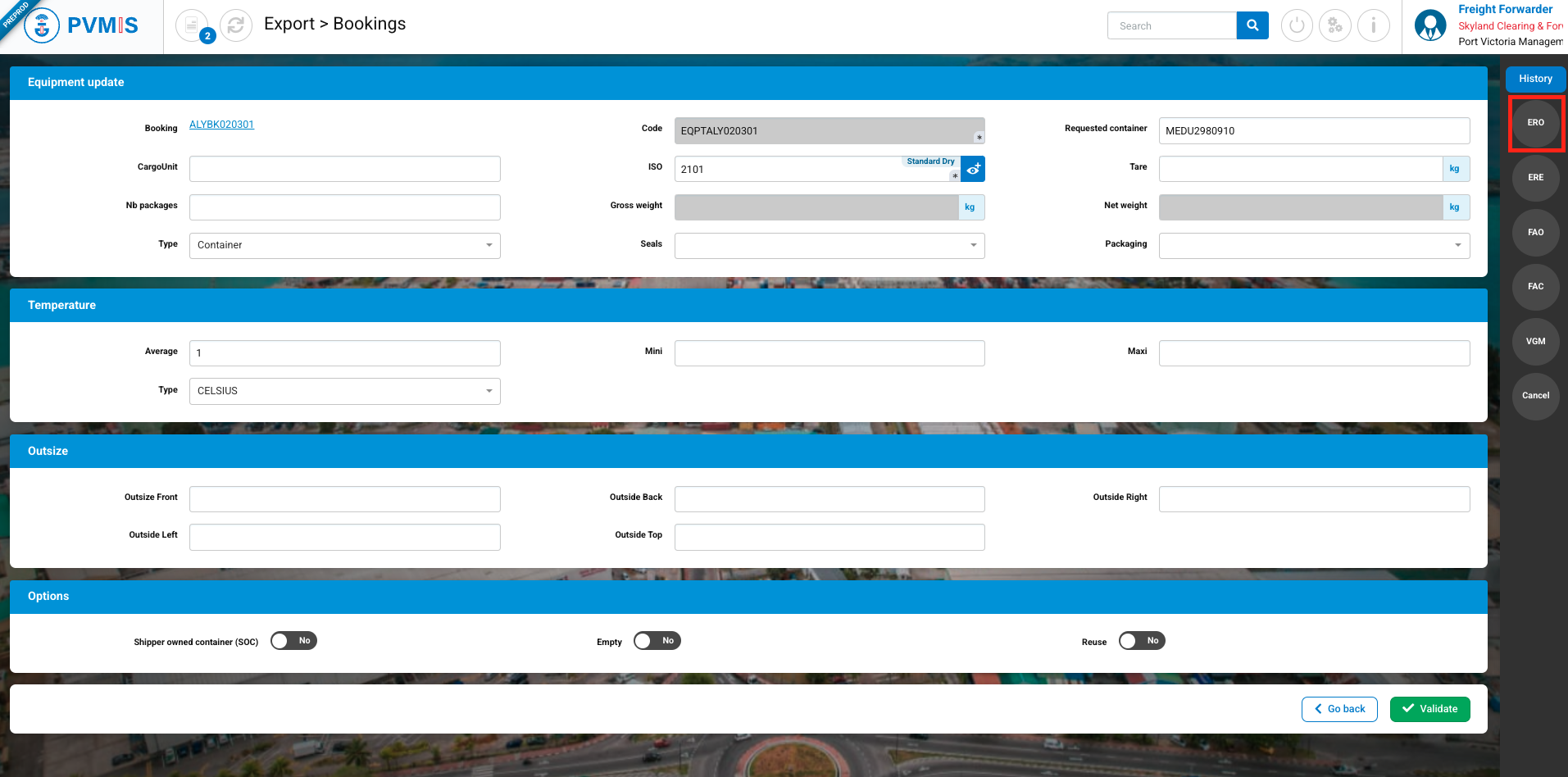
On the equipment detail screen, you can view all the information and recommendations from the shipping agent for the equipment. By clicking on the ERO status, you will be able to access the form for creating a transport order of the Empty Release Order (EXPORT) type with this equipment selected. In the case where you wish to create an individual transport order for each equipment.
Click on ERO status:
Click on Create transport order button:
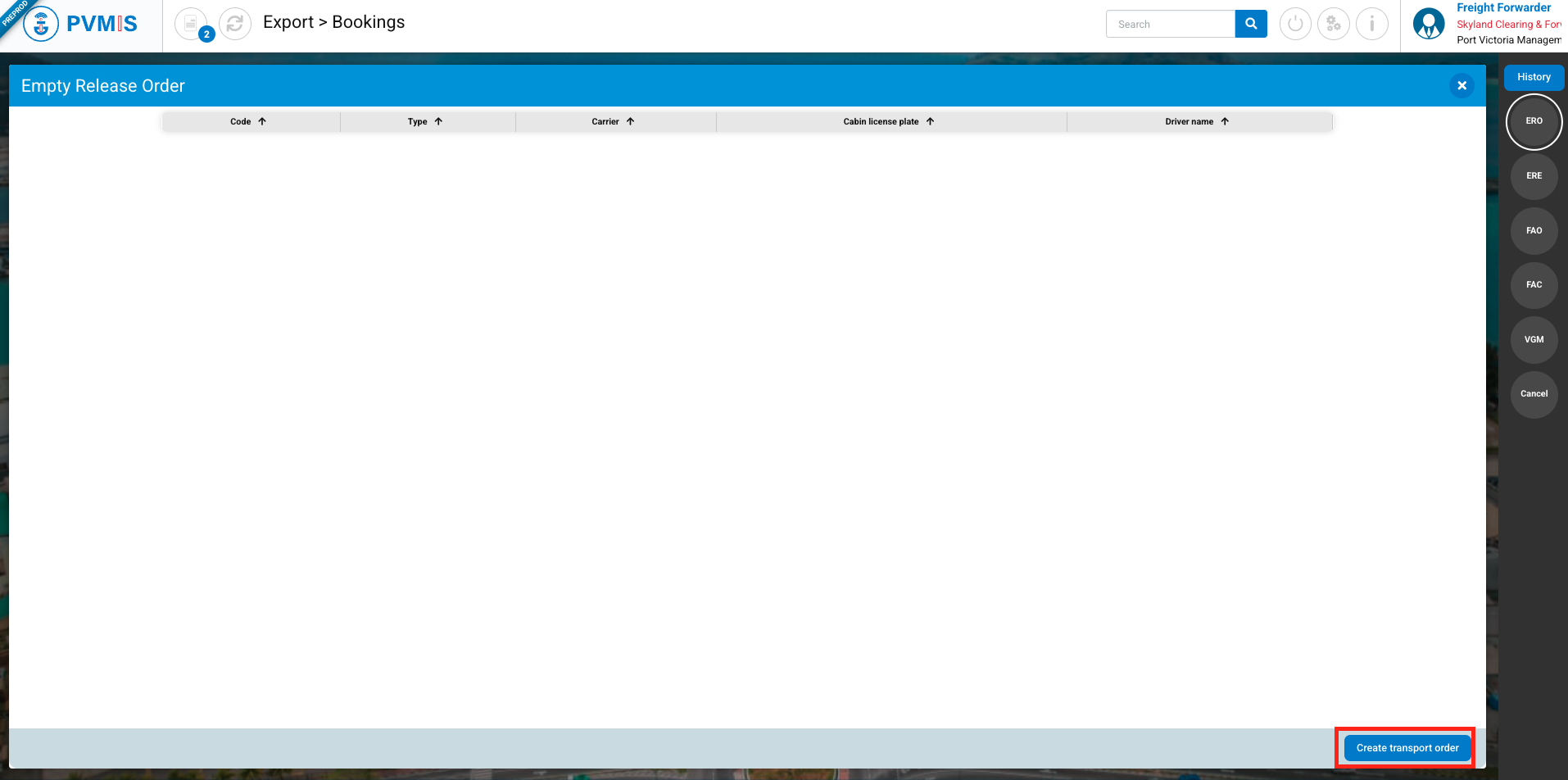
On the transport order creation form, the type of the transport order is prefiled and the equipment is selected (Equipments section), but you can add more by clicking on +Add button.
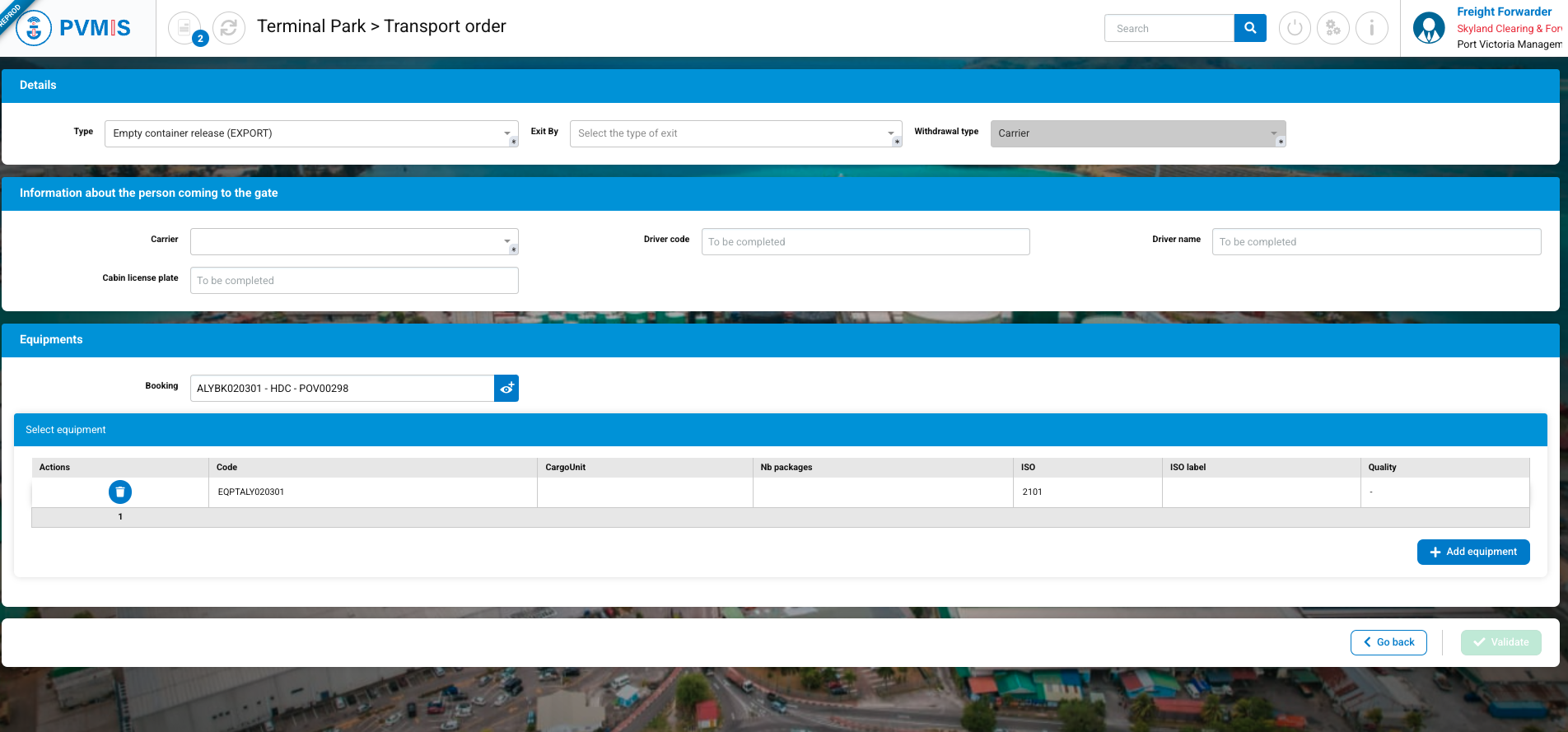
Create an Empty release order (EXPORT) transport order
If the Claimant accessed the creation form from the Transport Order menu, they will then need to complete the “Type” field and select the Cargo Units they wish to include in the same transport order.
If the user accessed the creation form from the ERO status of a booking or an equipement, then the Type field and the Cargo Unit section will be pre-filled. However, they can add additional equipments for the same transport order.
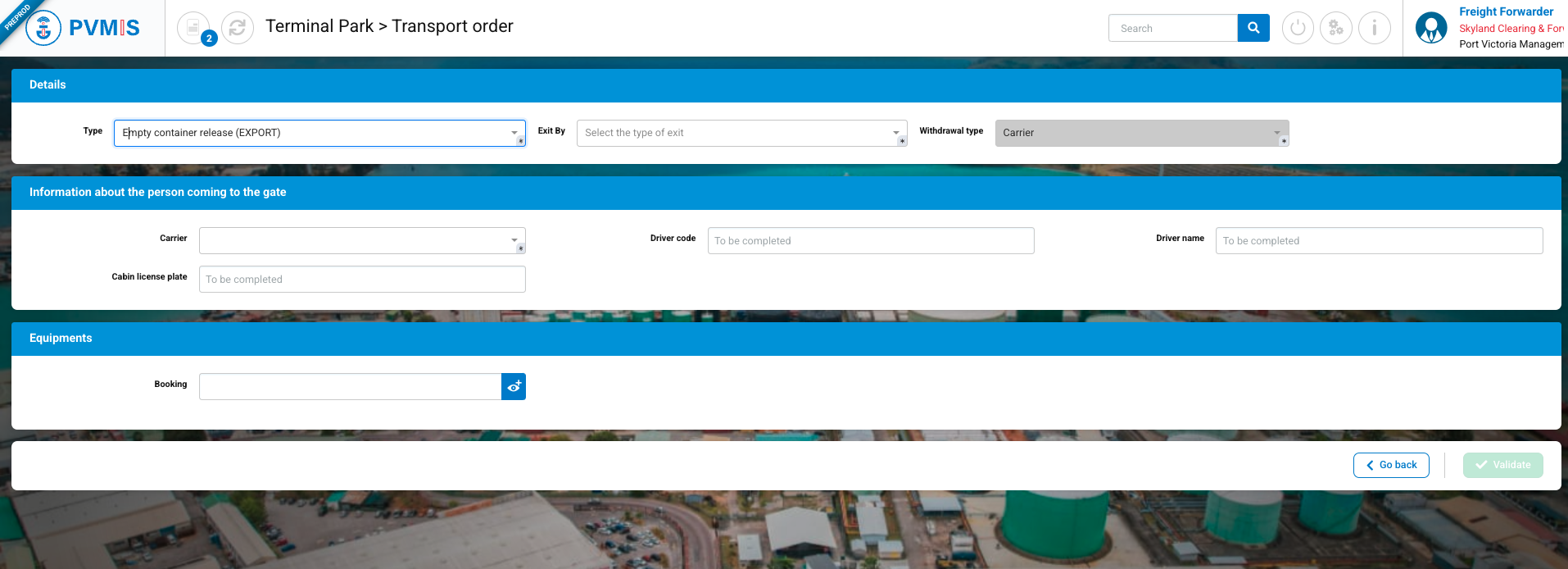
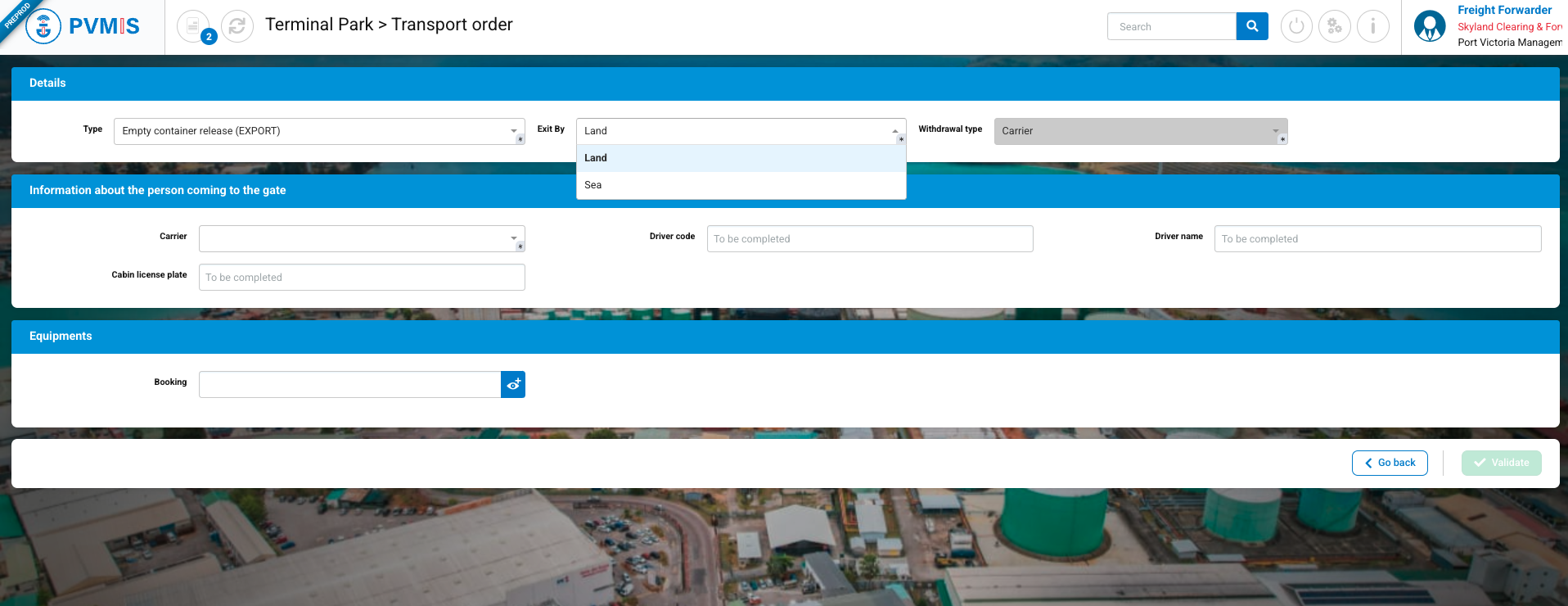
For this documentation, we will illustrate the case of creation from the Transport Order menu. On the form, after selecting the Empty release order (EXPORT) type, the mandatory "Exit by" field will be displayed. It is possible that the equipement need to be delivered to Mahé (Land value) or to neighboring islands (Sea value).
As a Claimant, to validate the transport order creation form, it is mandatory to complete all the fields in the Details section, enter a transport company in the Carrier field in the Information about the person coming to the gate section, and add at least one equipment.
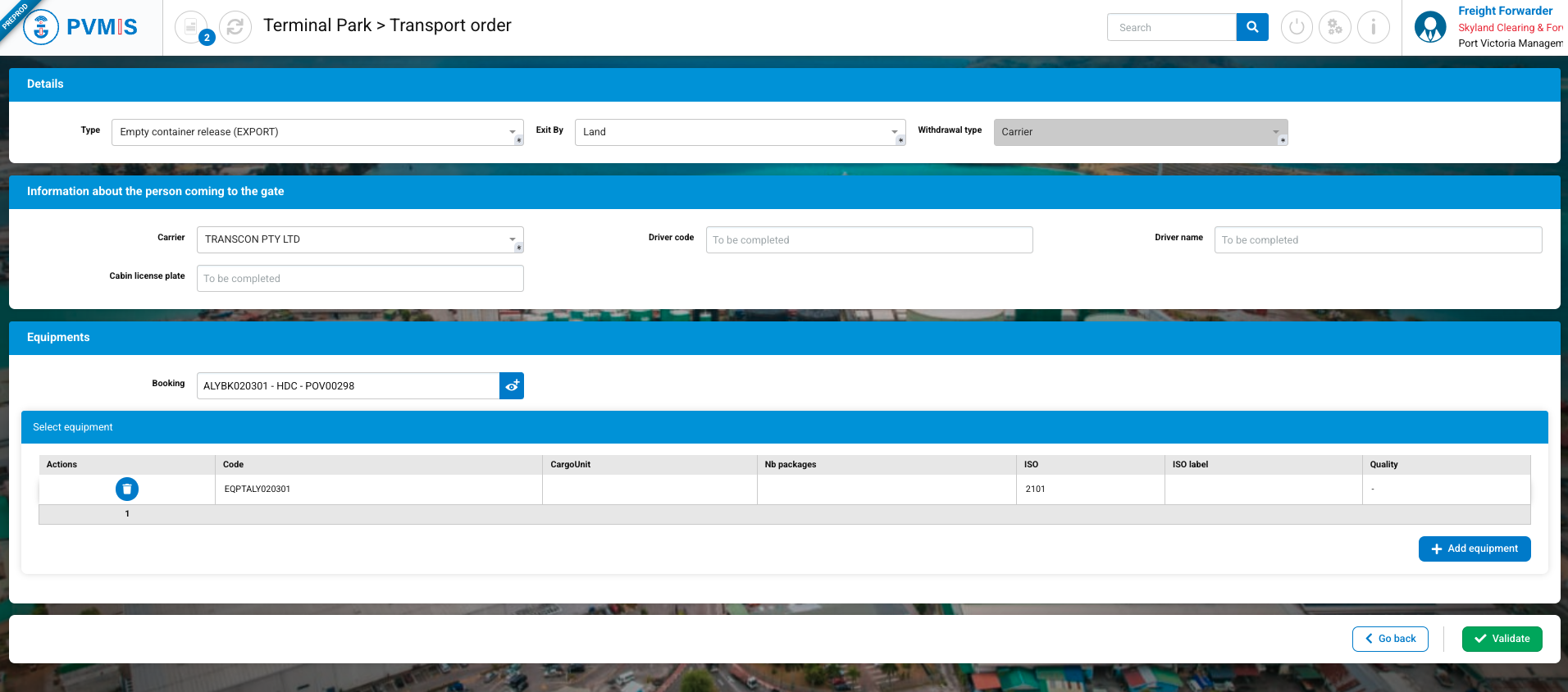
If the Claimant already knows the information of their transport company, we recommend completing all the fields in the associated section. If they do not have this information, it is the Carrier role, belonging to the transport company named on the transport order, that must complete at least the Driver code, Driver name, and Cabin license plate fields for the mission order to be valid (Agreement status).
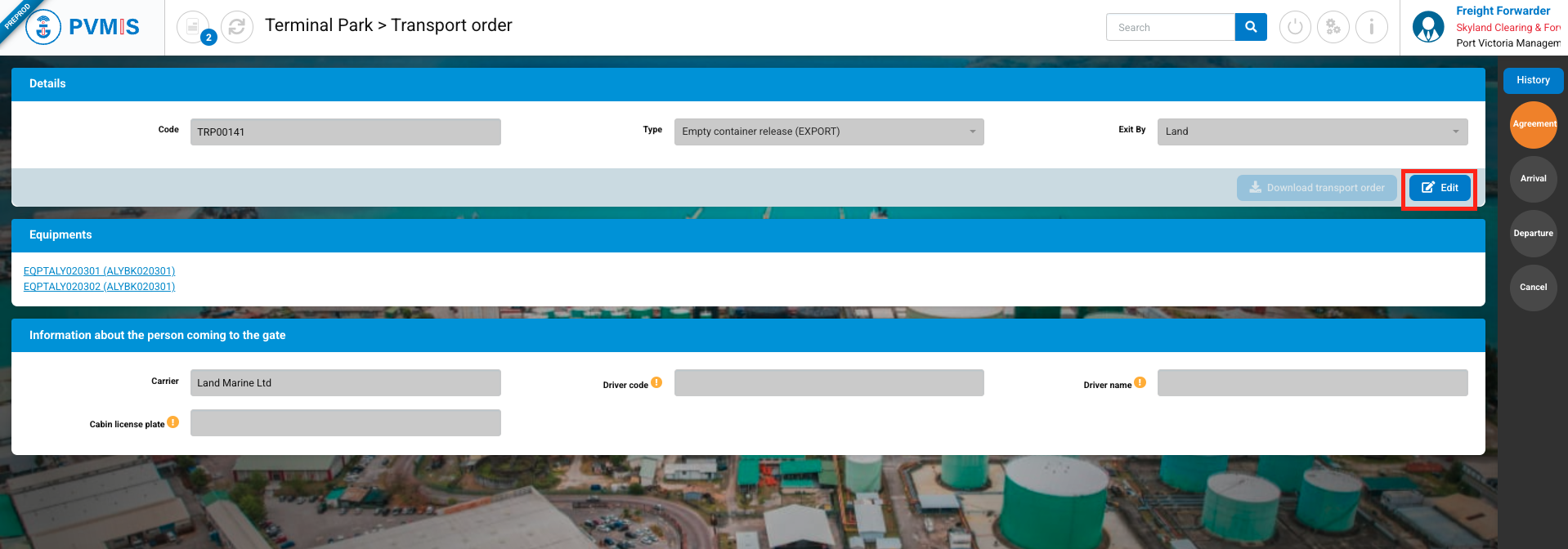
The Claimant also has the option to add this information after creating the transport order by accessing the order editing form from the transport order list screen. This can be done by clicking the Complete button on the corresponding order line or from the transport order details screen by clicking the Edit button.
If the Driver code, Driver name, and Cabin license plate information has been completed by the claimant or the carrier, and a gate operator has declared the transporter's arrival (Arrival status in YES or PARTIAL state on the transport order), then neither role will be able to modify these details.
After clicking the Validate button, the transport order will obtain the Agreement status in the YES state if the transporter's information has been provided (Driver name, Driver code, and Cabin license plate).
If the transport order is not valid, neither the claimant nor the carrier will be able to download the mission order in PDF format.
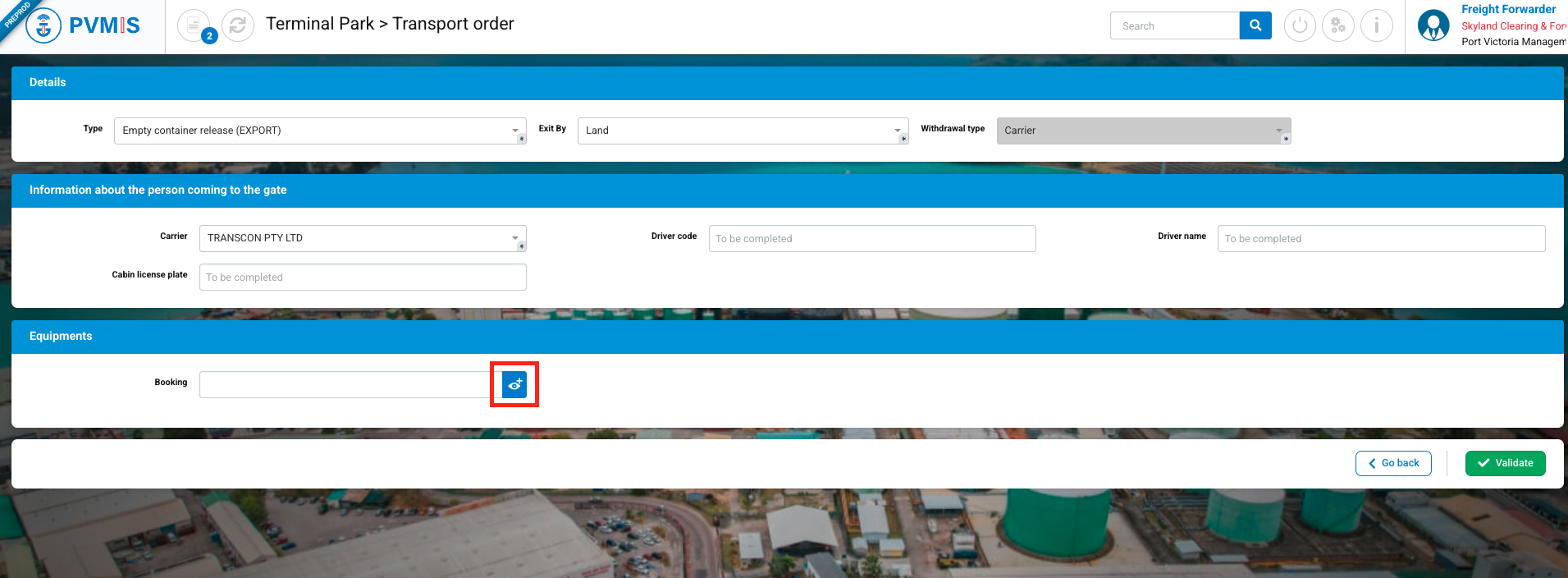
To add a piece of equipment, you must first specify the booking by manually entering the booking code or clicking on the icon to search in the list:
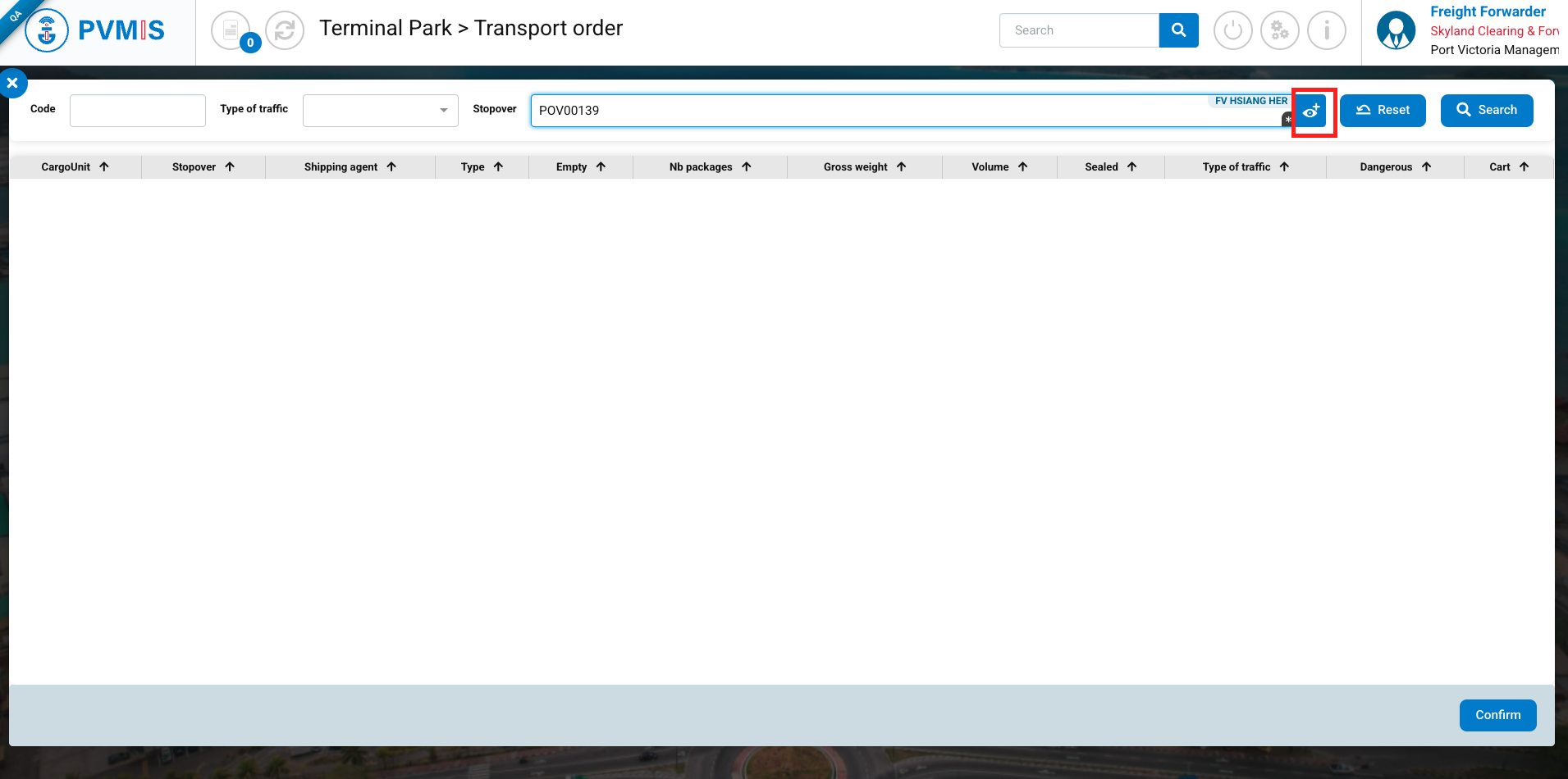
To select cargo unit, make a research relating to the stopover entering the stopover code (POVXXXXX) or click on eye icon to display the list of the stopover.
Or you can directly click on Search to see the list of all Cargo Units, regardless of the stopover.
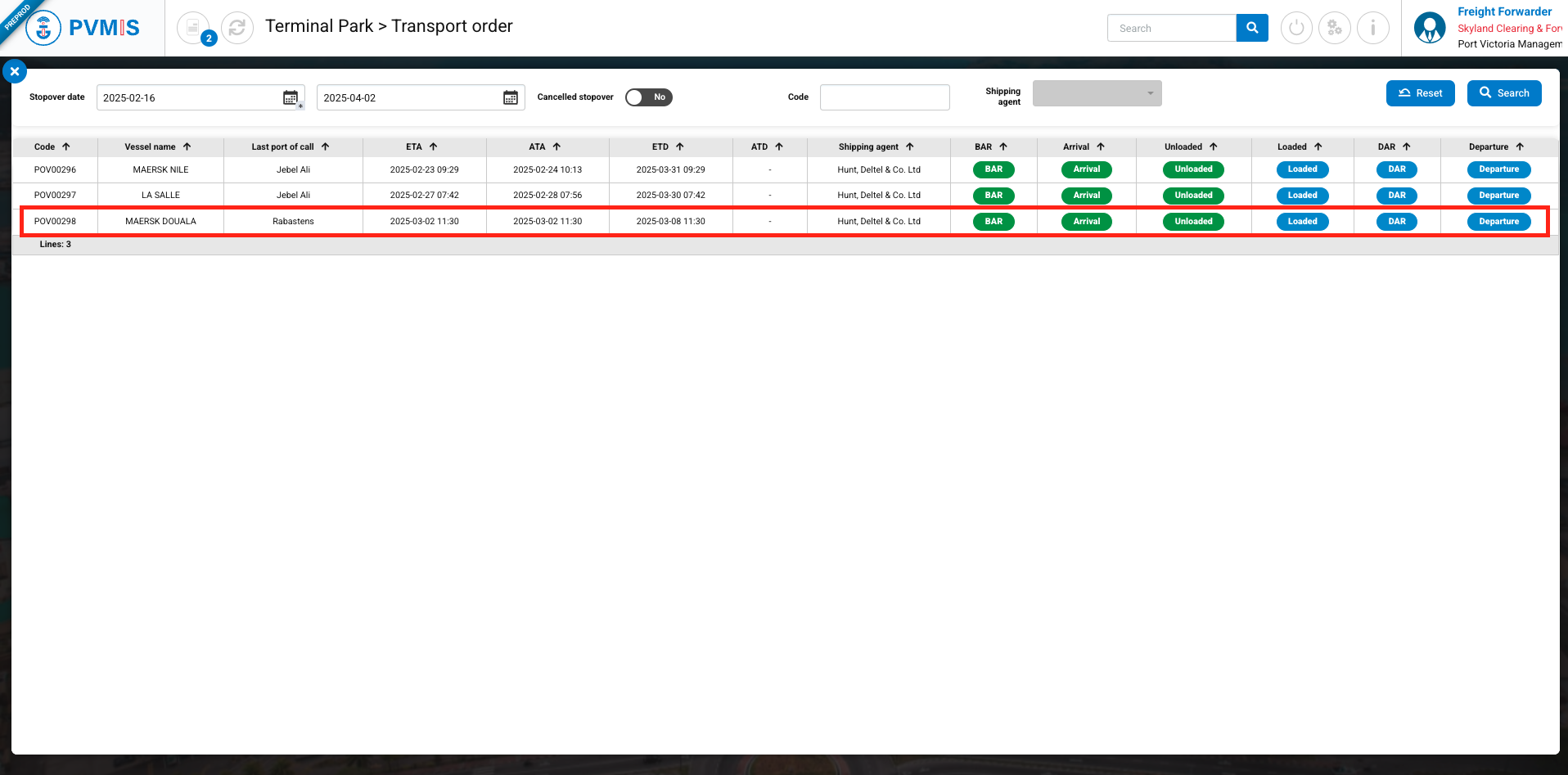
By clicking on the icon to search for a stopover, the list of stopovers will be displayed. Click on the line of the stopover to which the Cargo Units you wish to add to your transport order are associated.
Then, click on Search button:
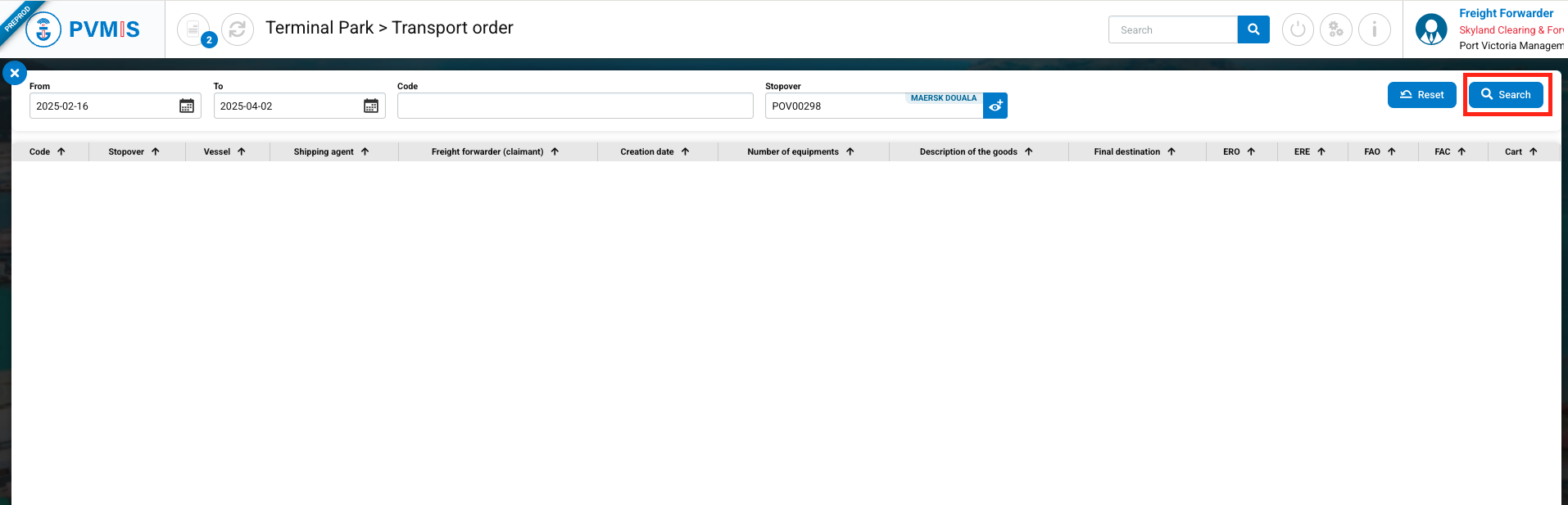
The list of Bookings associated with this stopover, where the claimant is named on the associated Booking, will appear. Select the booking by clicking on the associated line:
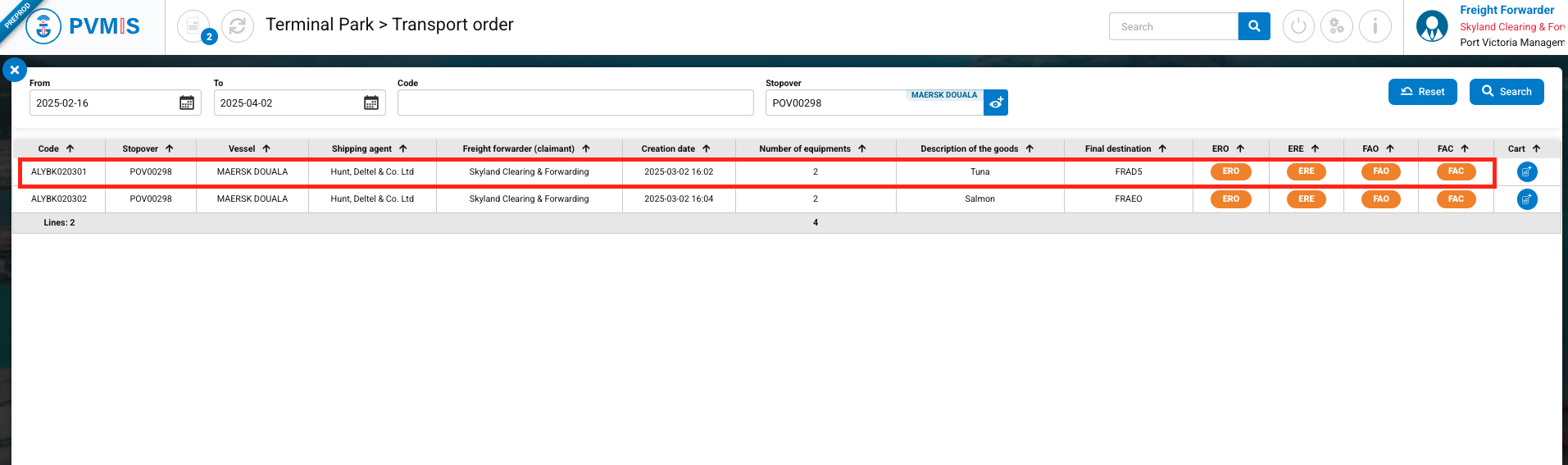
You can now add equipment by clicking on the +Add Equipment button:
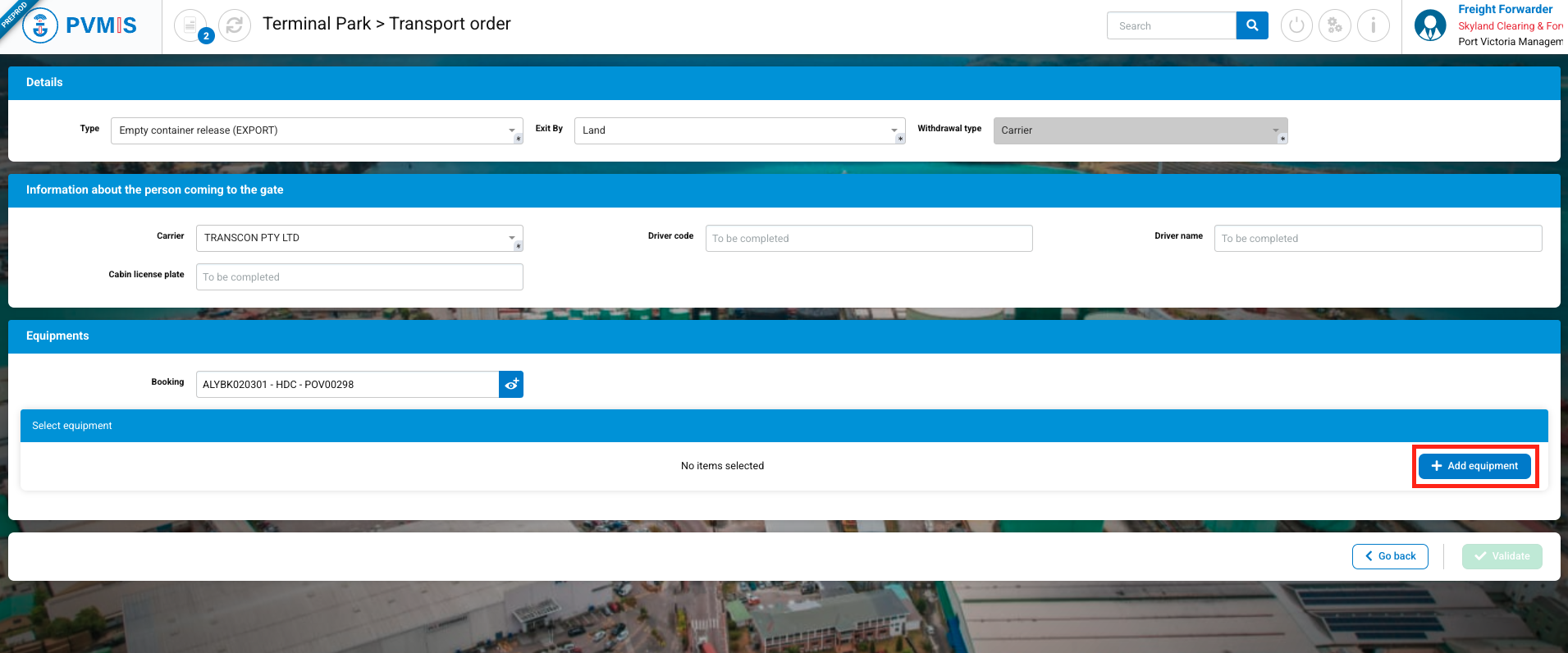
Click on the Search button:
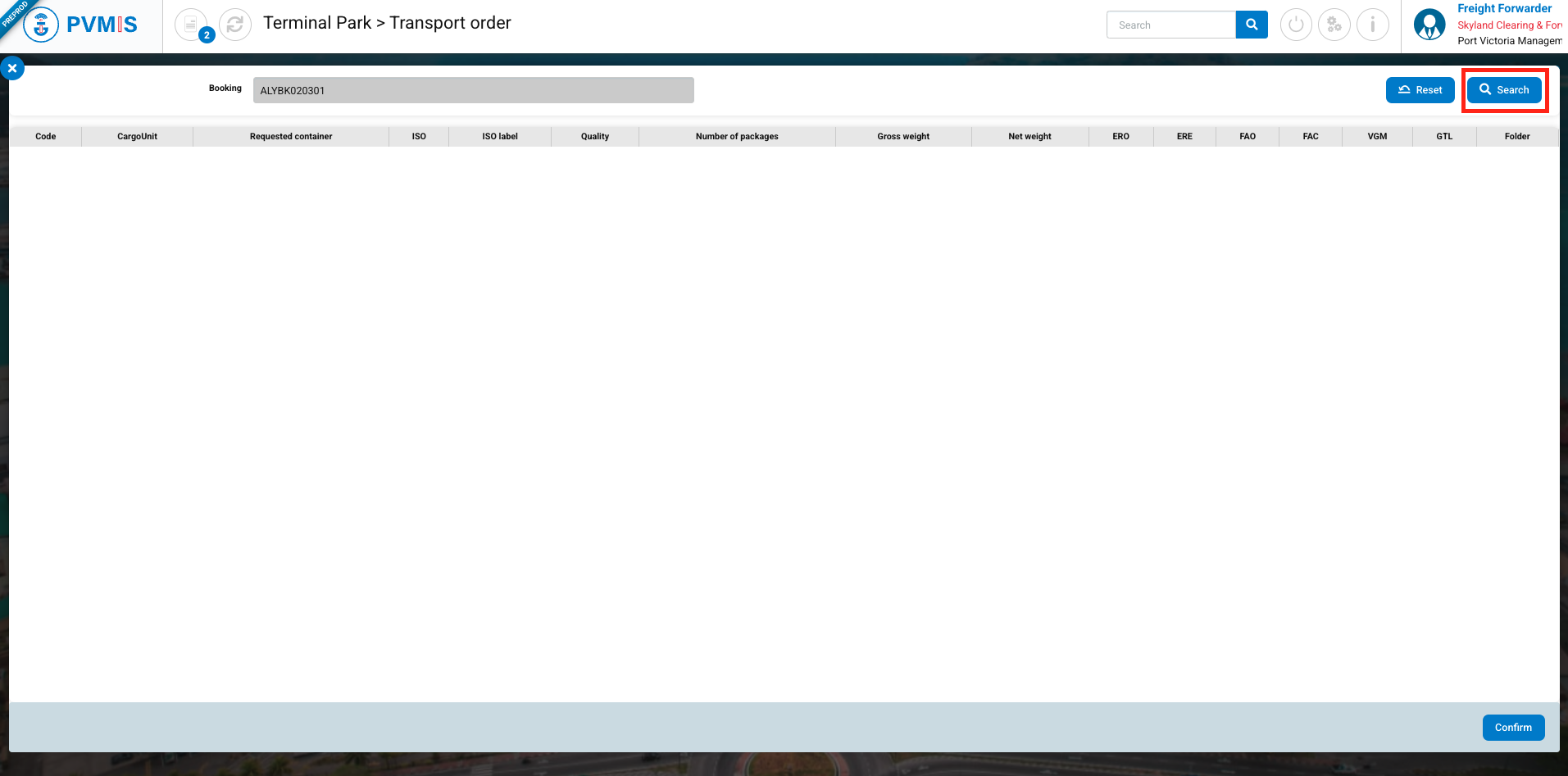
The list of booking equipment is displayed. To select the equipment, click on the corresponding lines and then click on the Confirm button:
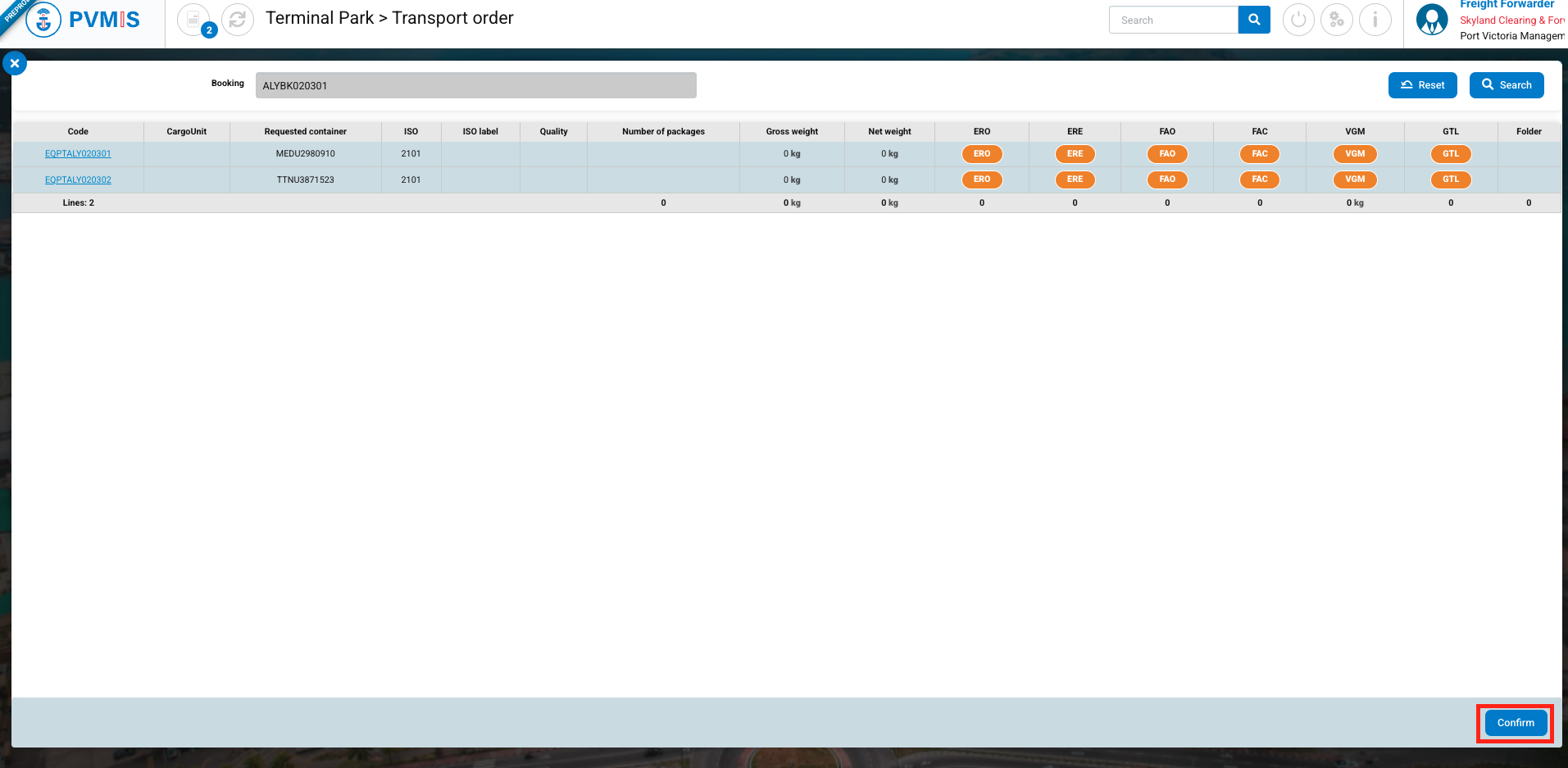
The equipments(s) is/are include in the transport order, now you can click on Validate button:
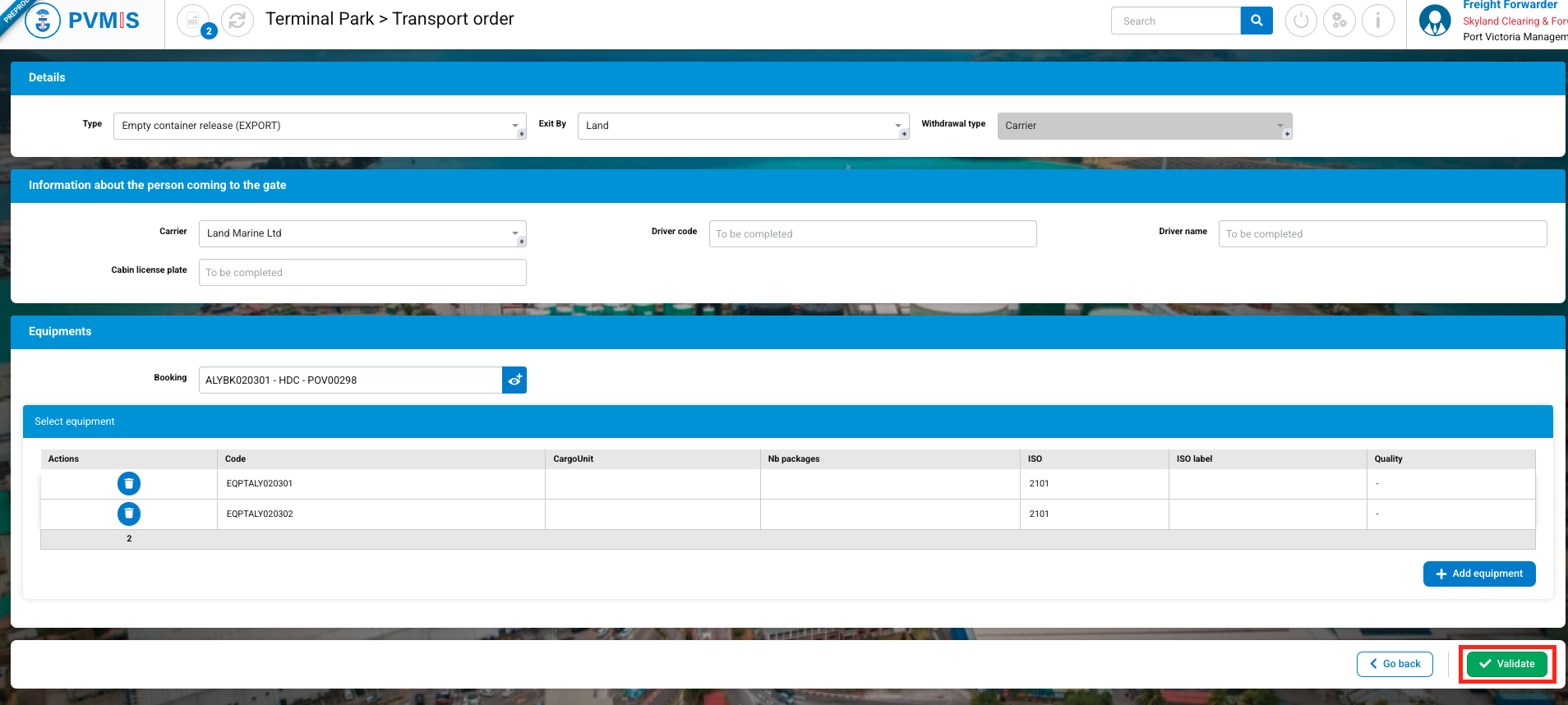
The Empty release order (EXPORT) transport related to the ERO status is created for each equipment.
By selecting a transport company on your transport order, upon validation of the creation, a notification email will be sent to users with the Carrier role associated with the company. This email will inform them that they have been named as the transport company and that they need to provide the required information.
After creating the transport order, if the Claimant has not filled in the Driver code, Driver name, and Cabin license plate fields, they will not be able to generate the mission order in PDF (the Download transport order button will be disabled), the mission order will not be validated (the Agreement status will remain in NO state), and if the transporter arrives at the gate without their mission order generated, and the gate operator sees that the transport order is not valid, the transporter will not be allowed to enter, and the arrival will not be declared (Arrival status).
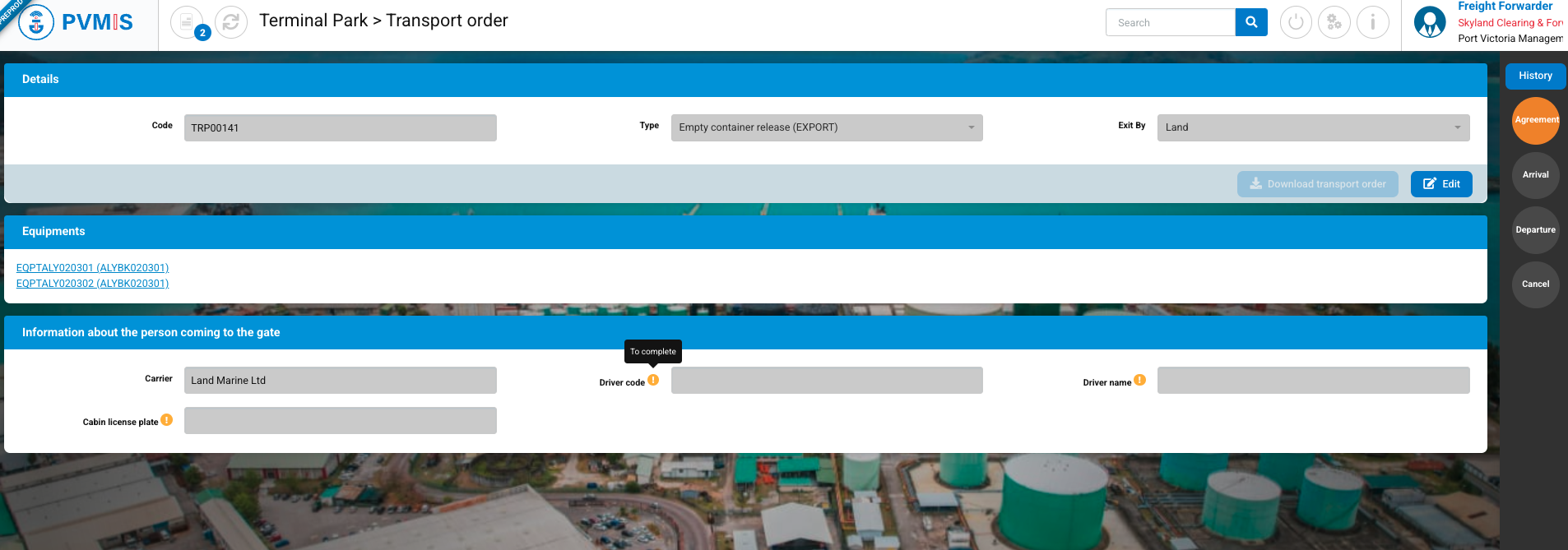
It is important to note that if the Claimant or Carrier has completed the transporter's information but the Agreement status is not in the YES state and they cannot download the mission order PDF.
In the other case, if the carrier's information has been completed and all the added Cargo Units are authorized to exit, the Agreement status will change to YES, and the mission order will be downloadable (the Download transport order button will become clickable).
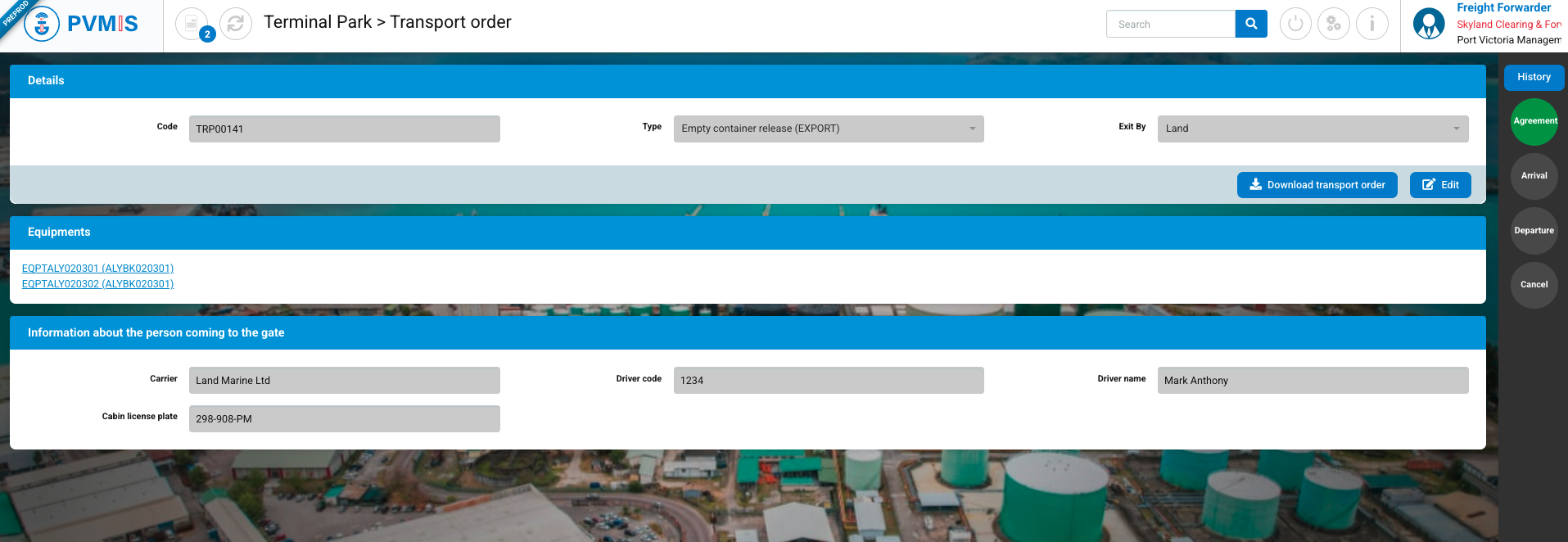
On the transport order details screen, after clicking on the link of an equipment to access its details, click on its ERO status.
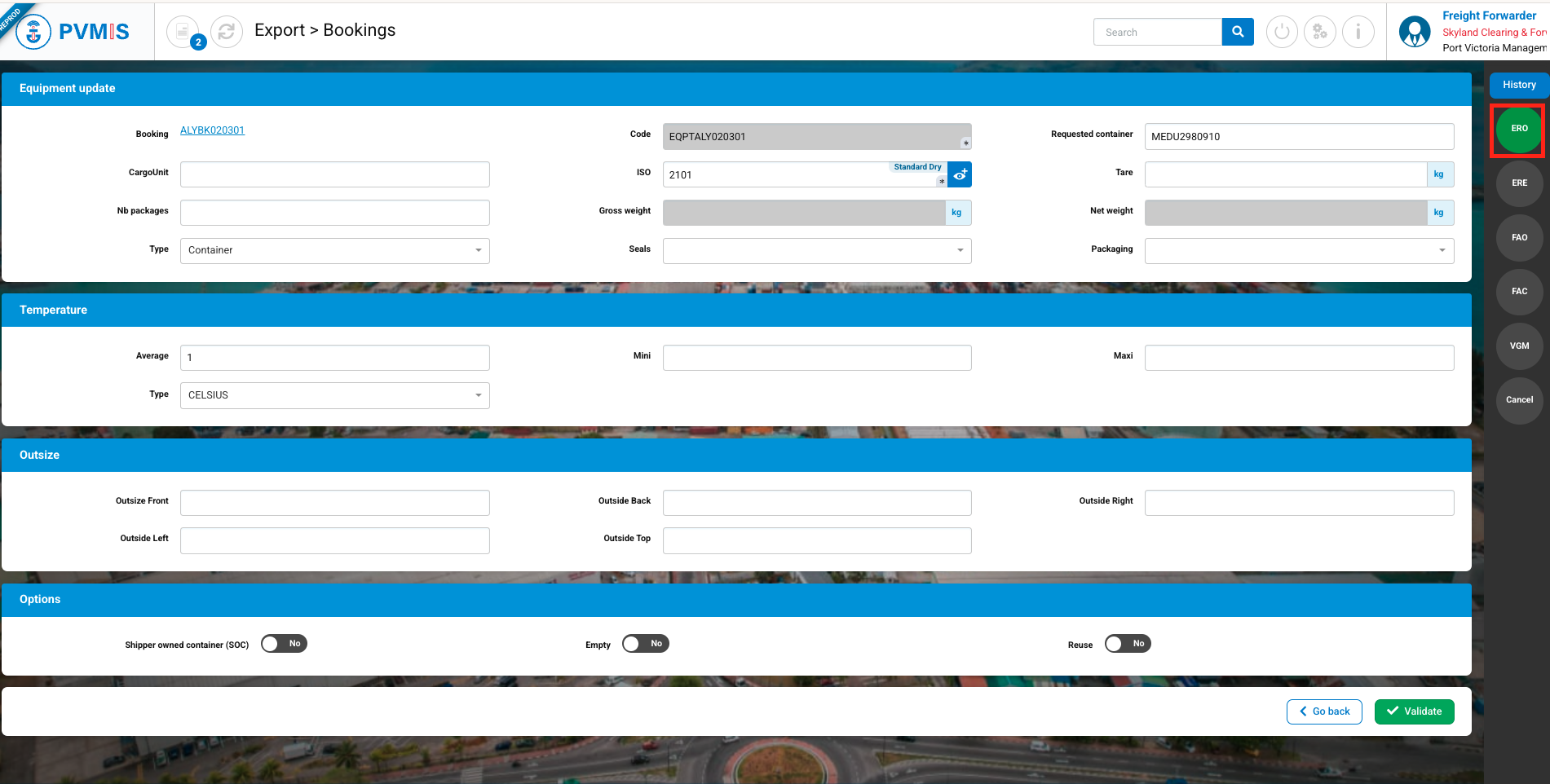
You can see the link to the associated transport order.
Edit an Empty release order (EXORT) transport order
Once the arrival declaration is made on a transport order, either by the claimant or the carrier, it is no longer possible to modify the transport order.
There are two ways to access the transport order editing form.
If the arrival declaration has not been made on your transport order, from the Transport Order menu in the Action column of the transport order list, the Complete button will be displayed, allowing you to directly access the editing form.
You can also access the editing form from the transport order details screen by clicking on the Edit button.
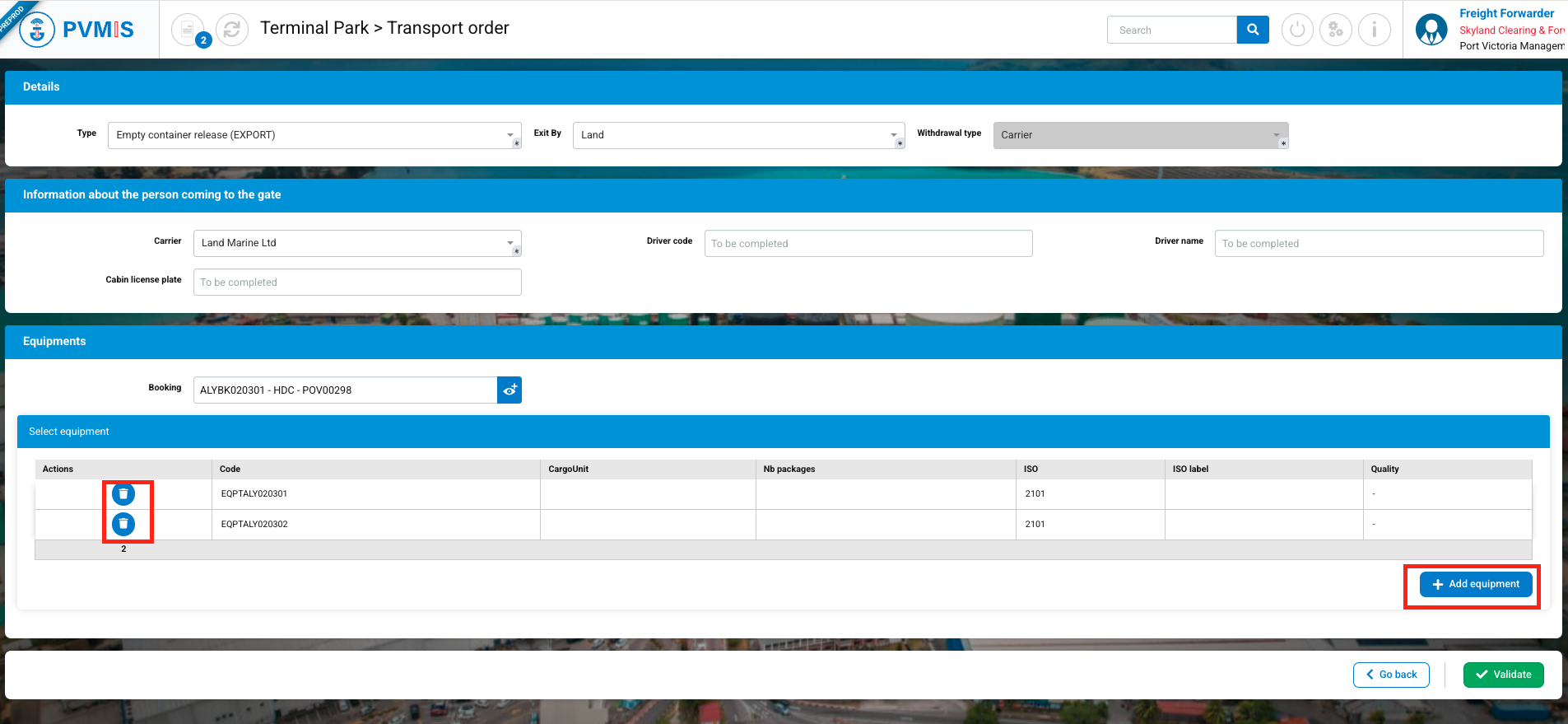
After accessing the transport order editing form, as the Claimant who created the mission order, all fields are editable. In the Equipments section, you can remove equipments by clicking the trash icon in the Actions column, or add new equipments by clicking the +Add button.
If you have obtained additional information from the transport company, you can add it. It is important to note that for the transport order to be valid (Agreement status in YES state), the three fields Driver code, Driver name, and Cabin license plate must be pre-filled. If the user enters only one or two of the three fields, after validating the changes, the transport order will still not be valid.
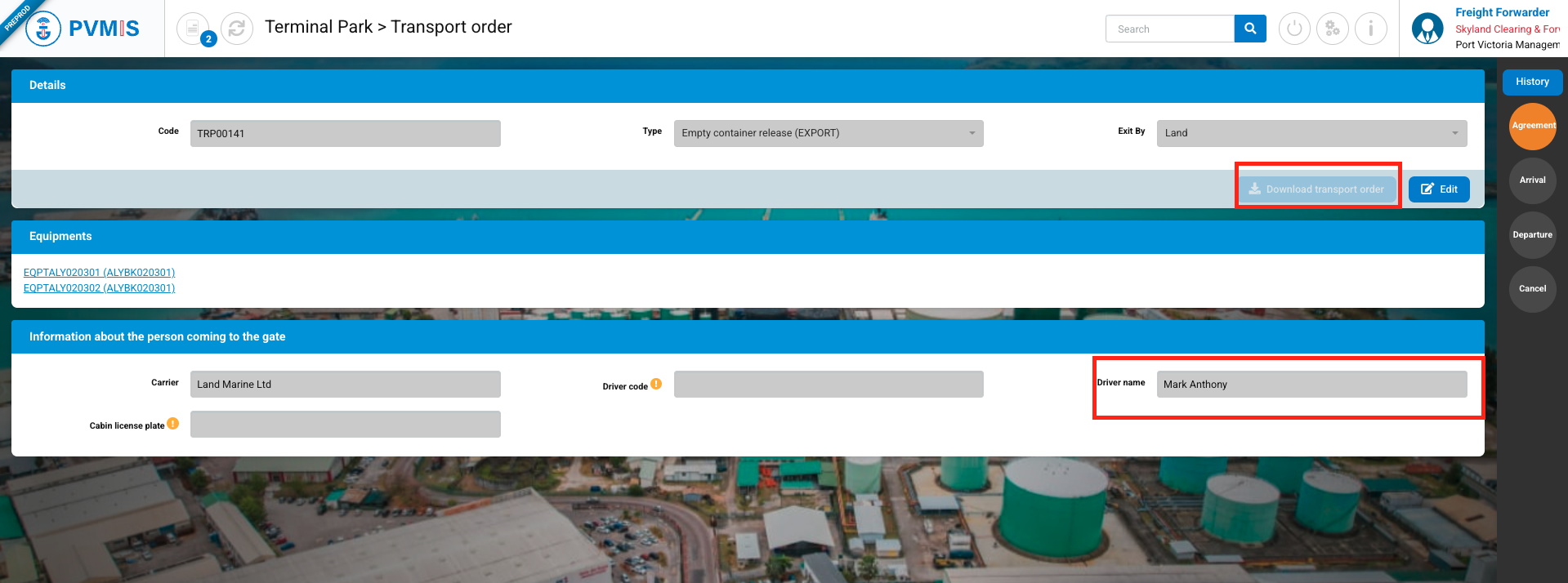
However, if you complete all three fields, the Agreement status will change to YES, and you will be able to download the mission order in PDF.
Cancel an Empty release order (EXPORT) transport order
As the Claimant who created the transport order, you are the only one who can cancel your transport order, and this is only possible if the arrival declaration has not been made (Arrival status in YES or PARTIAL state).
On the transport order details screen, you can access it either :
-
From the Transport Order list menu,
-
From the ERO status of one of the Cargo Units included by clicking on the transport order link,
-
or by entering the transport order code in the search bar at the top of your screen.
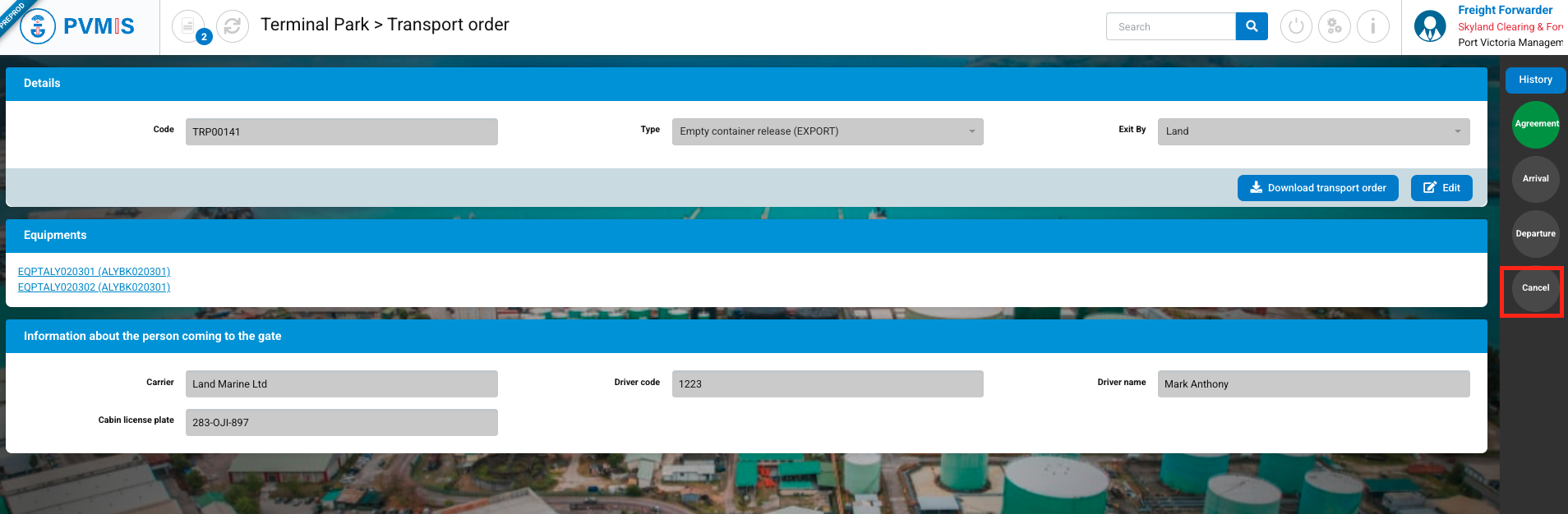
On the transport order details screen, click on Cancel status:
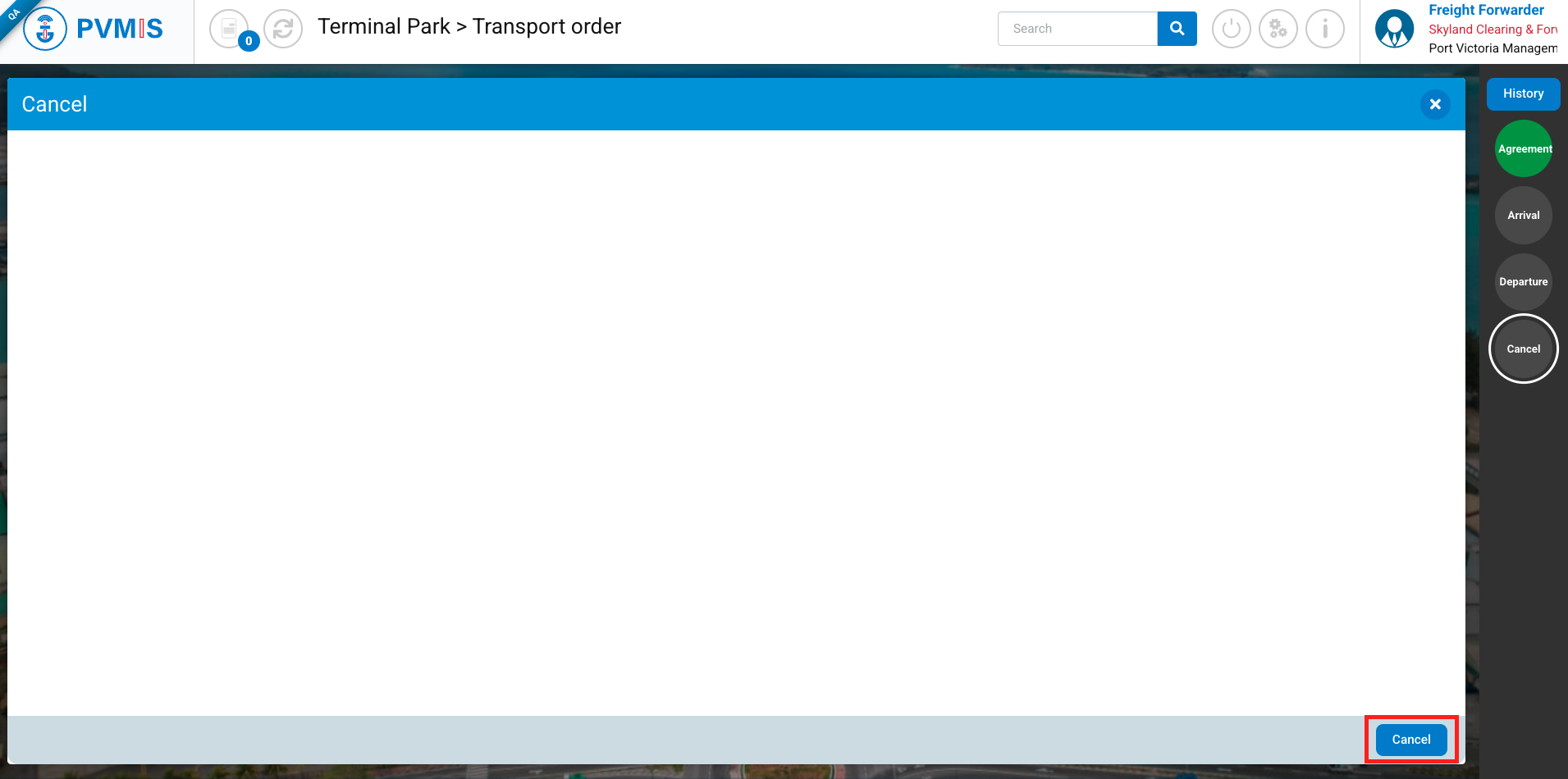
Click on the Cancel button :
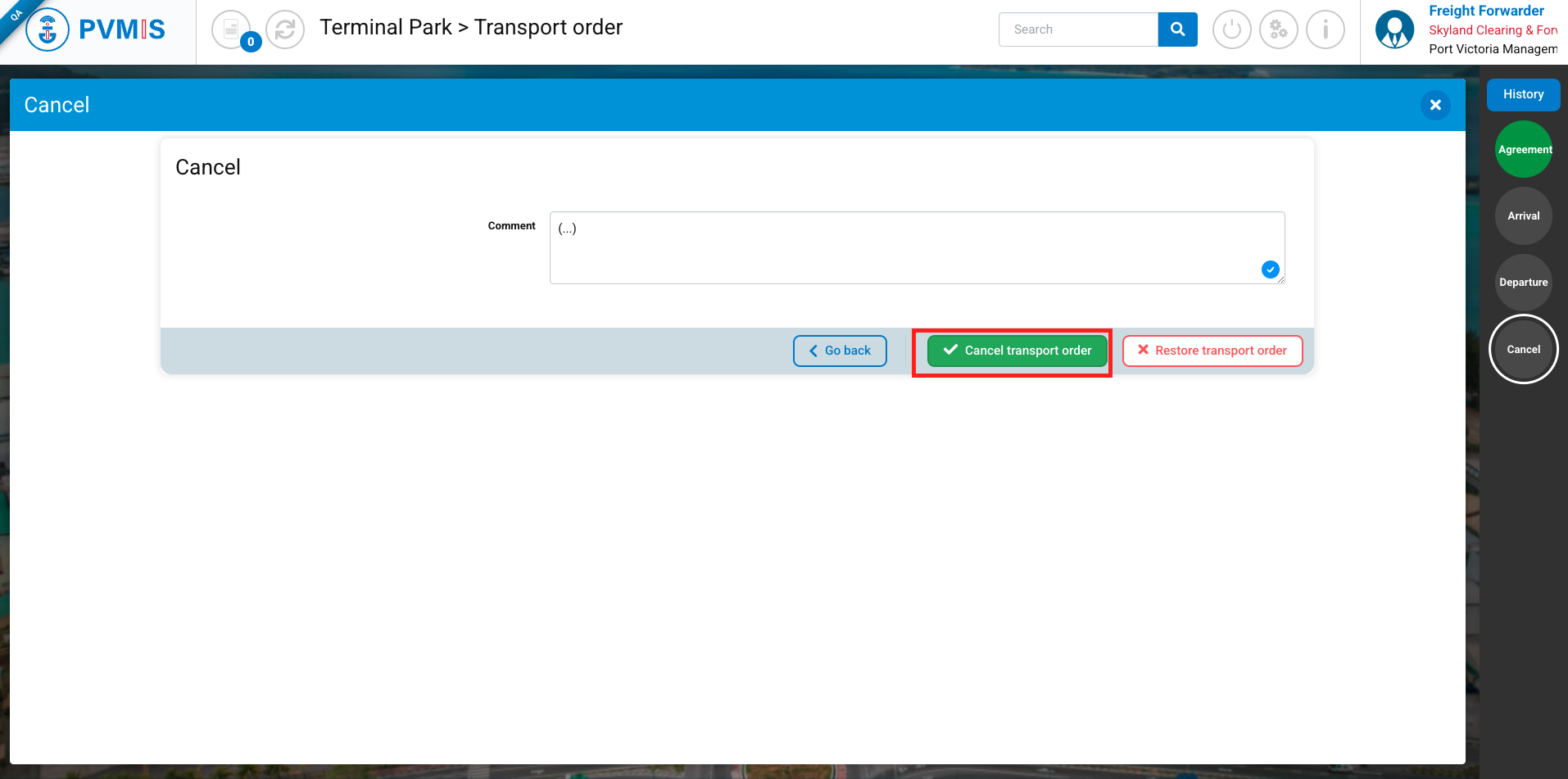
On the cancellation form, you can enter an optional comment and then click the Cancel transport order button.
Your transport order is canceled, the Cancel status is set to YES
Once the transport order is cancelled, as a gate operator, it will not be possible to declare the transporter's arrival.
If the claimant wishes to restore their transport order, they must click again on the Cancel status in the YES state, then click on the Cancel button to access the associated form.
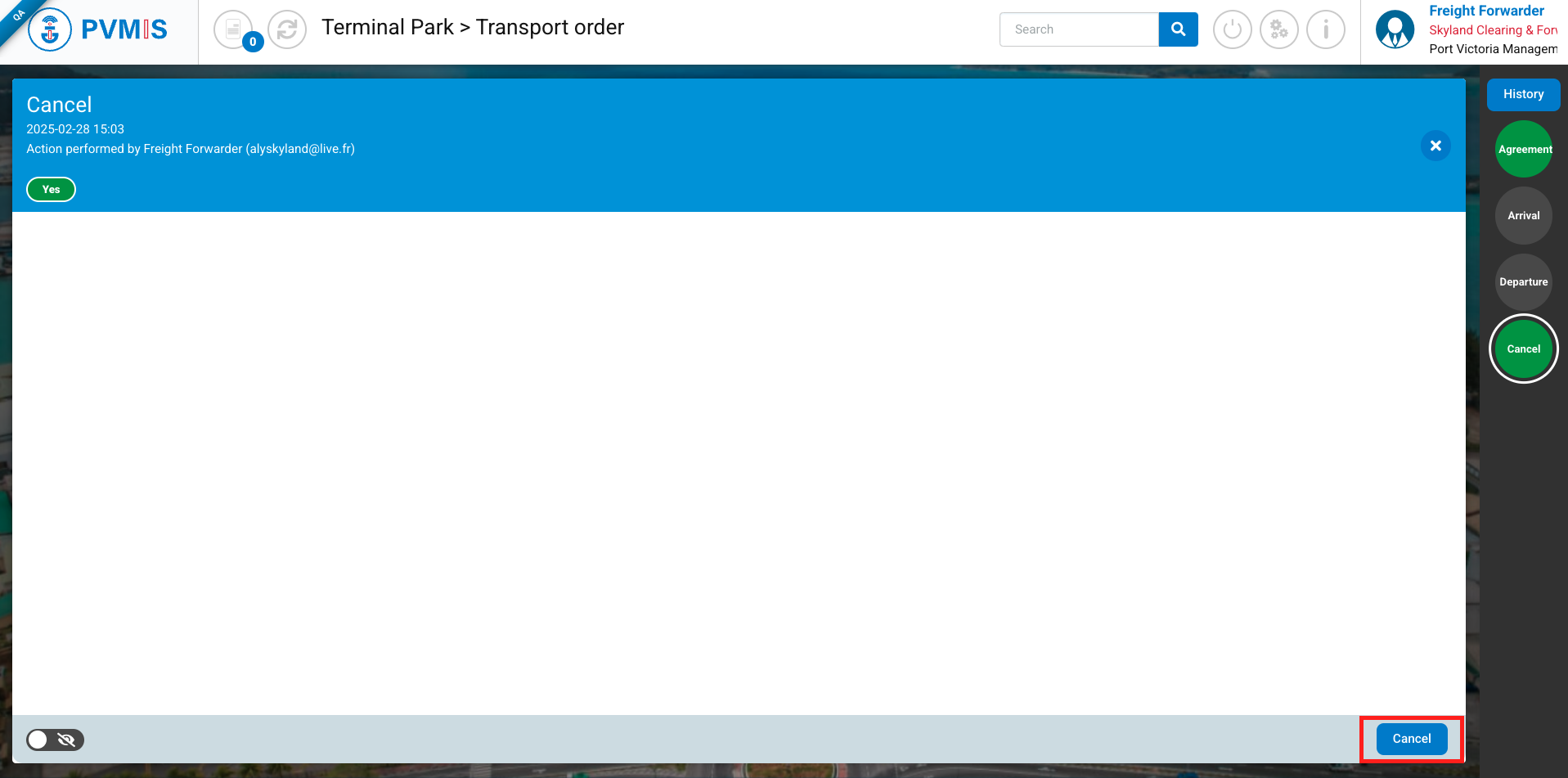
Click on the Restore transport order button:
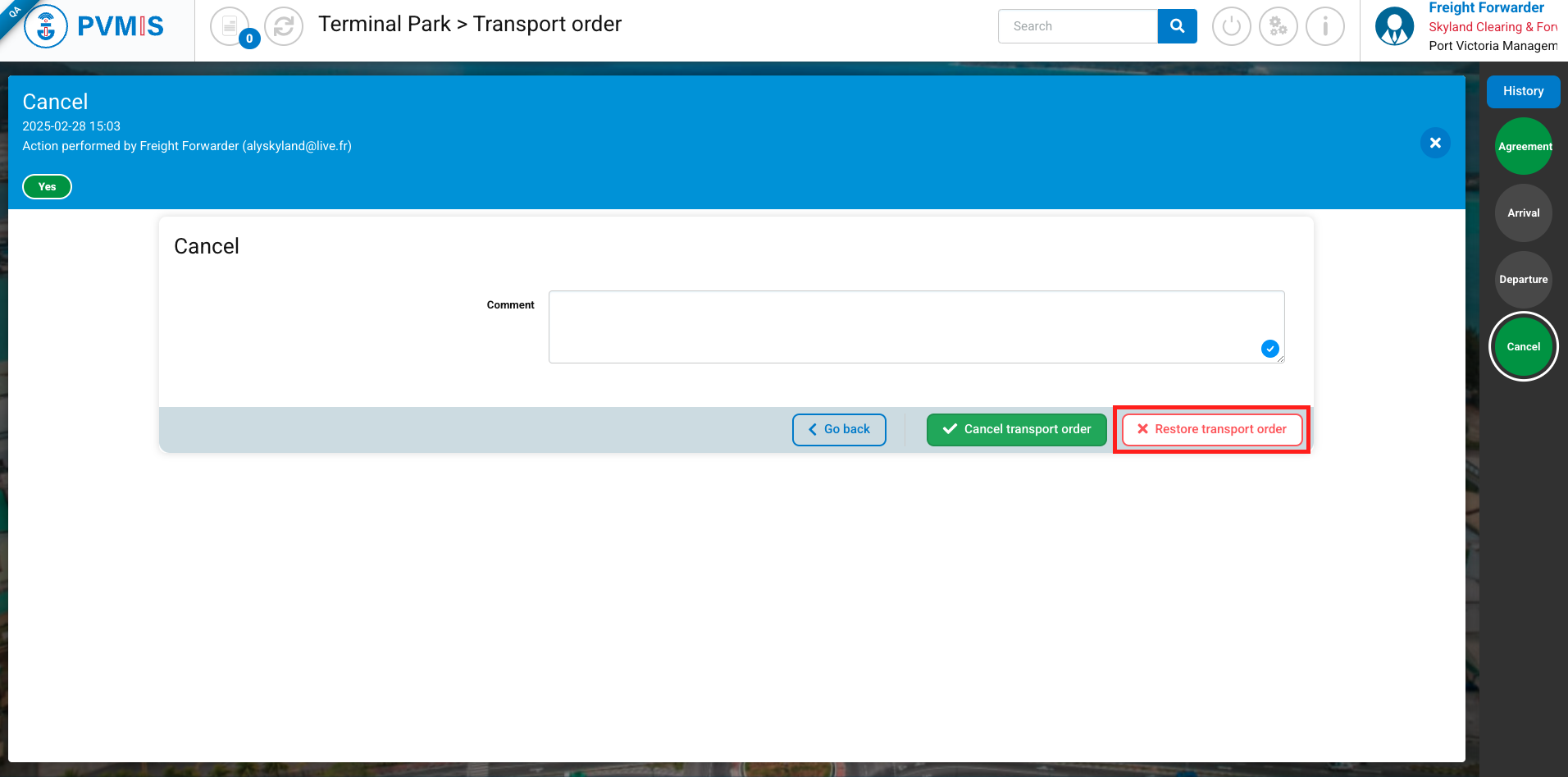
Your transport order has been restored.
Download a PDF transport order
The mission order PDF is a unique document. In the case of managing partial exits or entries of Cargo Units, the document presented at the gate must be the same for each round trip of Cargo Unit exit or empty container entry.
The management of partial exits and entries of Cargo Units in the terminal in PVMIS refers to the handling of movements Cargo units or equipment that are not fully exited or entered from a terminal at once. This concerns situations where only a part of the Cargo unit or empty container is removed or returned to the terminal, while keeping the remaining portion in the terminal.
There are different types of partial entry or exit management, which are handled by the Gate operator role during the arrival (Arrival status) or departure (Departure status) declaration, depending on the type of transport order :
-
For a transport order of the type Full Container Acceptance (IMPORT) for a single Cargo Unit, on the departure declaration form, the Gate Operator can indicate that only 10 out of 100 packages have been exited from the terminal.
-
For a transport order of the type Full Container Acceptance (IMPORT) for multiple Cargo Units, on the departure declaration form, the Gate Operator can indicate that only 1 out of 3 Cargo Units has exited the terminal. They can also indicate the partial exit of packages from the Cargo Units.
-
For a transport order of the type Full Container Acceptance (IMPORT) for multiple bundles, on the departure declaration form, the Gate Operator can indicate that only 1 out of 3 bundles has exited the terminal.
-
For a transport order of the type Empty Container Acceptance (IMPORT) for multiple empty containers, on the arrival declaration form, the Gate Operator can indicate that only 1 out of 3 empty containers has been returned to the terminal.
-
For a transport order of the type Empty Container Release (EXPORT) for multiple empty units (containers), on the departure declaration form, the Gate Operator can indicate that only 1 out of 3 units has exited the terminal.
-
For a transport order of the type Full Container Acceptance (EXPORT) for multiple full Cargo Units, on the arrival declaration form, the Gate Operator can indicate that only 1 out of 3 Cargo Units has entered the terminal.
After obtaining the validity of the transport order following the completion of the carrier's information (and if the goods have met all their exit authorization prerequisites), click on the Download transport order button.
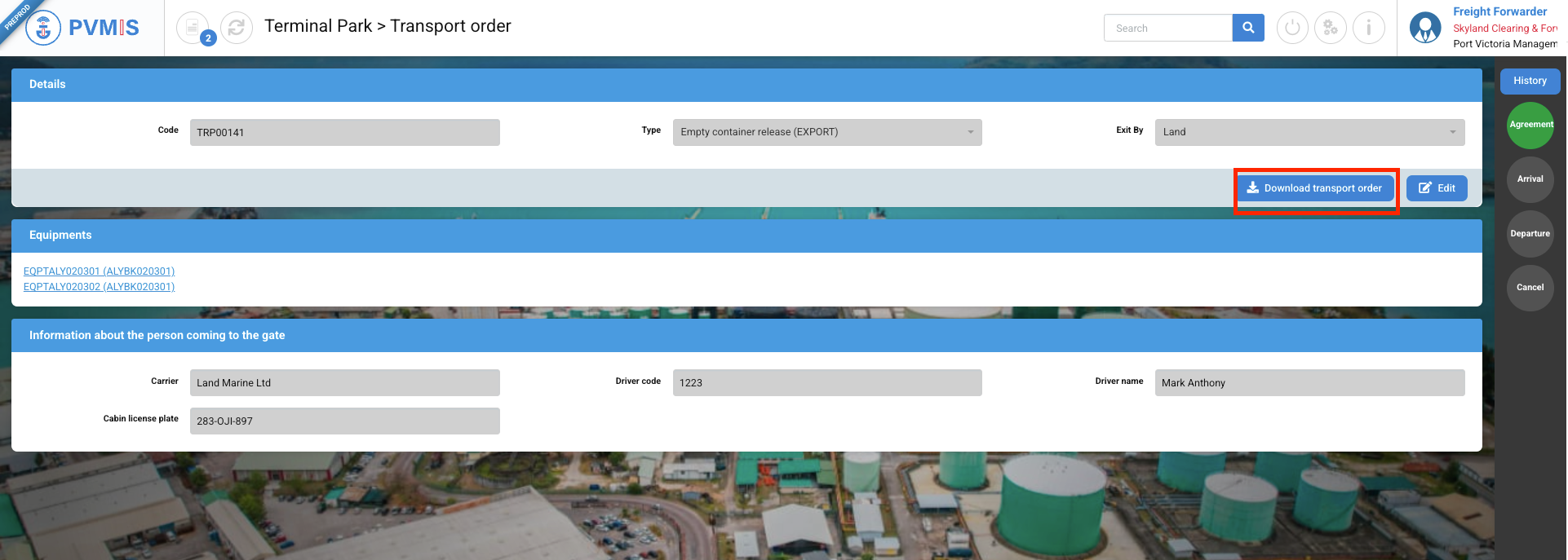
The transport order is automatically downloaded in PDF format. Check your downloads to open the file.
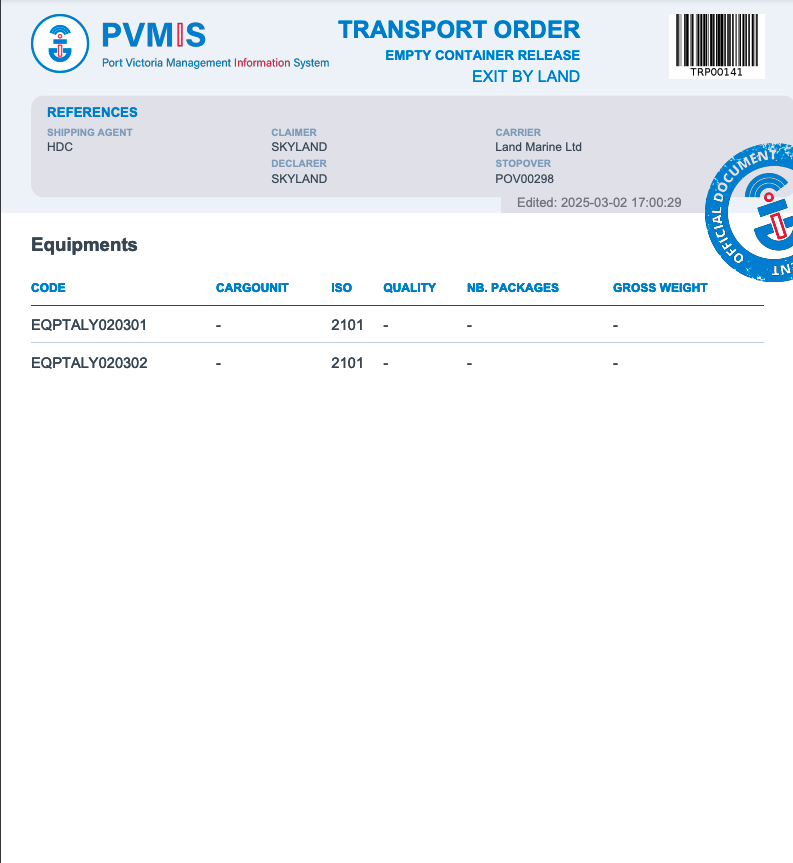
If your transport order includes multiple equipments, there will be a page for each equipment with the relevant information for each one.
Now, wait for the arrival of the carrier !